New Features

New: Say Goodbye to Sloppy AI Business Plans

The end of sloppy AI business plans is here!

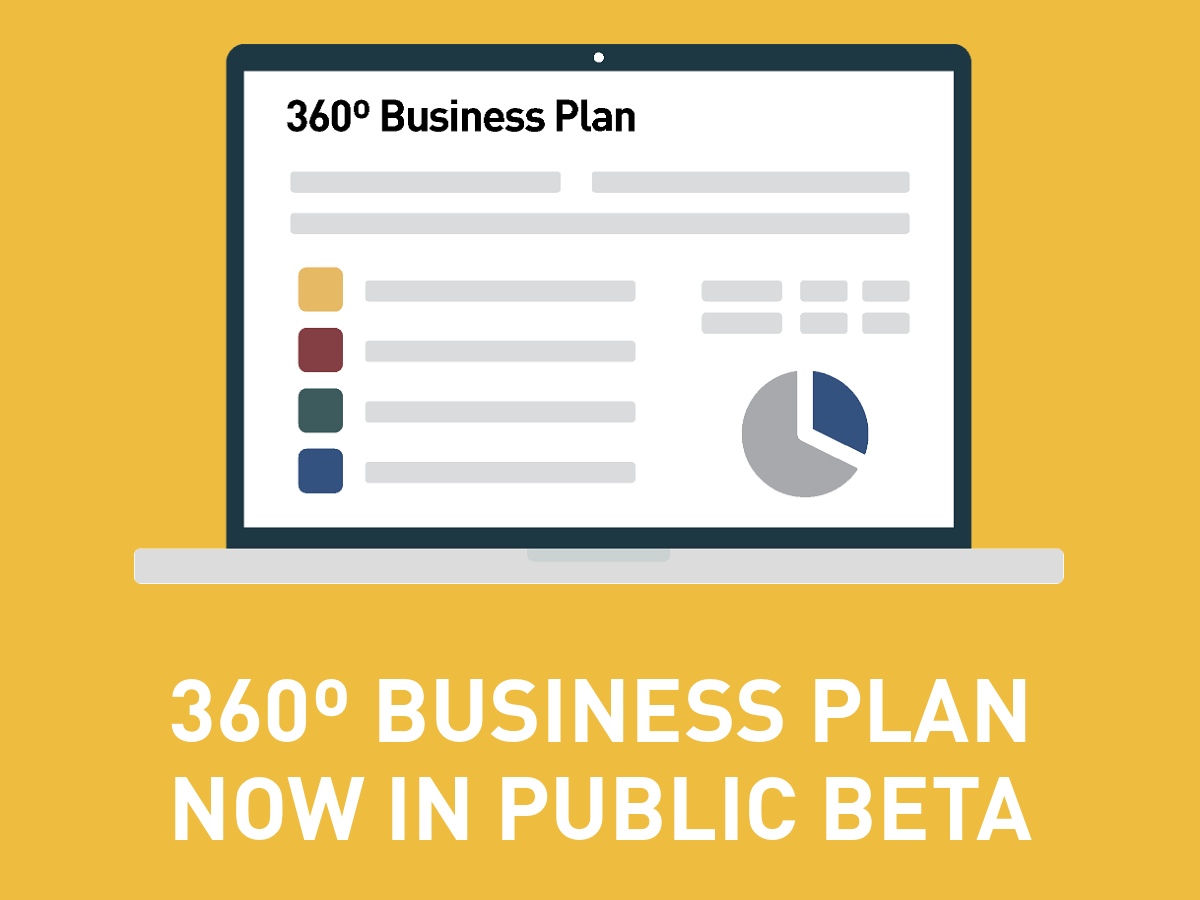
Every AI tool can write “a business plan.” Almost none of them write a good one, because a one-line prompt leaves the AI filling the gaps with generic, invented assumptions. That’s why the 360º Business Plan is now in public BETA: created by you, drafted by AI.

It starts from the real input you and your client have already built: your 360º Business Canvas, business profile, tracked ambitions, and any documents or websites you add. Better input, better output.

HOW TO USE IT:

To get started, use your completed 360º Business Canvas – or not. Add any supporting documents like financials or an old business plan, refer to external websites, and give the AI any additional instructions you have in mind.

Our 360º Business Plan is fully customizable: choose which sections to include in your final document, click Generate, and in a couple of minutes you’ll have a better first draft to work with.

If something is missing, the AI flags it and asks for it instead of inventing it.

Turn the work you are already doing in GrowthWheel into a real business plan in minutes instead of days, and give your clients a document worth actually reopening.


In this short video, Elizabeth shows you how to create a 360º Business Plan in GrowthWheel Online:


Want to try the 360º Business Plan in your own practice? Request early access and we will get you started.* If you are interested in getting a GrowthWheel license, request a quote below.

*A GrowthWheel license is required to use this feature.
New: Speak Your Client Notes Instead of Typing Them

Typing up meeting notes takes time, and it pulls your attention away from your client. That’s why GrowthWheel now lets you speak them. Speech to text is here!

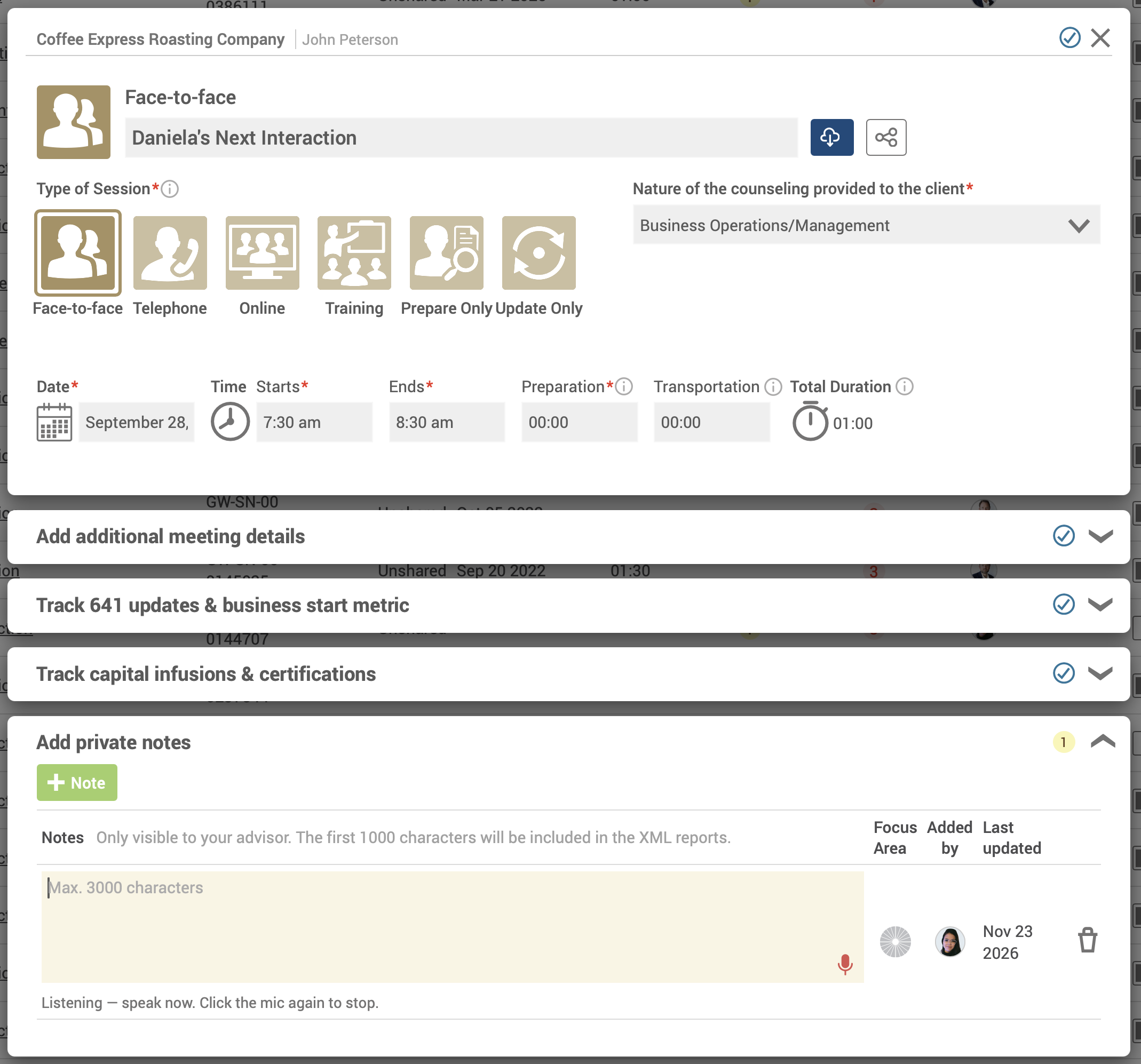
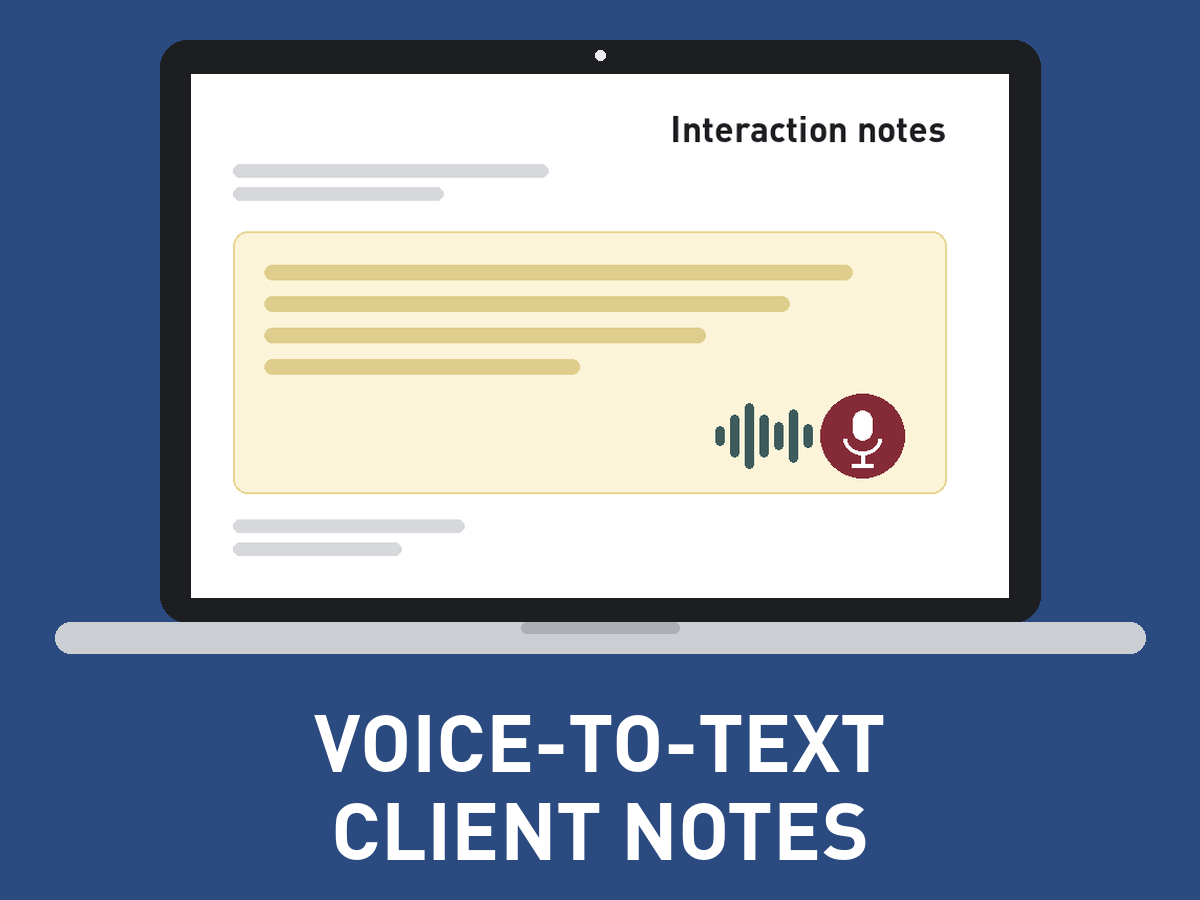
Open any client interaction, and add a private notes. Click the microphone icon in the note field and allow microphone access in your browser when asked.

Start talking and GrowthWheel Online transcribes what you say. Stop the recording and your note is saved, while the conversation is still fresh.

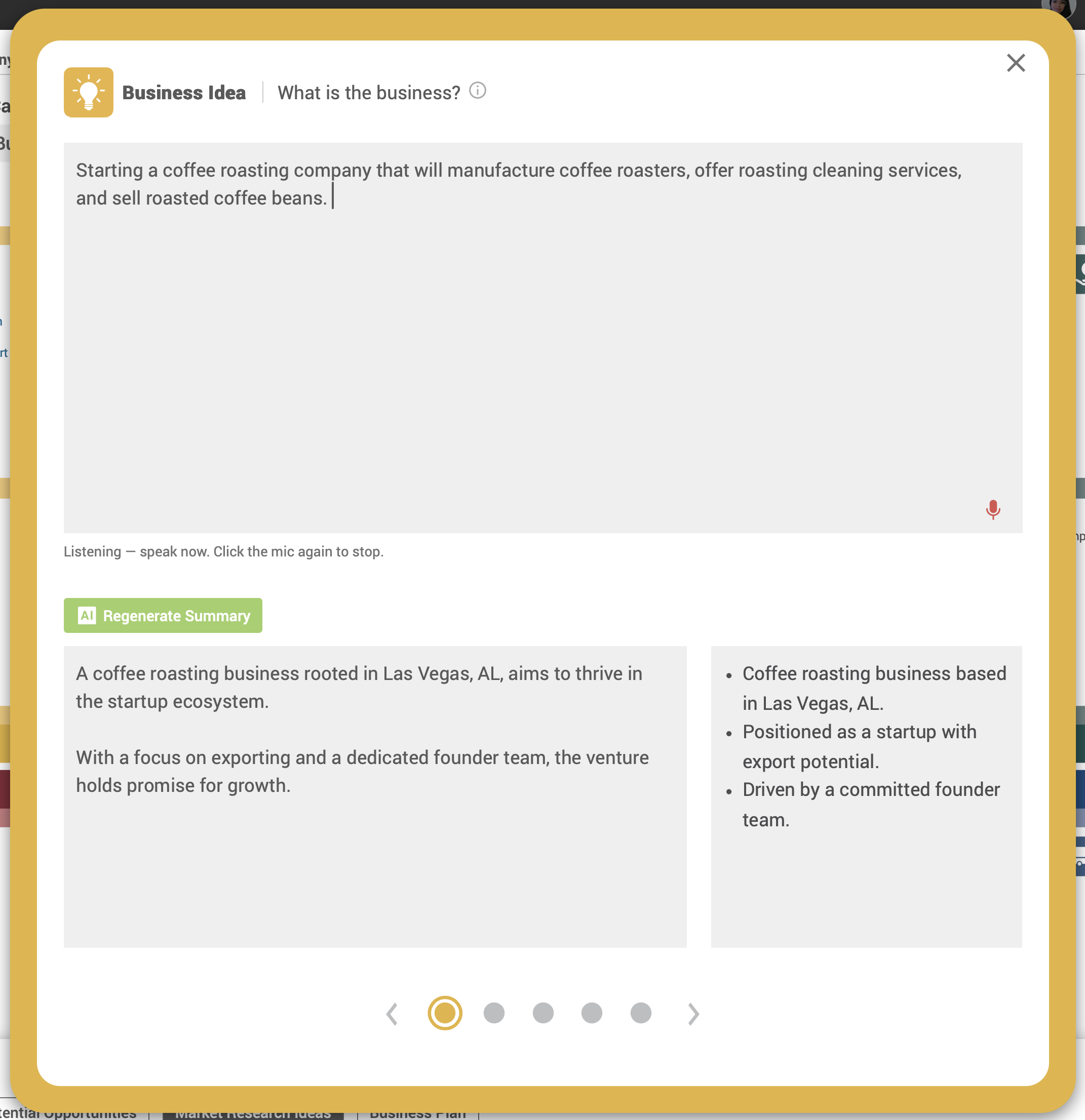
The microphone is also available in the 360° Business Canvas dialog, so you can add information about a client’s business as you speak. We will keep adding it to more fields across the platform.

We hope this update helps you save time on note-taking and keep your attention where it matters: on your client’s business growth.

New update: See How Many AI Credits You Have Left

It is frustrating to reach for an AI button and find it disabled. That’s why GrowthWheel Online now shows exactly how many AI credits you have used, and how many you have left.

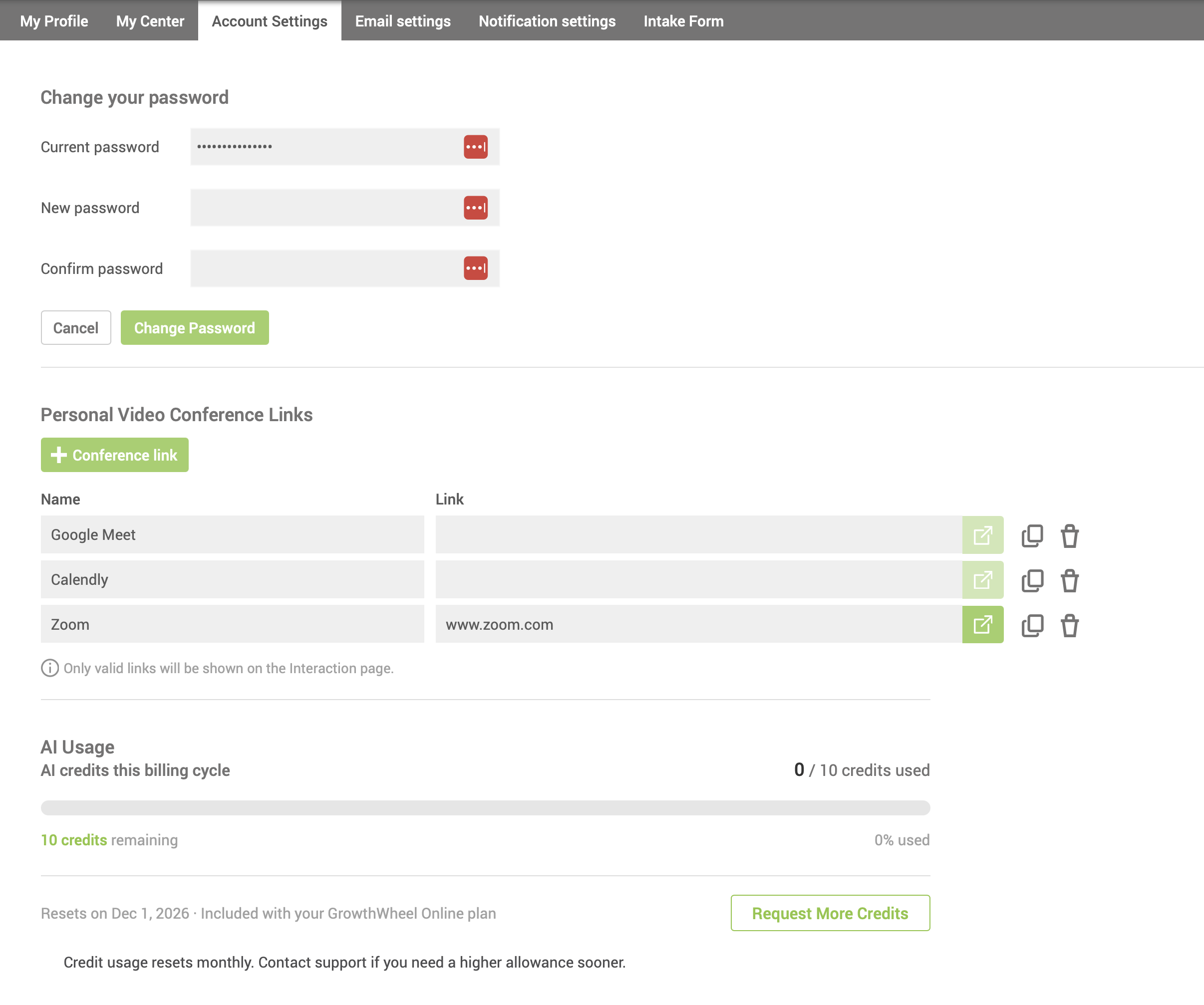
Open your profile settings and, in the Account settings section, scroll to AI Usage. You will see the credits used this billing cycle, the credits remaining, and the date your credits reset. The count includes every AI action: Generate AI Action Plan, conversation starters, and the 360° Business Plan.

Credits reset every month. If you reach your limit, the AI buttons appear disabled with a message. Click Request More Credits to send a request to our support team.

That way you can plan your AI use before a client session, not during it.

New update: Add Contact Persons to Your Resource Partners

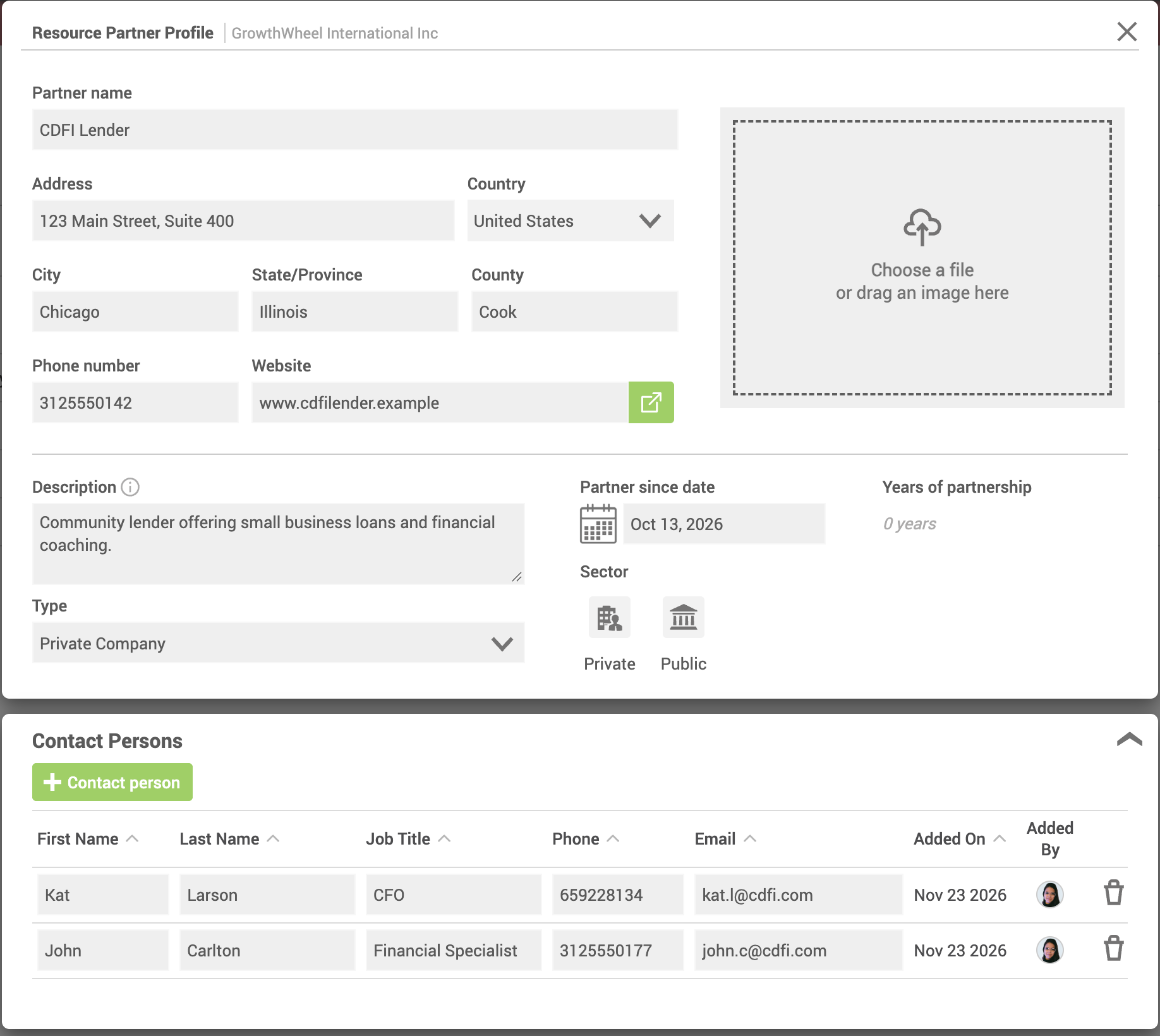
A partner organization is never just one person, yet your Resource Partners only had room for the organization. That’s why they now include the people too, not just the organizations.

Go to the Network tab, open Resource Partners, and select a partner. In the Contact Persons section, click + Contact person to add as many people as you need at the same organization.

Now your clients, advisors, and partners and the people behind them are all in one CRM.

New: Your CRM for Clients, Advisors — and Now Resource Partners


GrowthWheel Online is now the CRM for all your key relationships. 

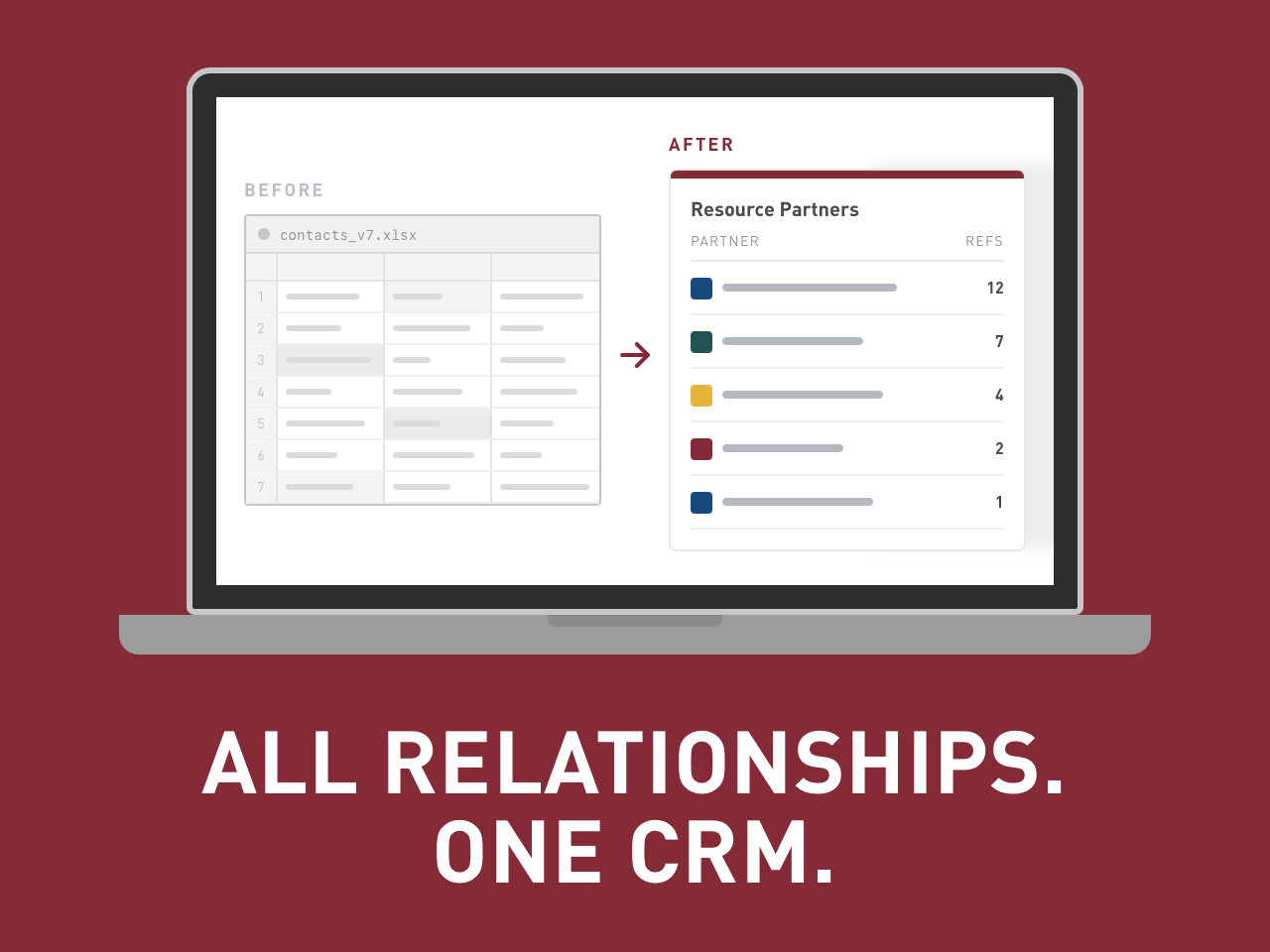
With the new Resource Partners feature, you can manage the organizations you refer clients to in the same place you already manage clients and advisors — no spreadsheets needed.

Until now, most advisors kept track of partner organizations in Excel or scattered notes. That information was hard to access, impossible to share with your team, and disconnected from your client data.

That's why we built Resource Partners — so every referral, every partner organization, and every client connection lives in one place your whole team can use.


In this short video, Elizabeth shows you how to use the new Resource Parters feature:


How to do it?

Create your partner network

Go to Network in the main menu and select Resource Partners.

Click Add Resource Partner to create a new entry — you can add a name, picture, business information, Partner Since date, sector, and type.

Your whole team can see and use the list, so partner information is no longer stuck in one person's files.


Tracking client referrals

From any partner's profile, add the clients you have referred to them. This creates a record of each referral — who went where and when. Clients are not notified when they are added.

You can also manage referrals from the client profile. Go to the Team page under the business profile to see every resource partner linked to that client, and to add new ones from there.

Need help? Import your existing partners

Already have a list of resource partners in Excel or another file? You do not need to enter them one by one. Share your file via support@growthwheel.com, and we will import it for you!

Update: Share a GrowthPlan — Now with the 360° Business Canvas Included

When creating a client's Growth Plan, the 360° Business Canvas is one key element to have. It gives the full picture of the business — and now you can share it all together!

A complete Growth Plan brings together the 360° Business Canvas for the full picture, a 360° Assessment to identify what matters most, and the Ambitions with Decisions and Actions that define what comes next.

Together, they tell the whole story of where the business is and where it's going.

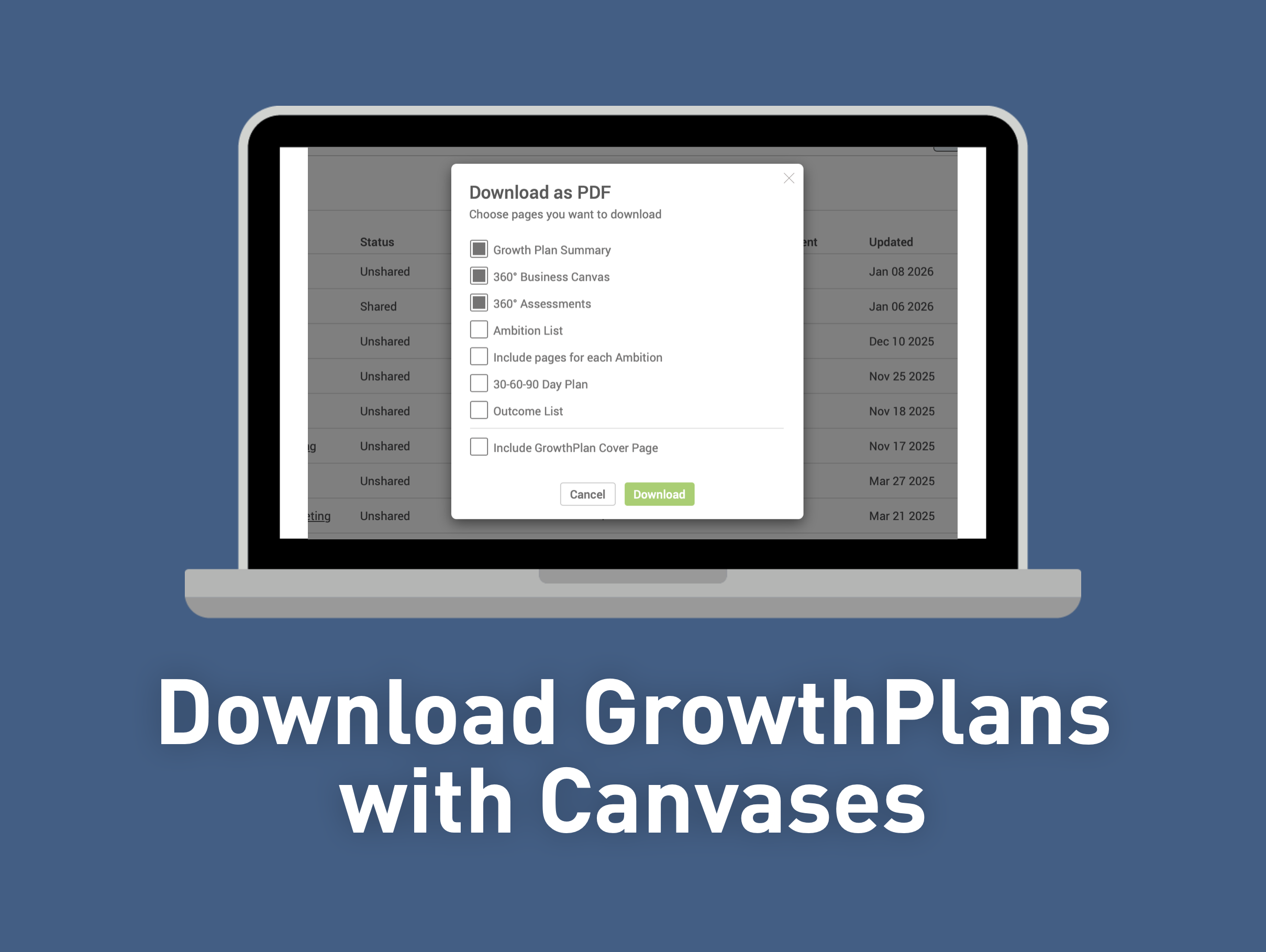
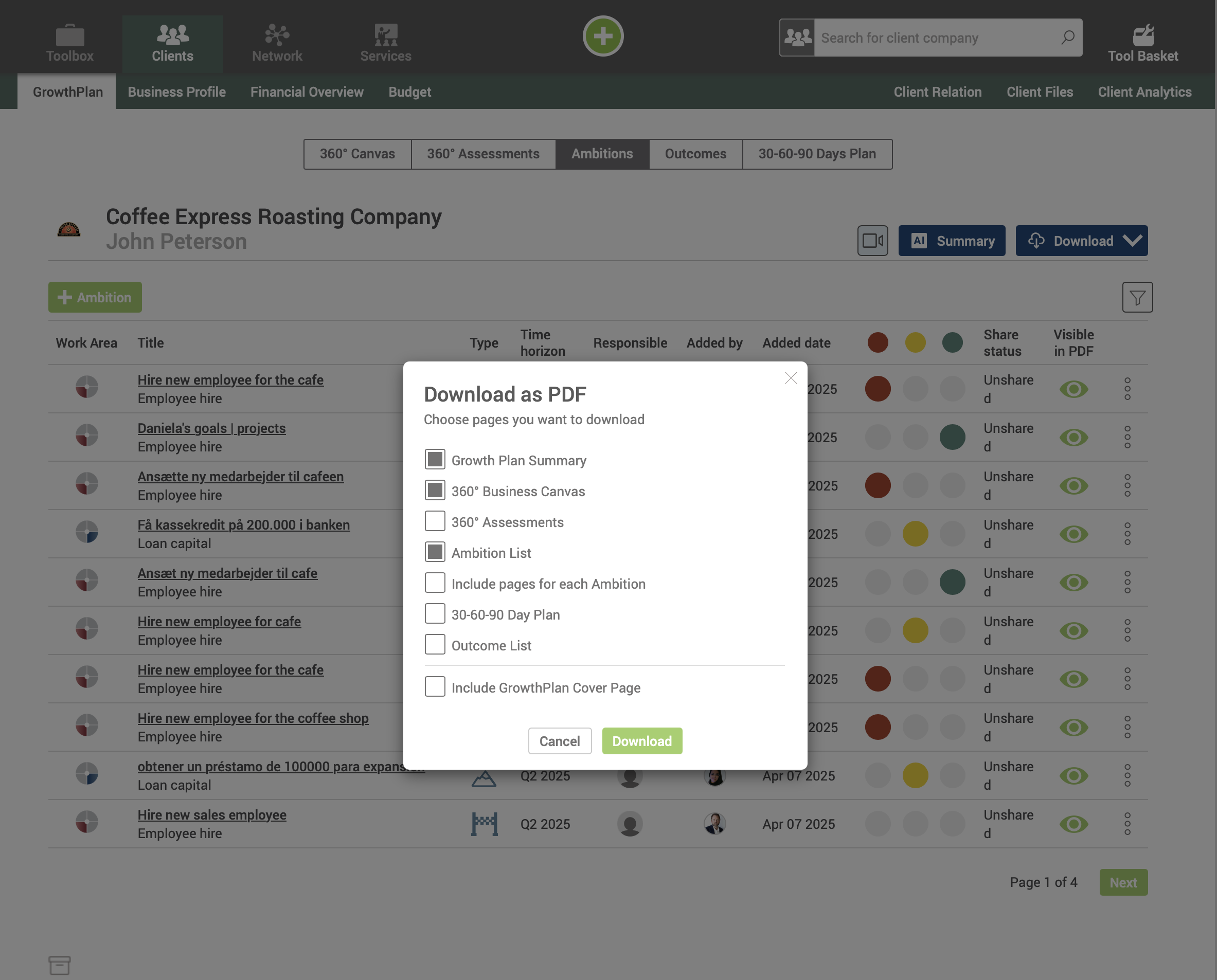
Now, you can download the 360° Business Canvas as part of the Growth Plan PDF.

Choose which sections to include, select which Canvases to show, and download one complete document that tells the whole story.


How to do it

Open a client's profile, go to the GrowthPlan menu, and click Download from any page.

Select which sections from the GrowthPlan to include, toggle on the 360° Business Canvas. All canvases selected to be visible on PDF will be included.

Then download — everything you selected comes out as one clean PDF ready to share.


Update: Streamlined Interactions tracking

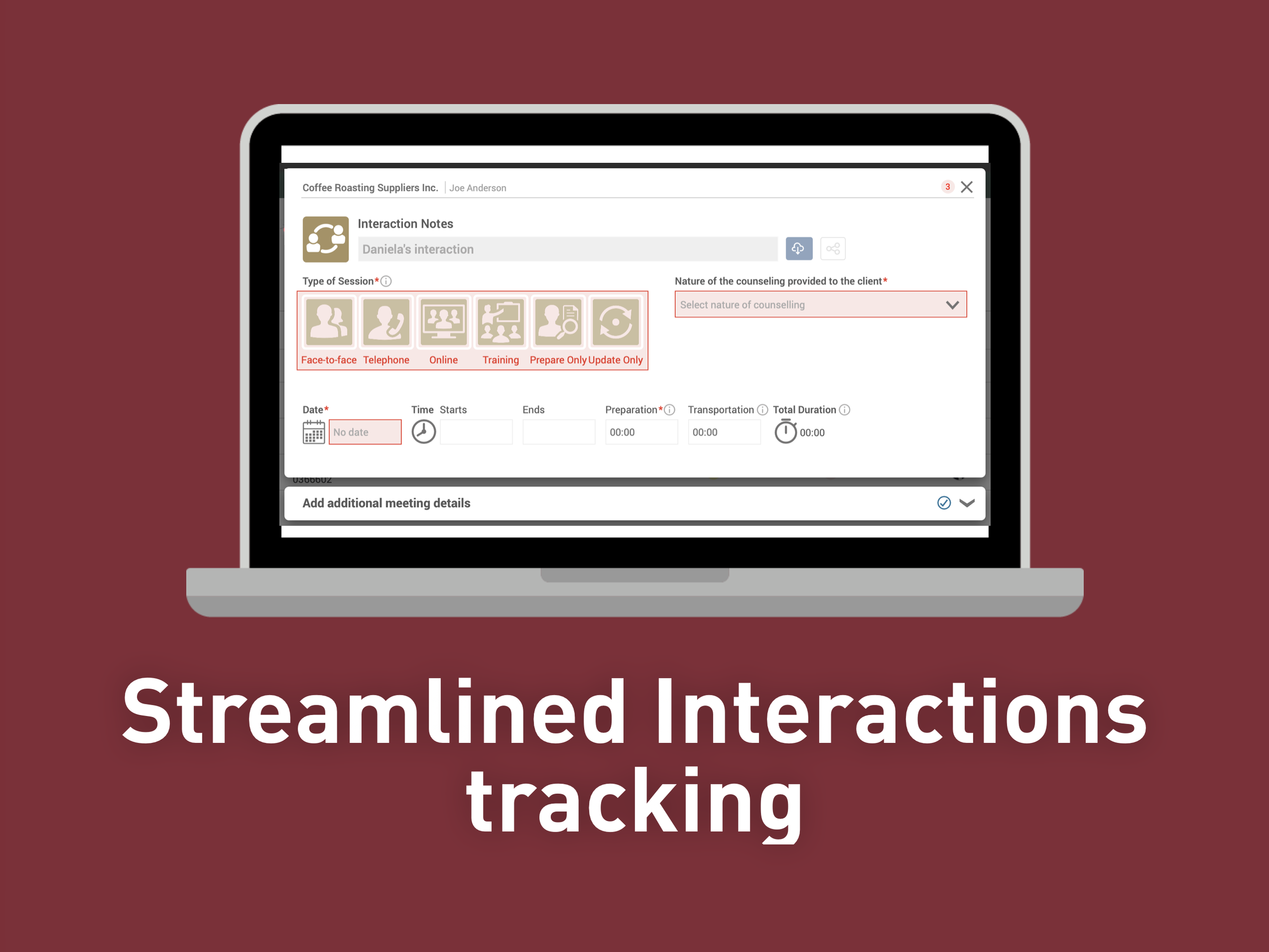
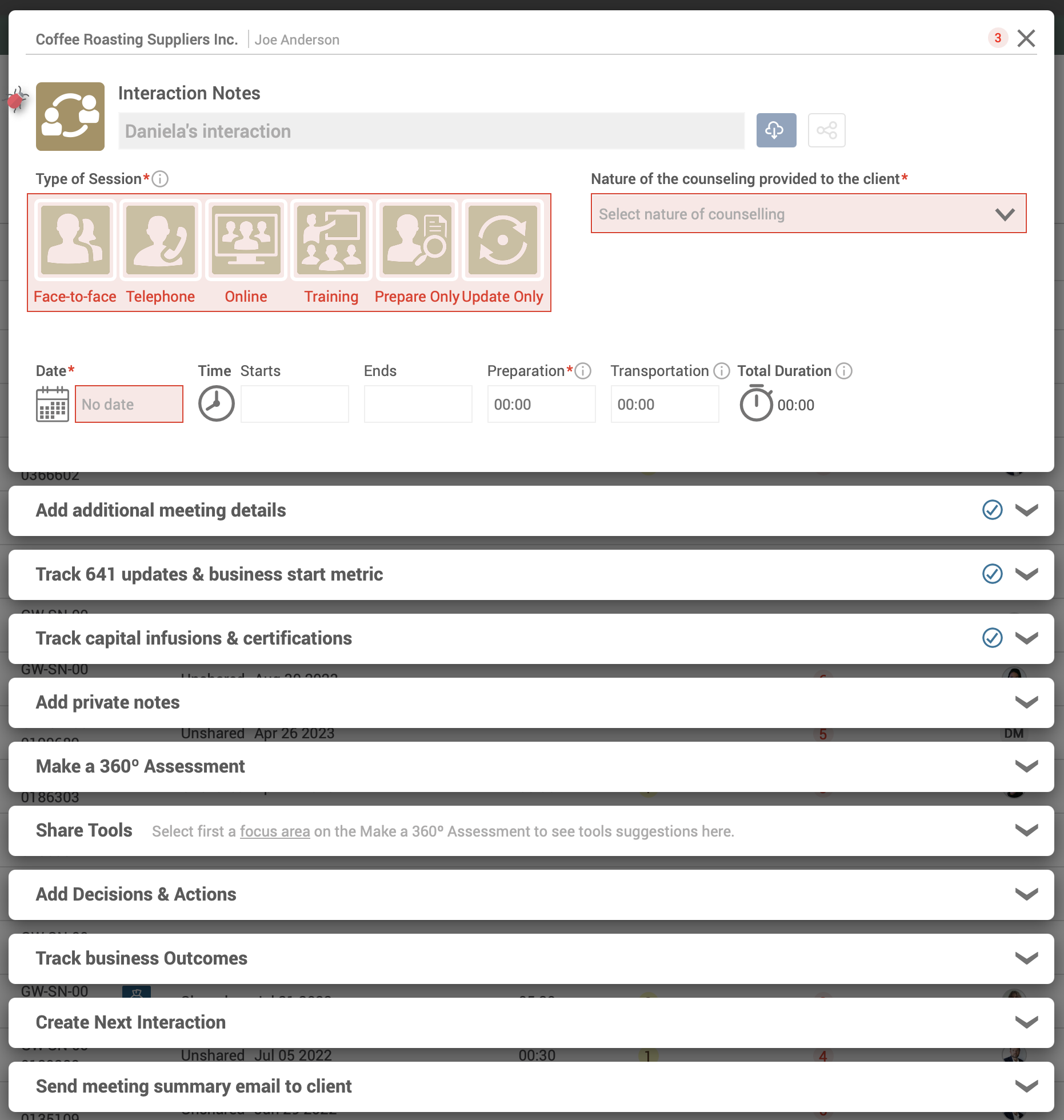
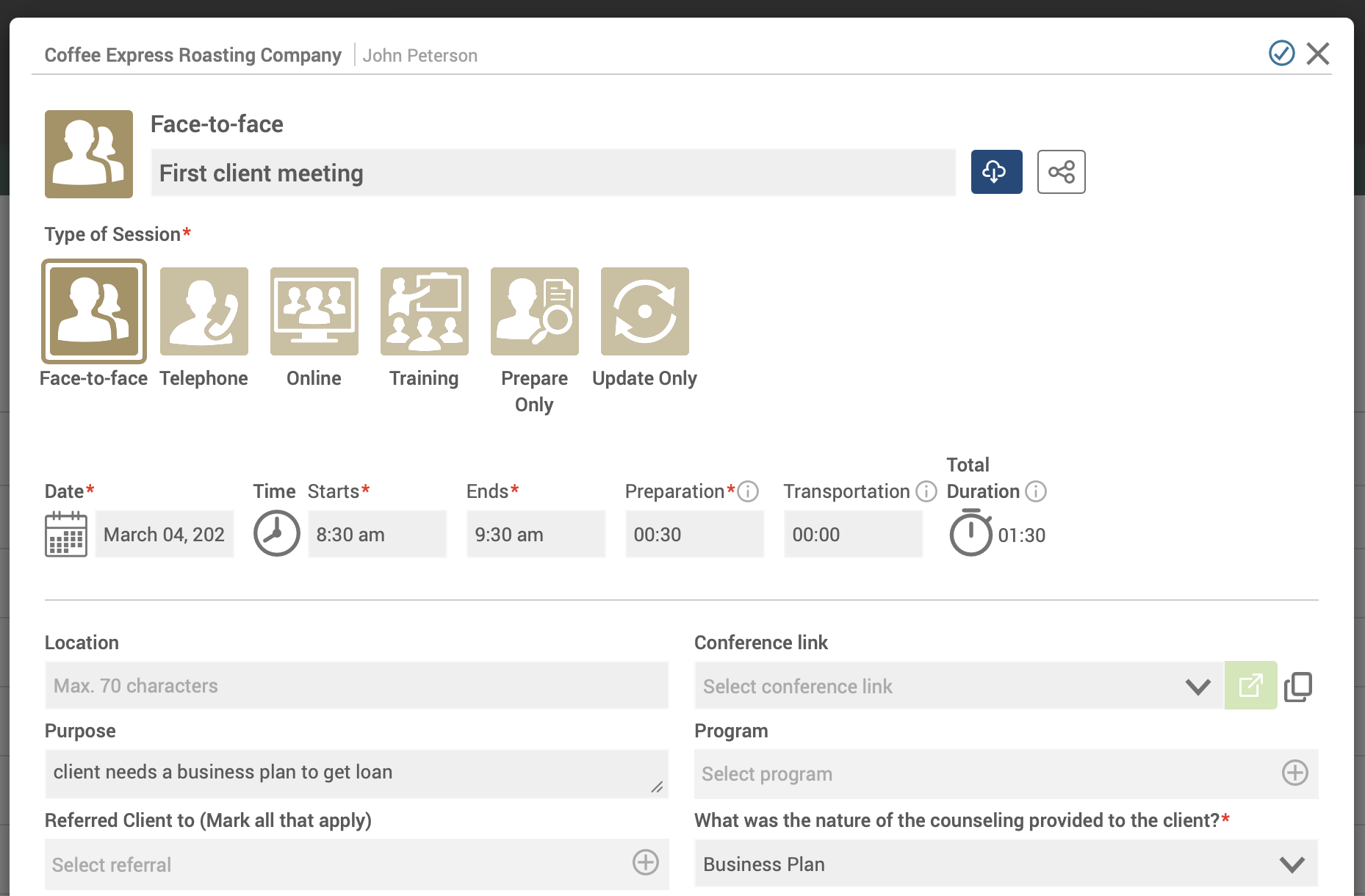
We have a new updated dialog for tracking interactions with clients!

The interaction dialogue used to show multiple fields at once — not all required — making it slower to log a session, even when you only needed to record the basics.

A better approach is to have the essentials first and keep the additional meeting details optional when needed.

That's why the interaction dialogue is now streamlined.

You will immediately notice the new top section — shorter, with only the core required fields visible: type, title, date, and the key meeting details you need to record every session.


In this short video, Elizabeth will show you how to use this in GrowthWheel Online:


What’s coming next?

Very soon you will be able to fully customize this dialogue by selecting what is your next step with your clients. Choose only to see what you are going to use during the session.

As simple as selecting what you need, and the section will pop up ready to use.

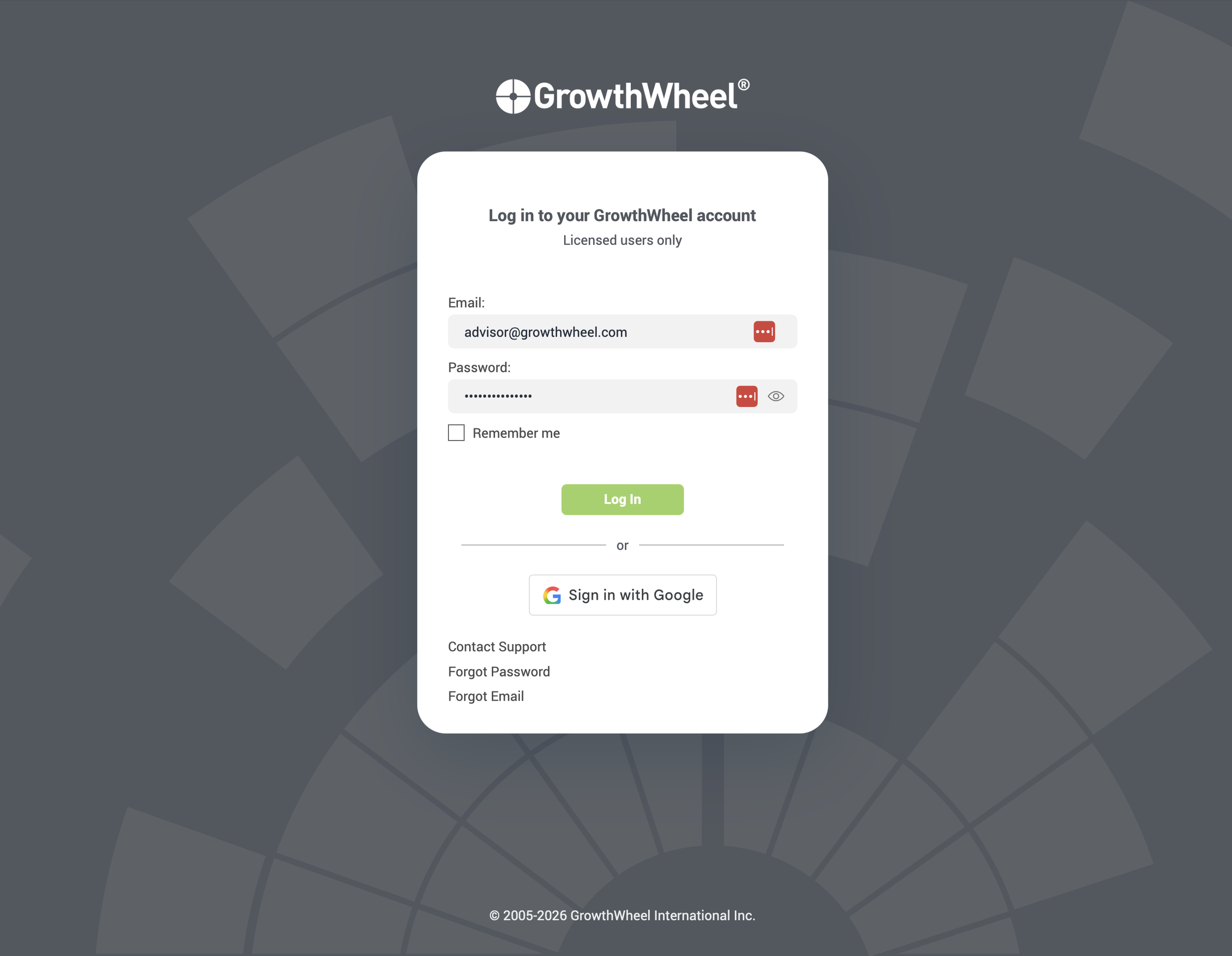
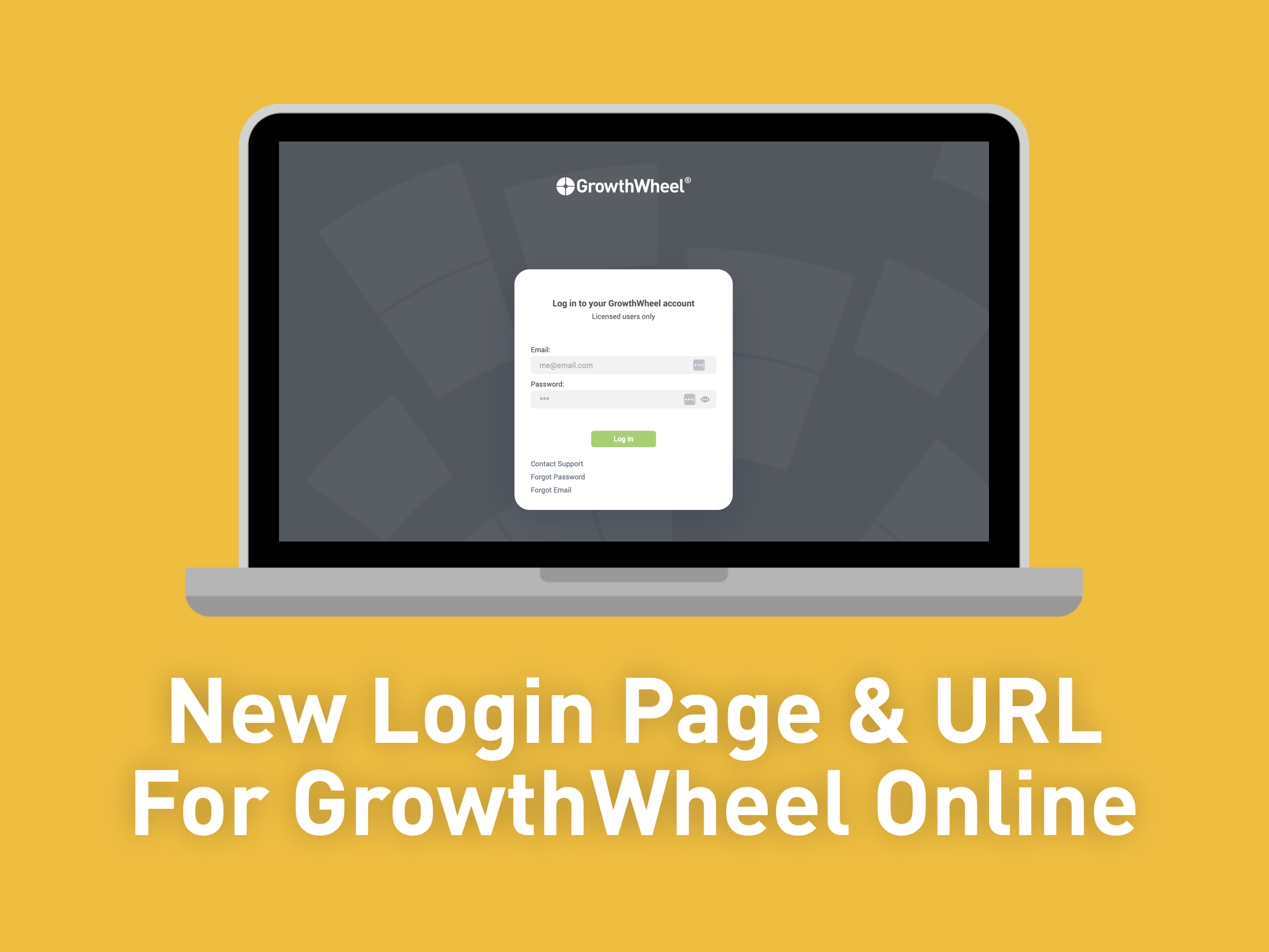
GrowthWheel Online has a new login page — and a new URL address

We're making two updates to GrowthWheel Online that you'll notice the next time you log in. Here's everything you need to know.

New login page design: The login page itself has a new modern look. It's more clean and works better across different screen sizes.

New URL: GrowthWheel Online is moving to a new address. Going forward, you'll access it at: app.growthwheel.com

The old growthwheel.net address will automatically redirect you to the new one, but we recommend updating any bookmarks to go straight there.

What hasn't changed

  • Your email address and password

  • Your account, your clients, and all your data

  • The way you use GrowthWheel once you're logged in

If anything looks off or you have trouble logging in, our support team is always here to help. Reach us at support@growthwheel.com.

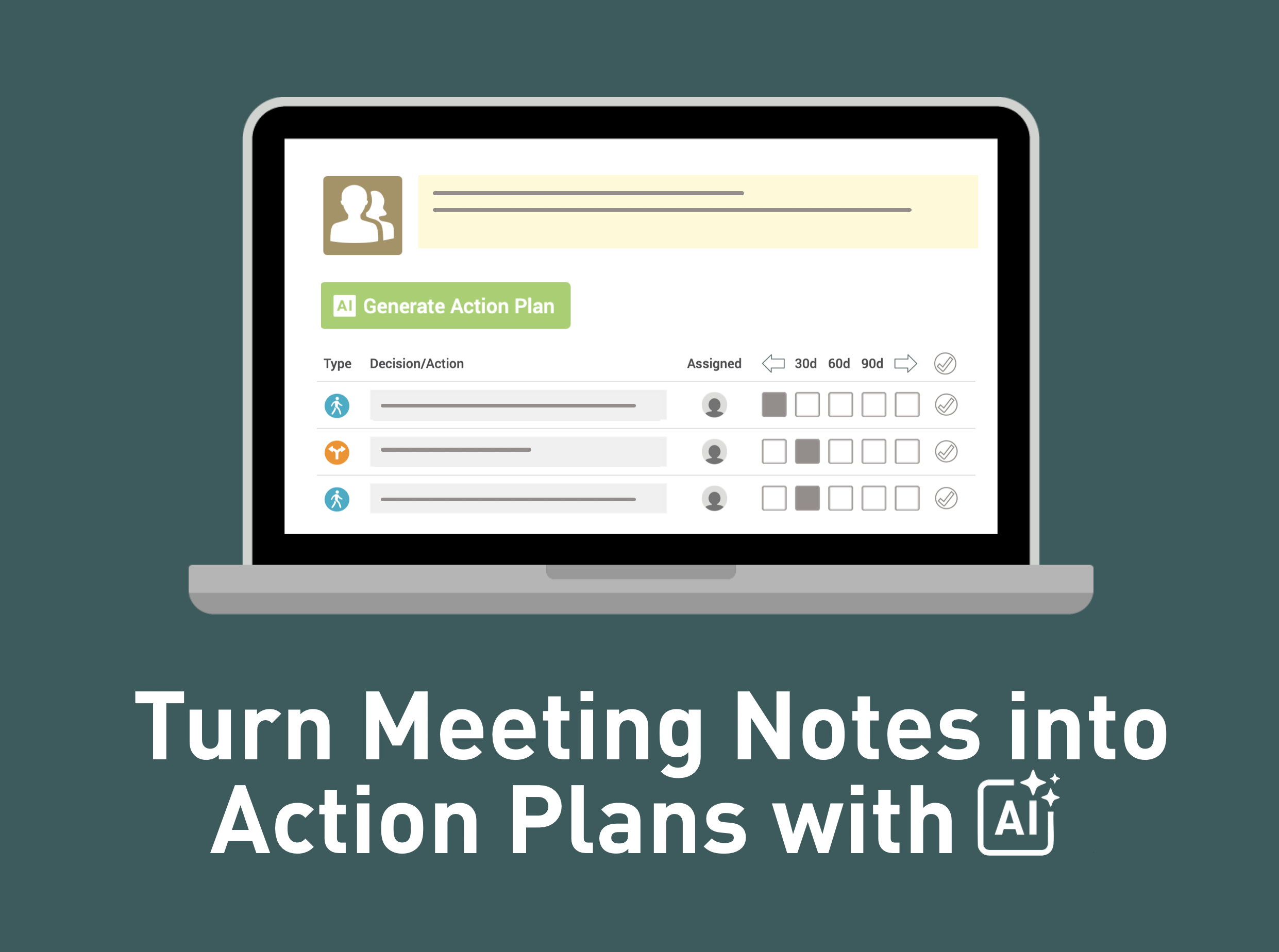
New: Turn Meeting Notes into Action Plans with AI

After each meeting with a client, you want them to move forward with clear next steps.

The challenge is that clients don’t always remember what was agreed, and meeting notes don’t always gets the job done.

A better approach is to ensure every meeting ends with a clear action plan.

That’s why you can now use AI to automatically generate suggestions for decisions and actions based on your meeting notes.

With our new feature in Interactions, you can do exactly that—helping your clients stay on track and move forward with confidence.


How to do it

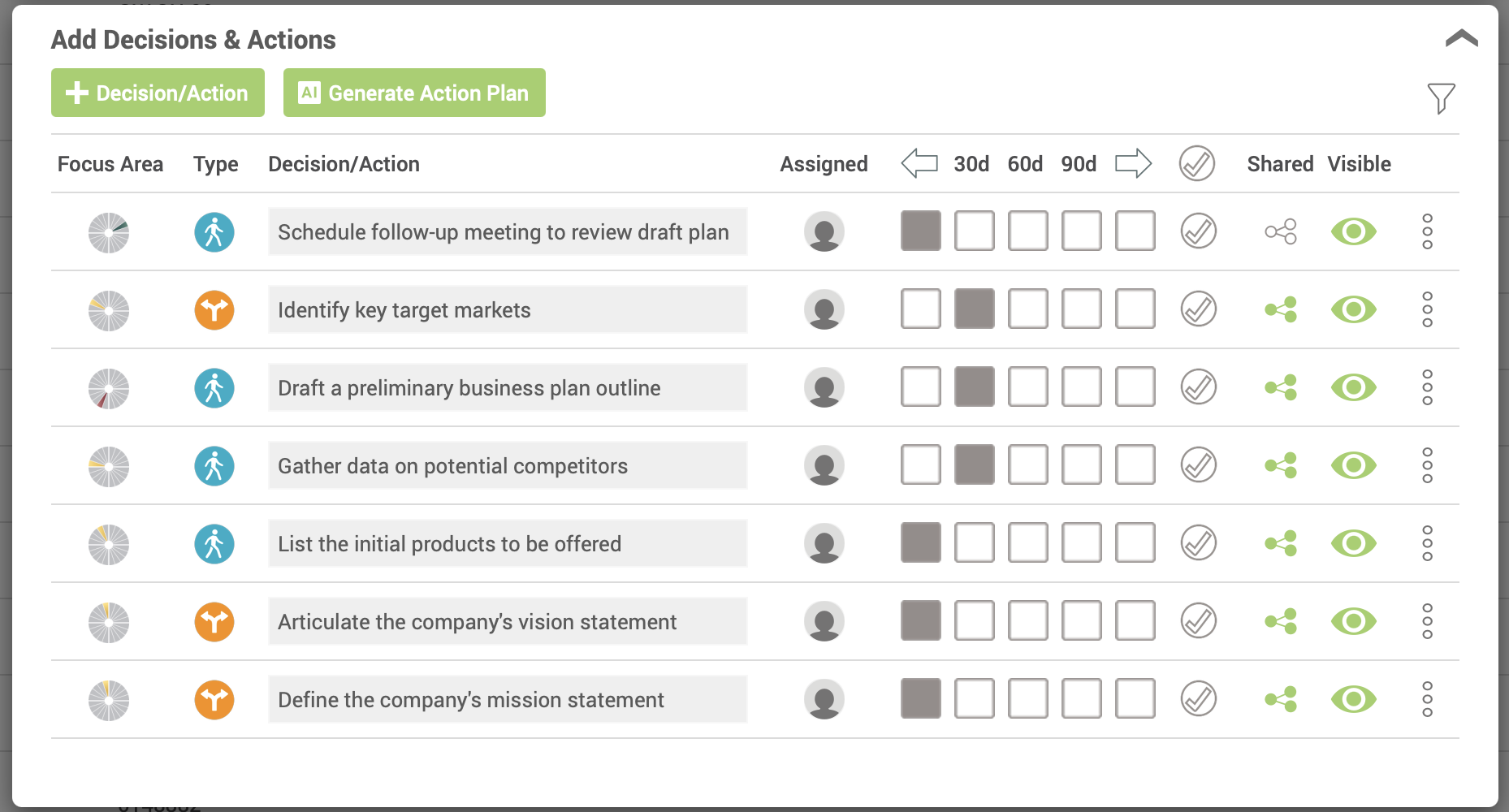
To get started, open any client interaction, complete your meeting notes, and click Generate AI Action Plan in the Decisions & Actions section.

The AI analyzes your interaction title, purpose, and private notes to generate a list of next steps.

Review the suggested list, make any edits you need, and share the relevant ones with your client.

All shared items will automatically be added to the meeting summary email.

​​​​​​​This new feature will help you help your clients with a clear path forward while helping you save time writing down action items and make follow-up easier with a list to walk through


In this short video, Elizabeth will show you how to use this in GrowthWheel Online:

New: Get the Big Picture – now with AI

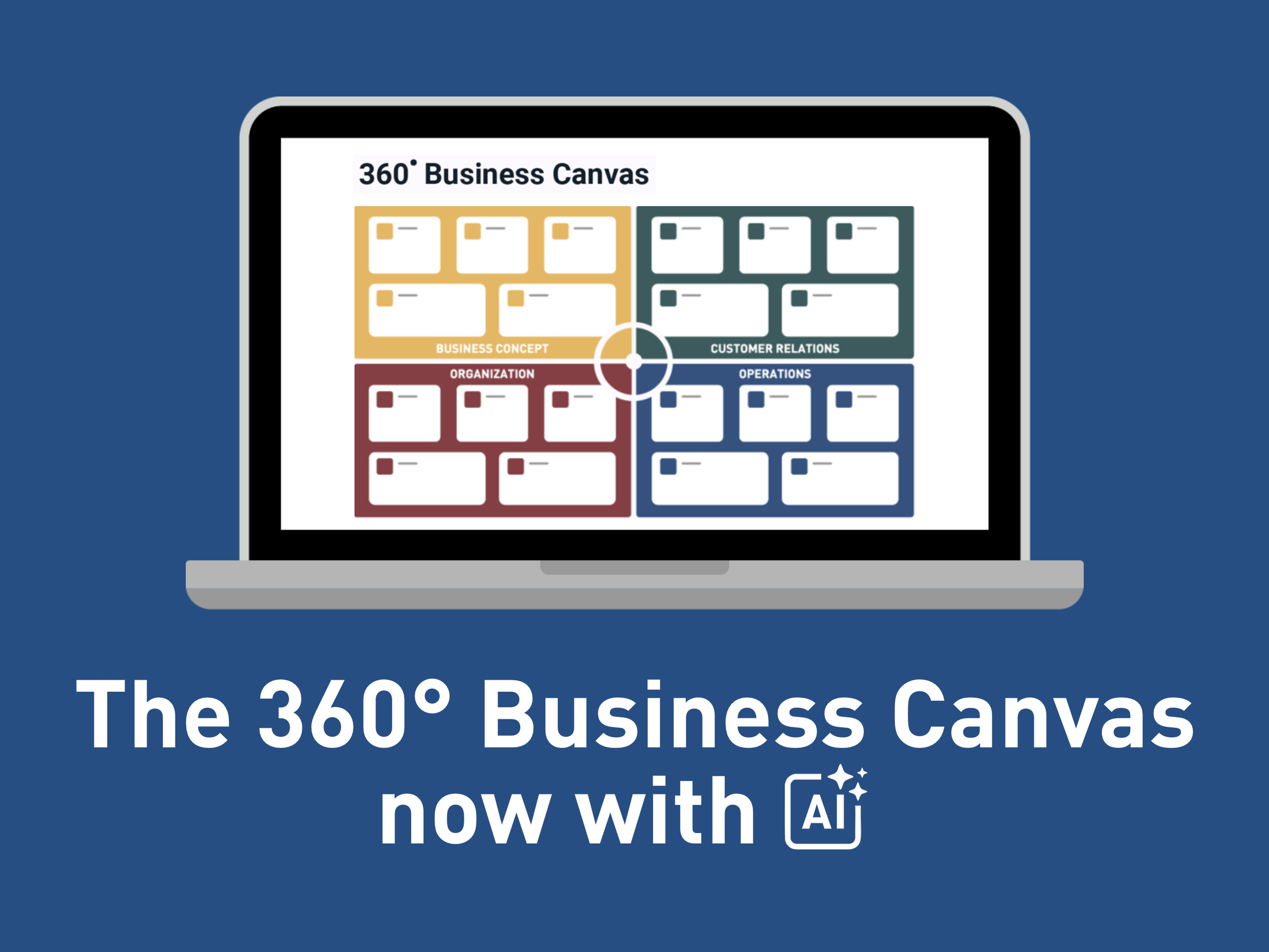
The 360° Business Canvas Online is here! Now with AI Summaries.

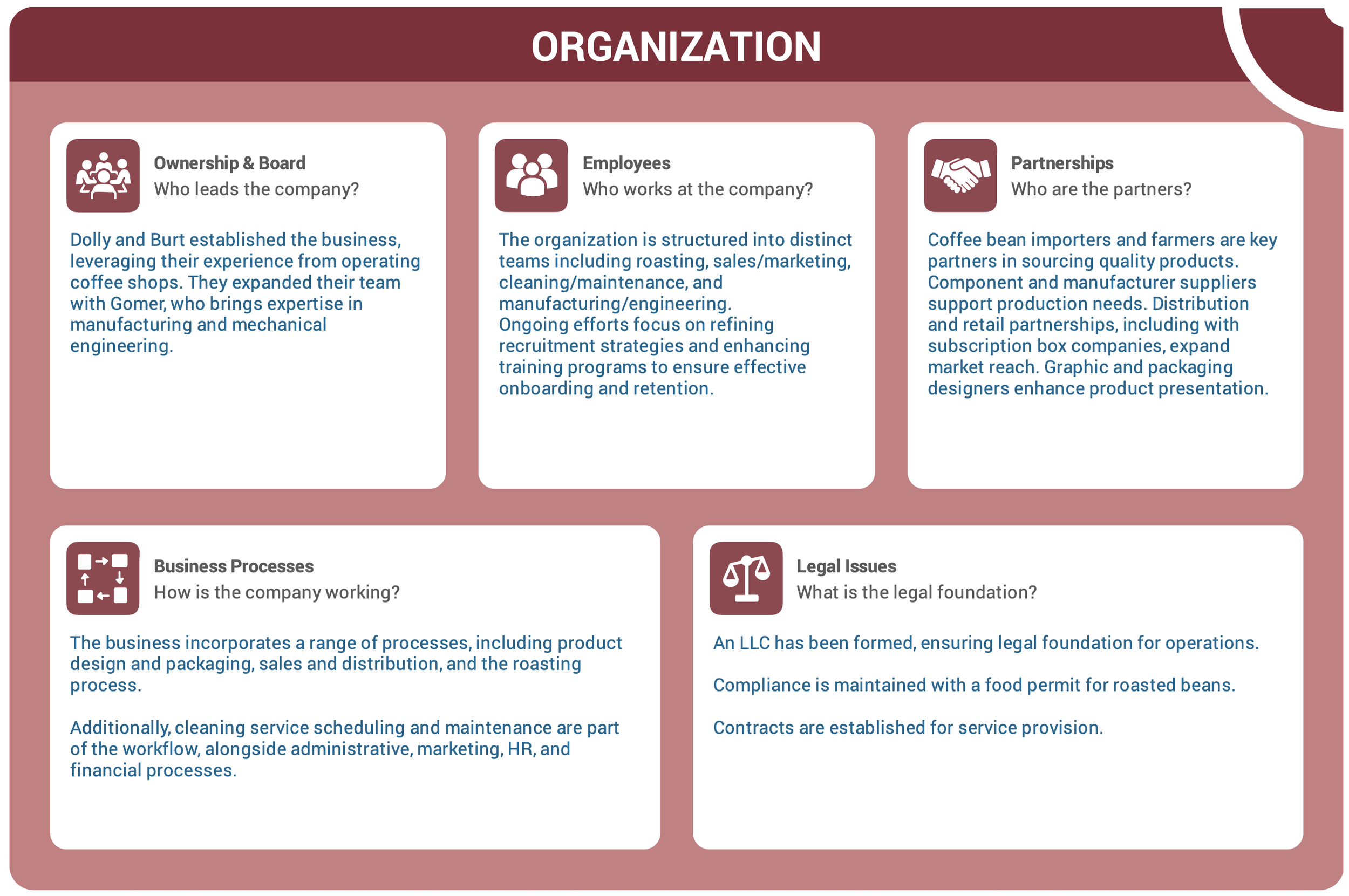
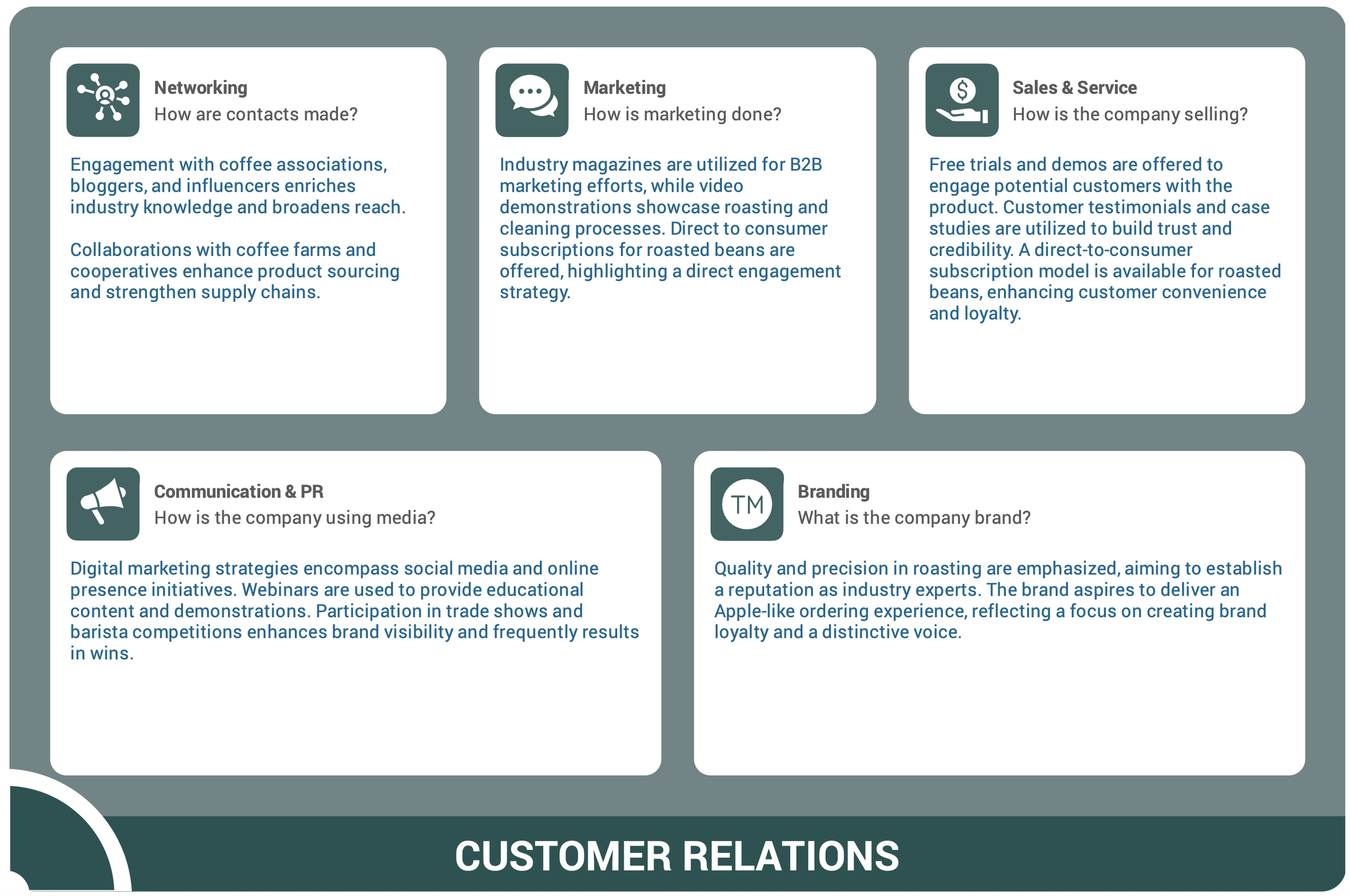
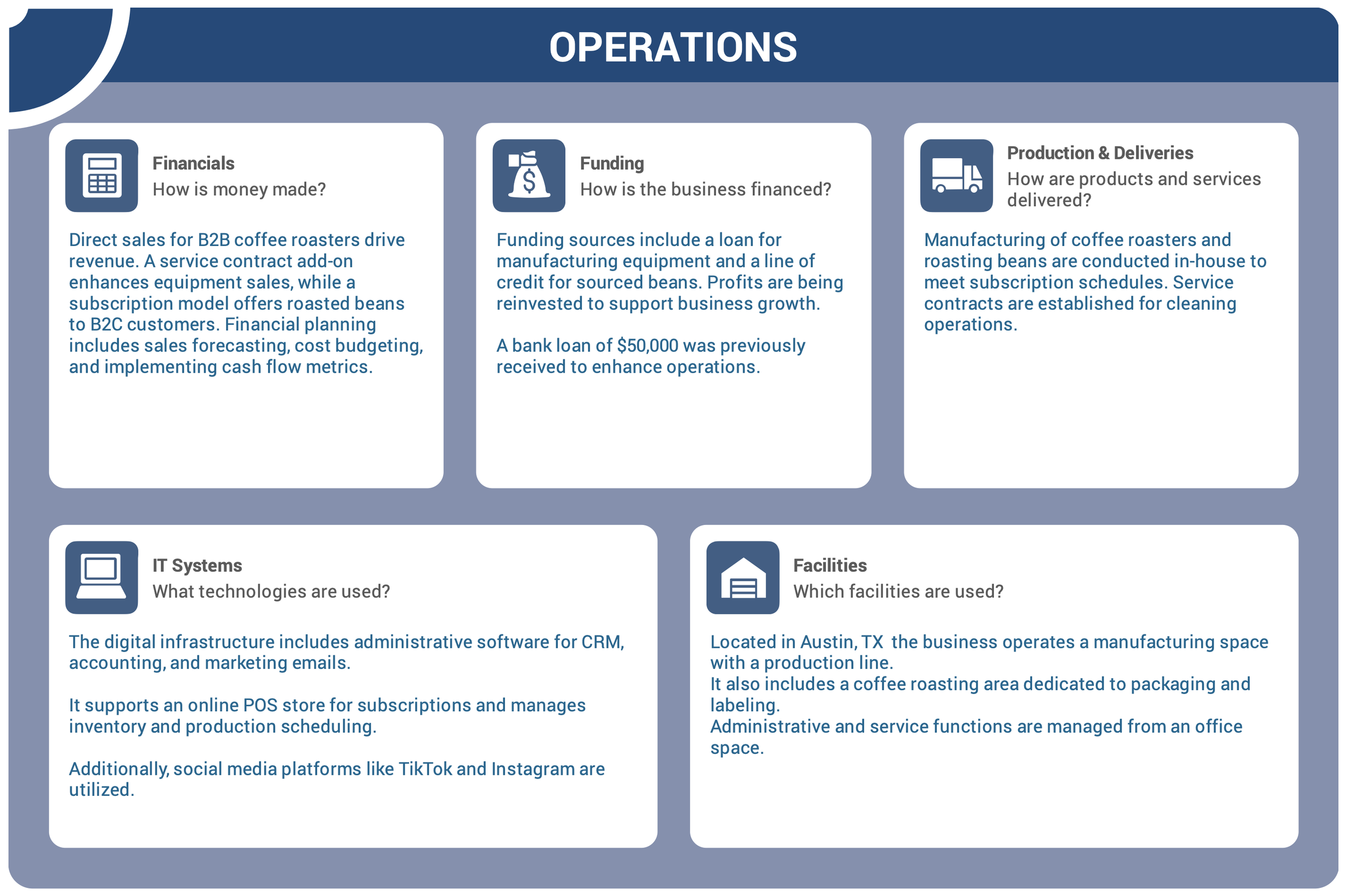
You can now create and work with the 360° Business Canvas directly in GrowthWheel Online. Build the canvas in the cloud, collaborate with clients, and generate structured insights with AI as you go.

To get started, open the quick access menu, select a client, and click “+ Create 360º Business Canvas.”

Add a title, choose whether the canvas represents the current or future business, and begin filling out the focus areas section by section.

In this short video, Elizabeth will show you how to use this in GrowthWheel Online:

Available only for GrowthWheel Certified Business Advisors to share with their clients


What You Can Do with the New 360° Business Canvas Online


Generate AI summaries:

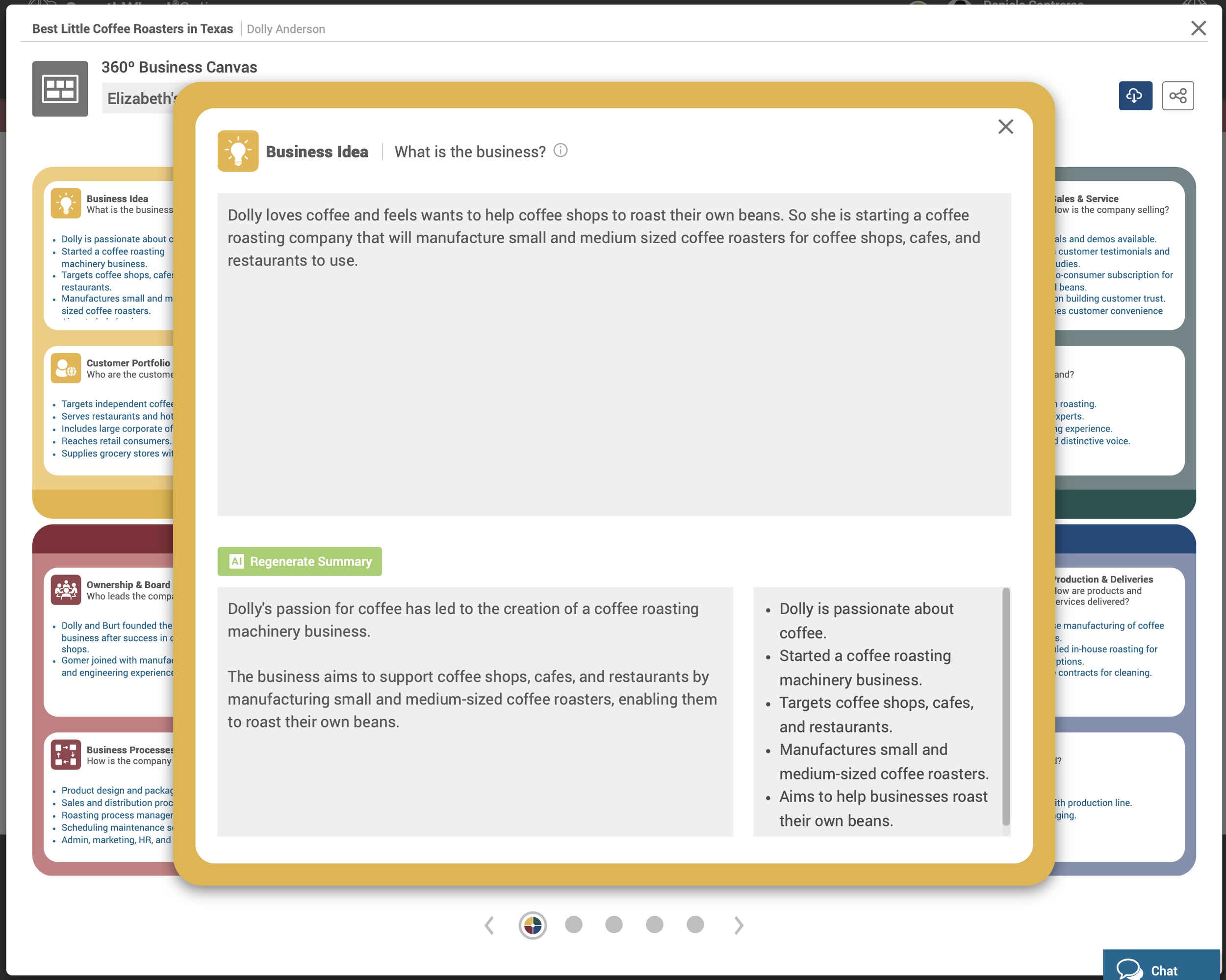
Add any input to each focus area and click “Generate Summary” to instantly create a structured overview and bullet points with AI.

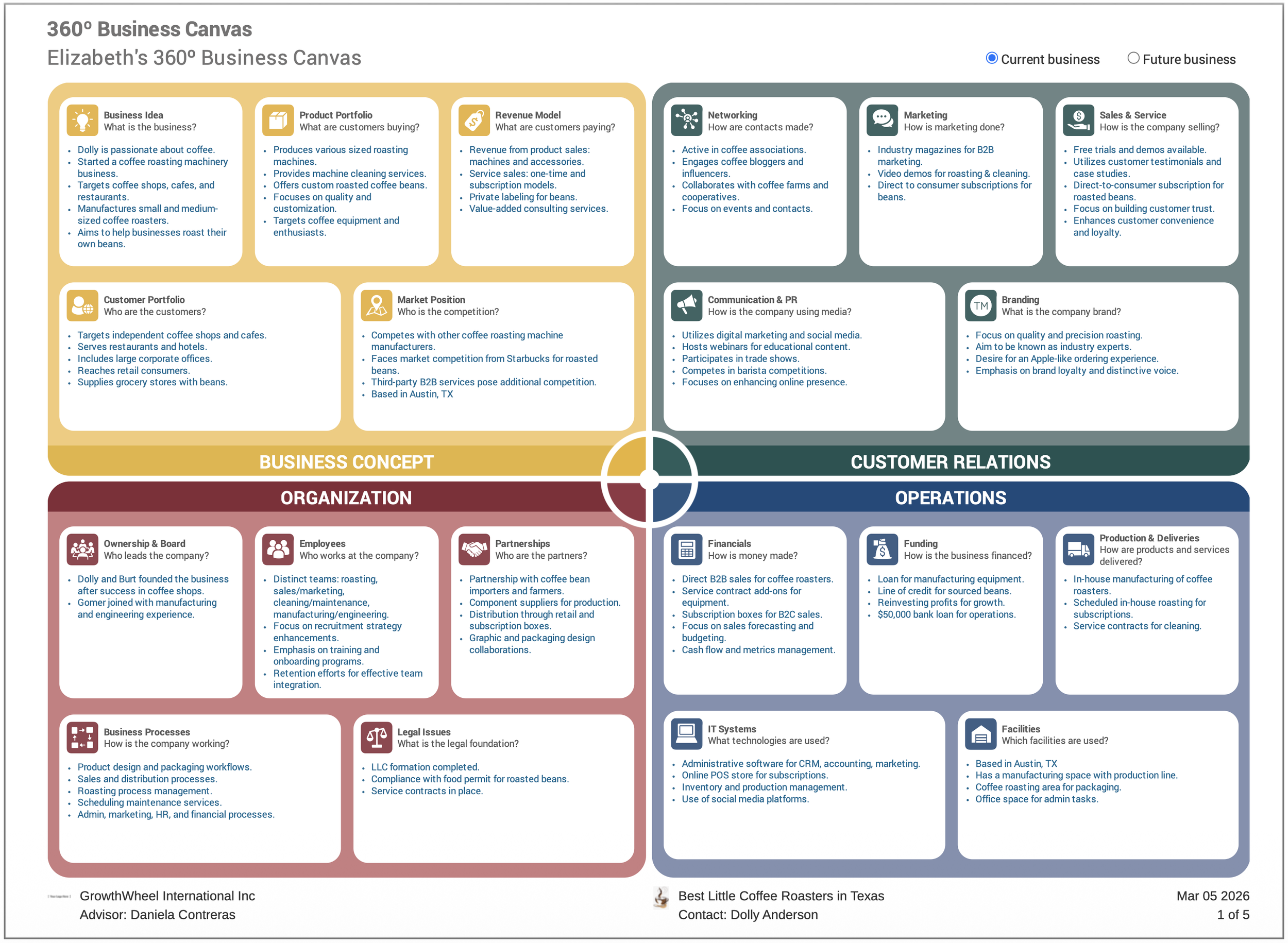
  • The short bullet points are added to the main canvas

  • A longer summary is saved inside each focus area

  • Works across all 20 focus areas as you build the 360º Canvas

Use the slider to navigate through the 360º Canvas areas. The more context you add, the stronger and more relevant the AI output becomes.


Generated AI Business documents:

Once your canvas is complete, you can generate supporting documents such as:

  • Conversation starters for advisor sessions

  • Potential growth opportunities

  • Market research ideas

These documents are generated from the content of the 360º Business Canvas and are designed to support productive advisor–client conversations.


Download a 360º Canvas in PDF:

Export the full canvas as a clean, professional PDF at any time to be easily shared. The exported file includes:

  • A first-page overview with key bullet points

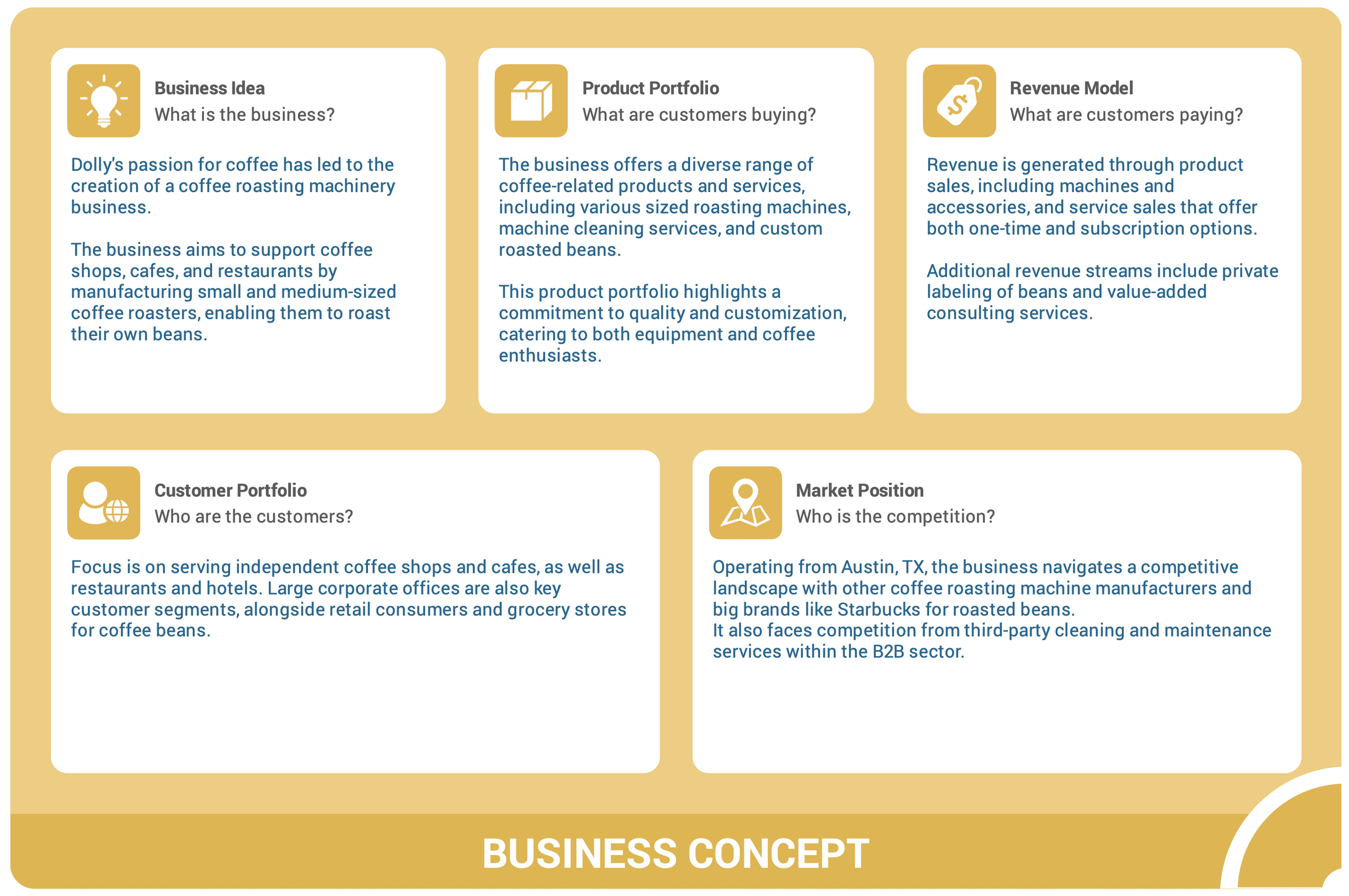
  • Four individual pages with detailed summaries per focus area


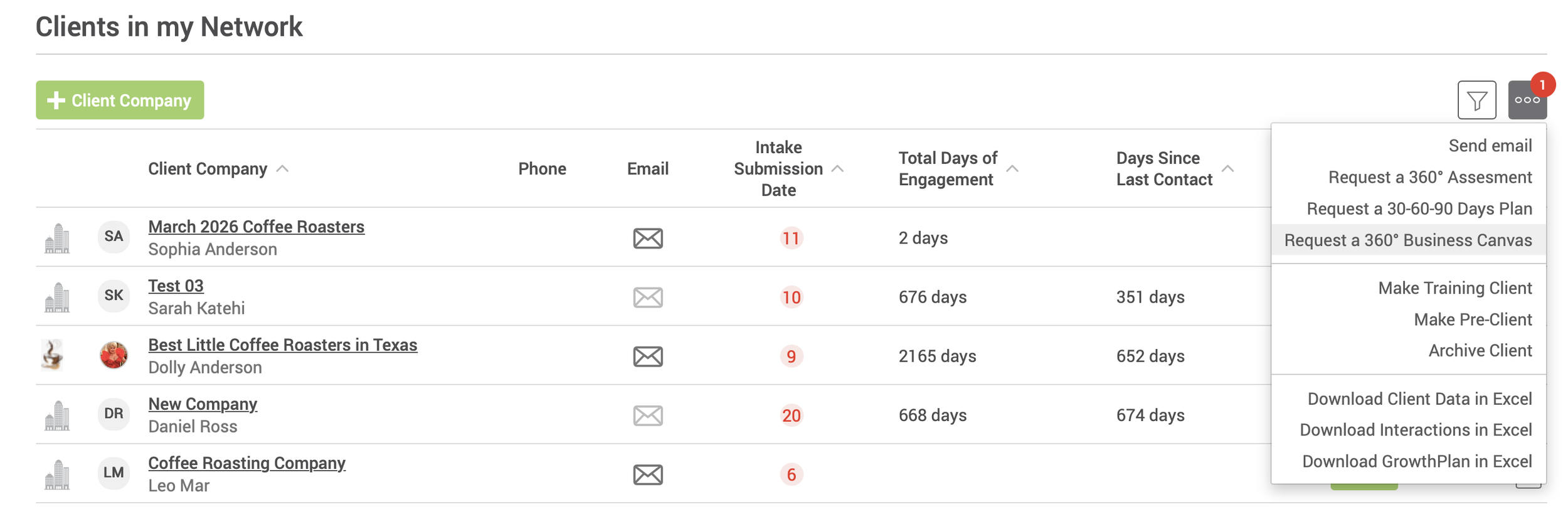
Request clients to complete a 360º Canvas:

You can also invite clients to create their own 360º Business Canvas.

From the client list, select one or more invited clients, open the three-dot menu, and choose “Request a 360º Business Canvas.”

The client will receive an email with a direct link to complete the canvas and share it back with you for review.


2025 in Review: The Newest Features on GrowthWheel Online

2025 was yet another year with monthly software updates — as always based on requests from the community of GrowthWheel Certified Business Advisors.

In 2025 we released new features and services in addition to various backend features in the software. Check them out below or see them in action on GrowthWheel Online.


Release overview

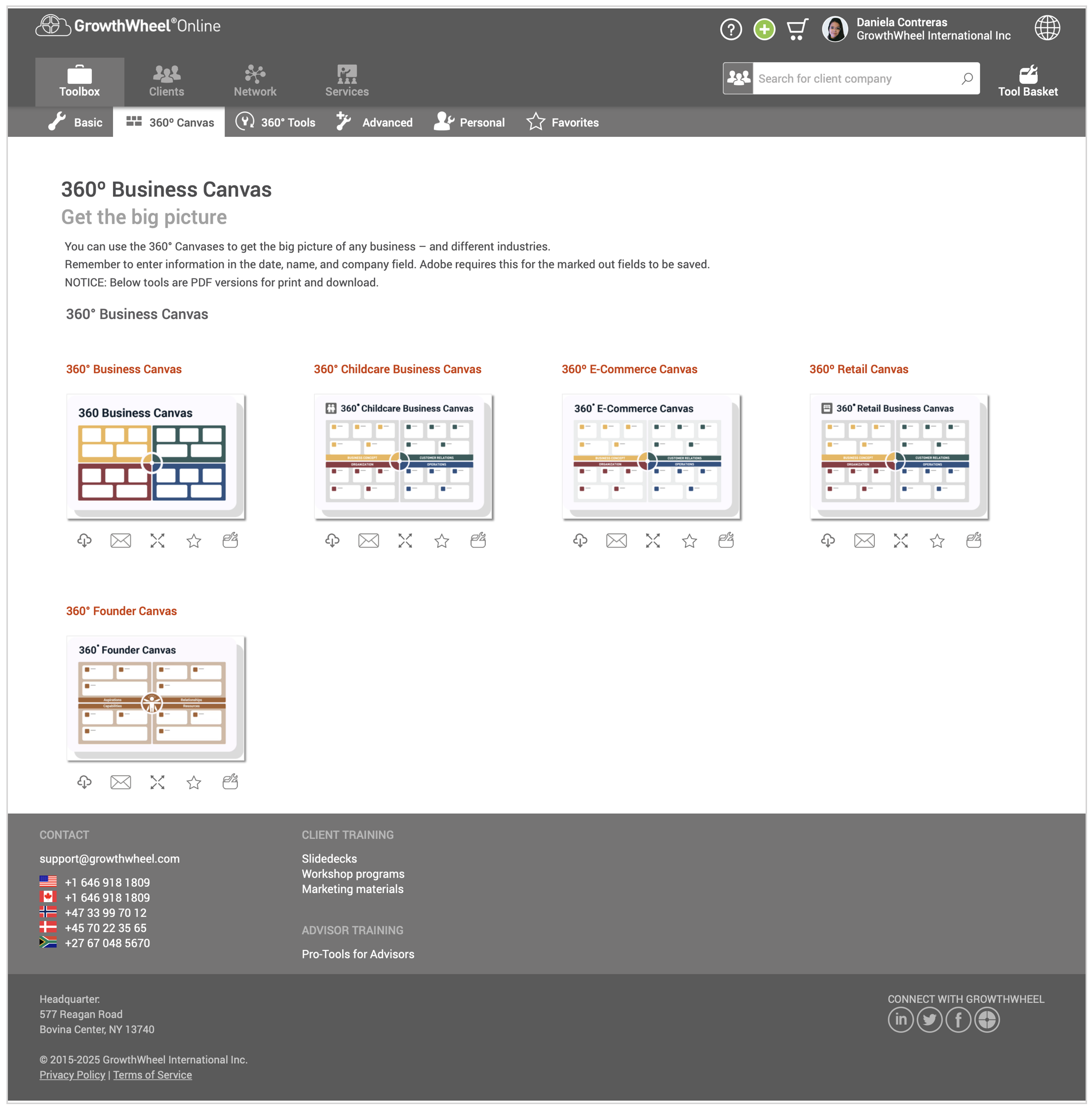
Access the new 360° Canvases all in one place

The 360° Business Canvas — and the new industry versions — has become the main starting point for many advisors working with clients.

Now, all 360º Canvas Tools have their own dedicated page for easy access.


The 360° Founder Canvas: Know What It Takes to Start a Business

The 360° Founder Canvas by GrowthWheel is designed to help aspiring entrepreneurs and advisors assess readiness and identify what it really takes to get started.


AI for Business Planning using the 360° Business Canvas

By uploading a 360º Business Canvas into GrowthWheel Online, you give the AI a complete big-picture view of any business, along with all the information it needs to serve you well.


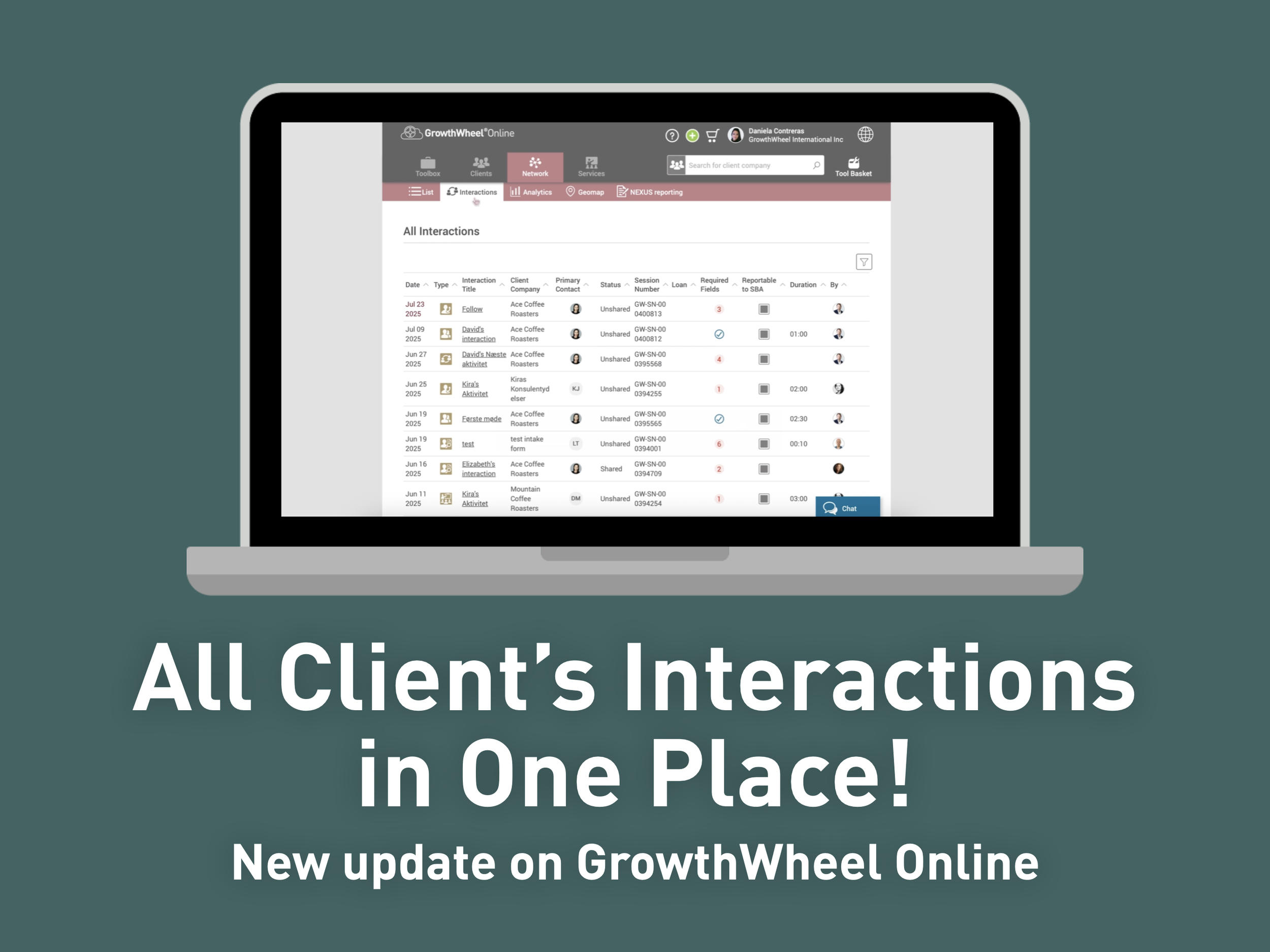
See All Your Client Interactions in One Place

We’ve added a new “Interactions” submenu under the Network tab in GrowthWheel Online.

Now you have a single page with all your interactions across all clients, so you can see all your activities at a glance and get ready for your next step.


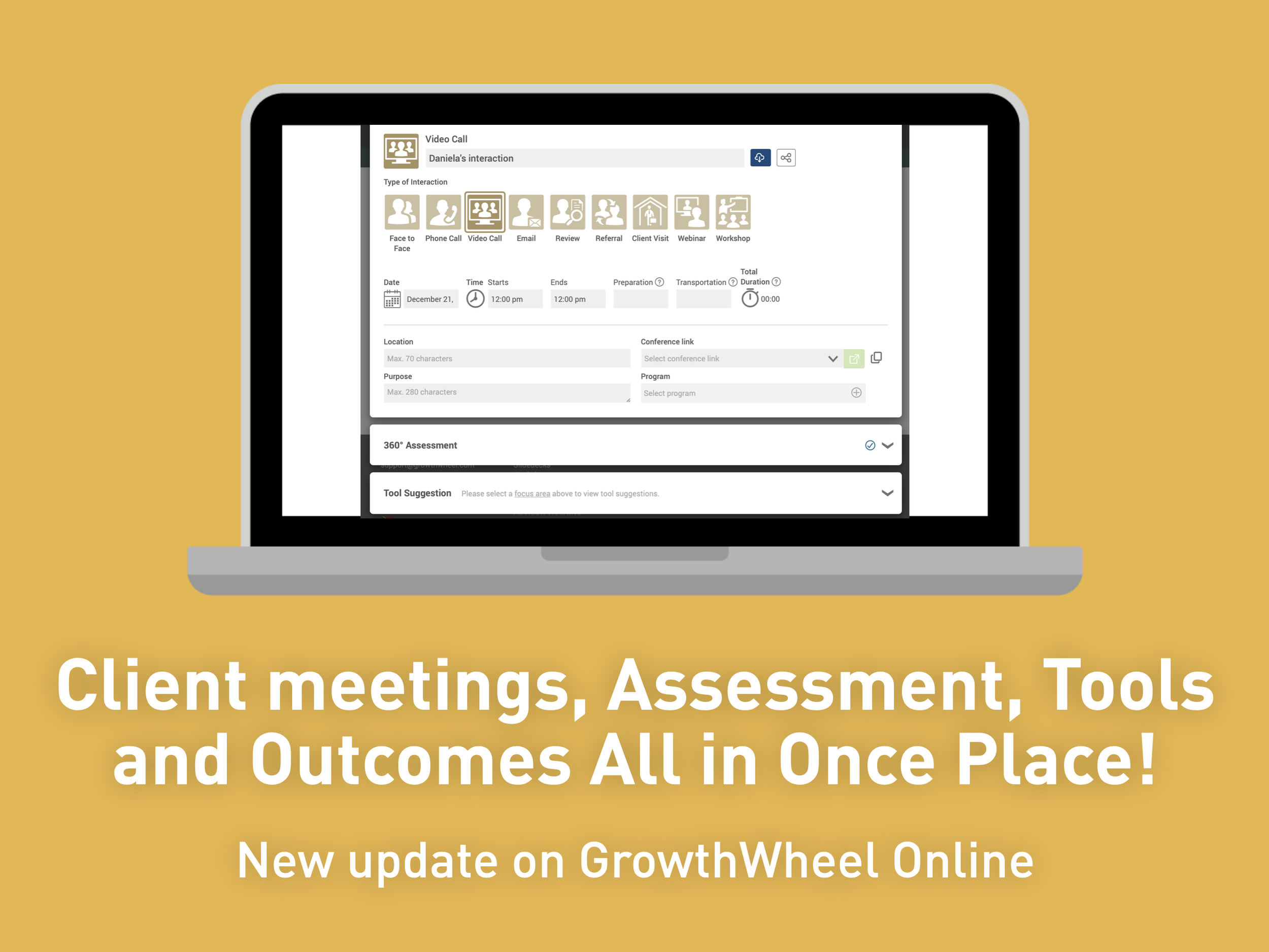
Interactions now includes: Assessment, Tools & Outcomes

We’ve added a new Assessment section so you can quickly create a 360° Assessment during each meeting.

The assessment will also appear in the client’s individual Assessment list and can be shared independently.


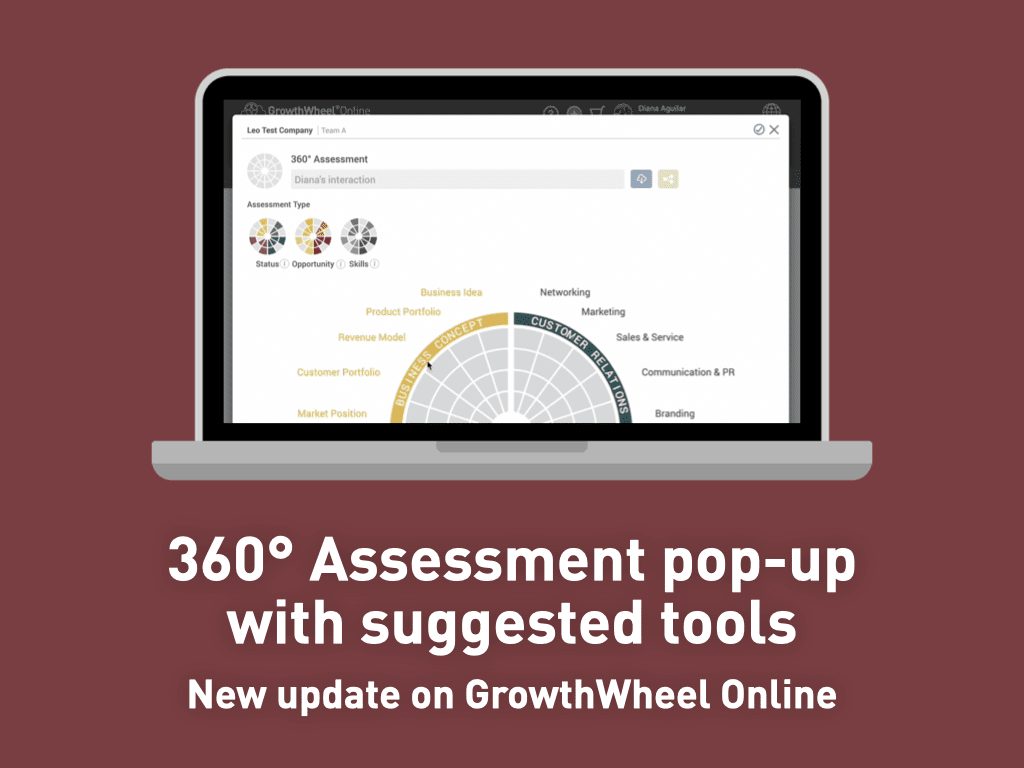
360° Assessment Pop-up With Suggested Tools

We’ve redesigned the 360° Assessment and linked it with the Tool Library, so you can easily work with clients on what matters most by assessing their needs and sharing tools—all within the same dialog.


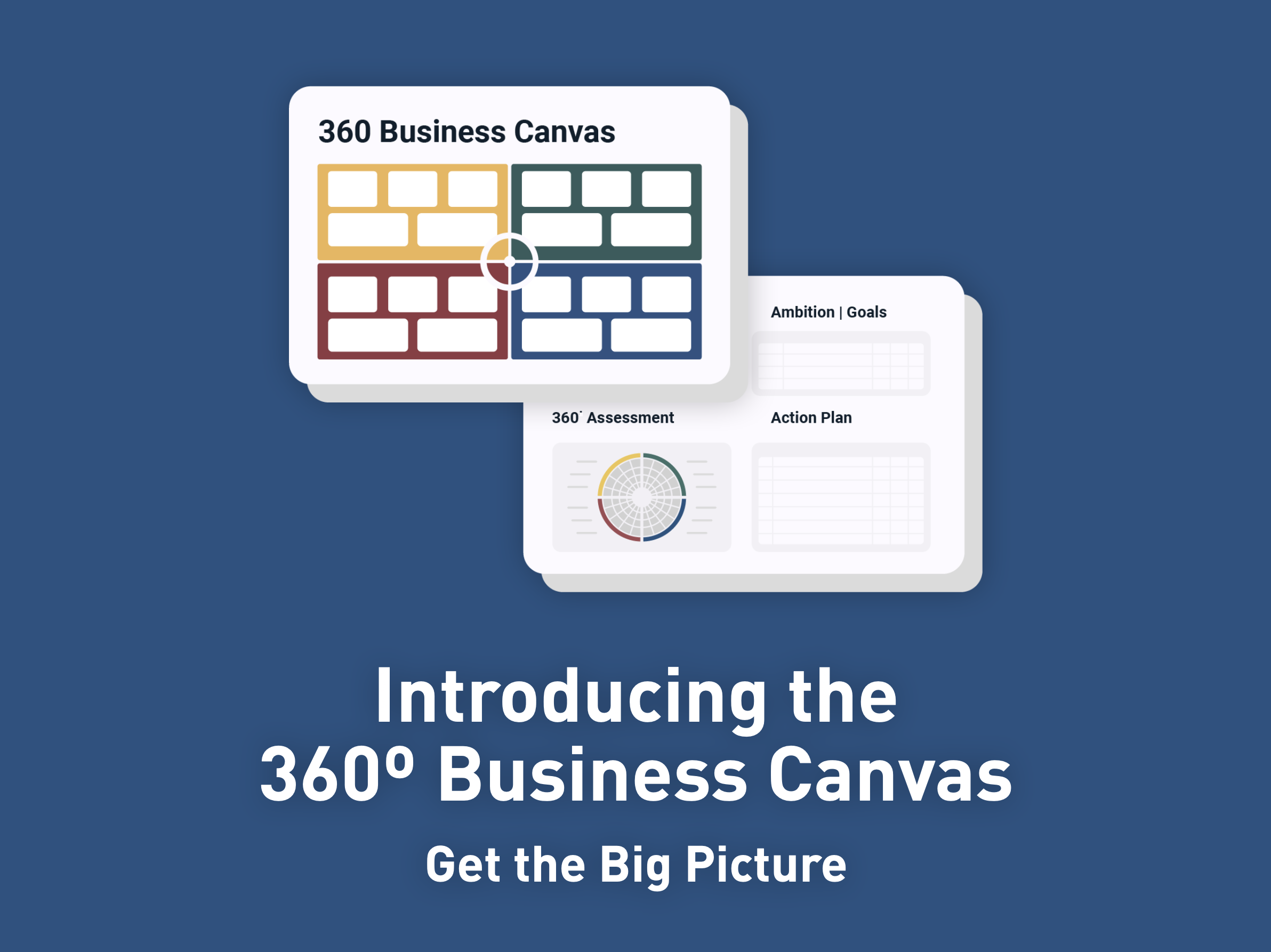
360º Business Canvas Free Tool

Understanding a whole business can be challenging. The 360º Business Canvas by GrowthWheel is designed to help entrepreneurs and business advisors get the big picture of any business. 


That's all for 2025! We will continue in 2026 with more updates from our community to help you be the best business advisors you can be.

Update: New 360° Canvas – All in one place

The 360° Business Canvas — and the new industry versions — has become the main starting point for many advisors working with clients.

Now, all 360º Canvas Tools have their own dedicated page for easy access.

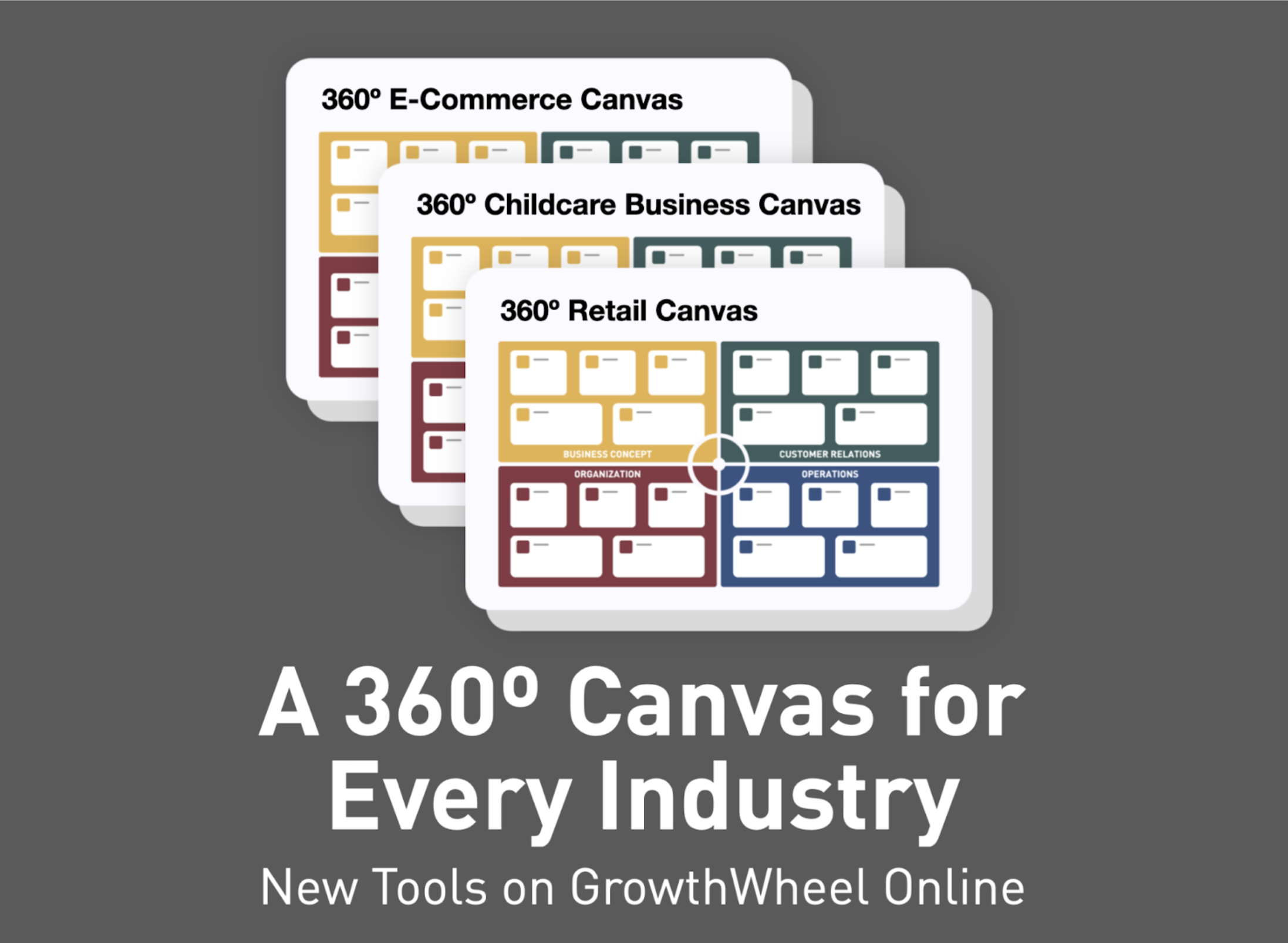
You’ll find a new submenu in GrowthWheel Online called 360º Canvas, where you can quickly browse, download, and share all available canvases.

In addition to the original 360º Business Canvas, you can now explore our growing collection of industry-specific canvases, including the 360º Child Care Canvas, the 360º Retail Canvas, and the 360º E-Commerce Canvas — with more on the way!

Look out for new canvas in the coming months and let us know if there’s a canvas you’d love to see next.

You can start sharing these new tools with your clients right away, in just a few clicks!

Available only for GrowthWheel Certified Business Advisors to share with their clients


NEW: The 360° Founder Canvas: Know What It Takes to Start a Business

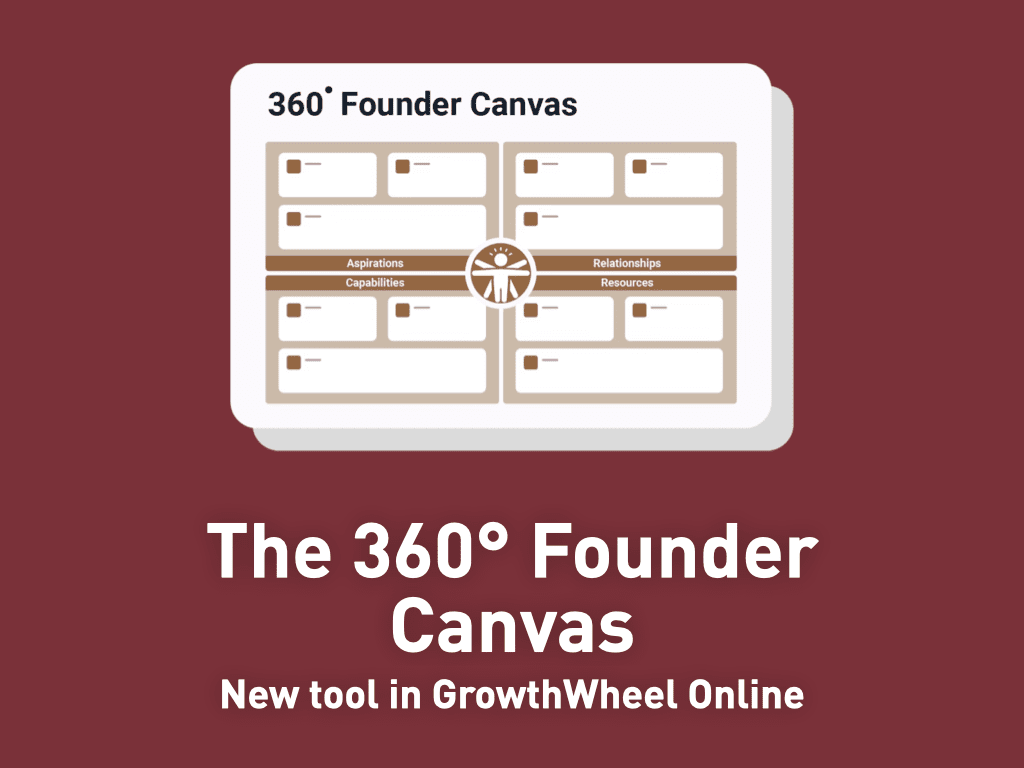
Starting a business is exciting—but also challenging. The 360° Founder Canvas by GrowthWheel is designed to help aspiring entrepreneurs and advisors assess readiness and identify what it really takes to get started.

This tool provides a visual framework to reflect on four essential areas of founder readiness: Aspirations, Capabilities, Relationships, and Resources.

The 360° Founder Canvas can be used with founders of any industry or background. It covers key questions such as:

  • What is your mission and vision?

  • Who would be your first customers?

  • What skills and experiences do you bring?

  • How much capital and time do you have available?

Founders can also complement this tool with making a 360º Readiness Assessment, adding some ambitions | goals and finish with a 30-60-90 Day Action Plan to convert these insights into concrete actionable next steps.

Available only for GrowthWheel Certified Business Advisors to share with their clients
👉 Get the 360° Founder Canvas in GrowthWheel Online


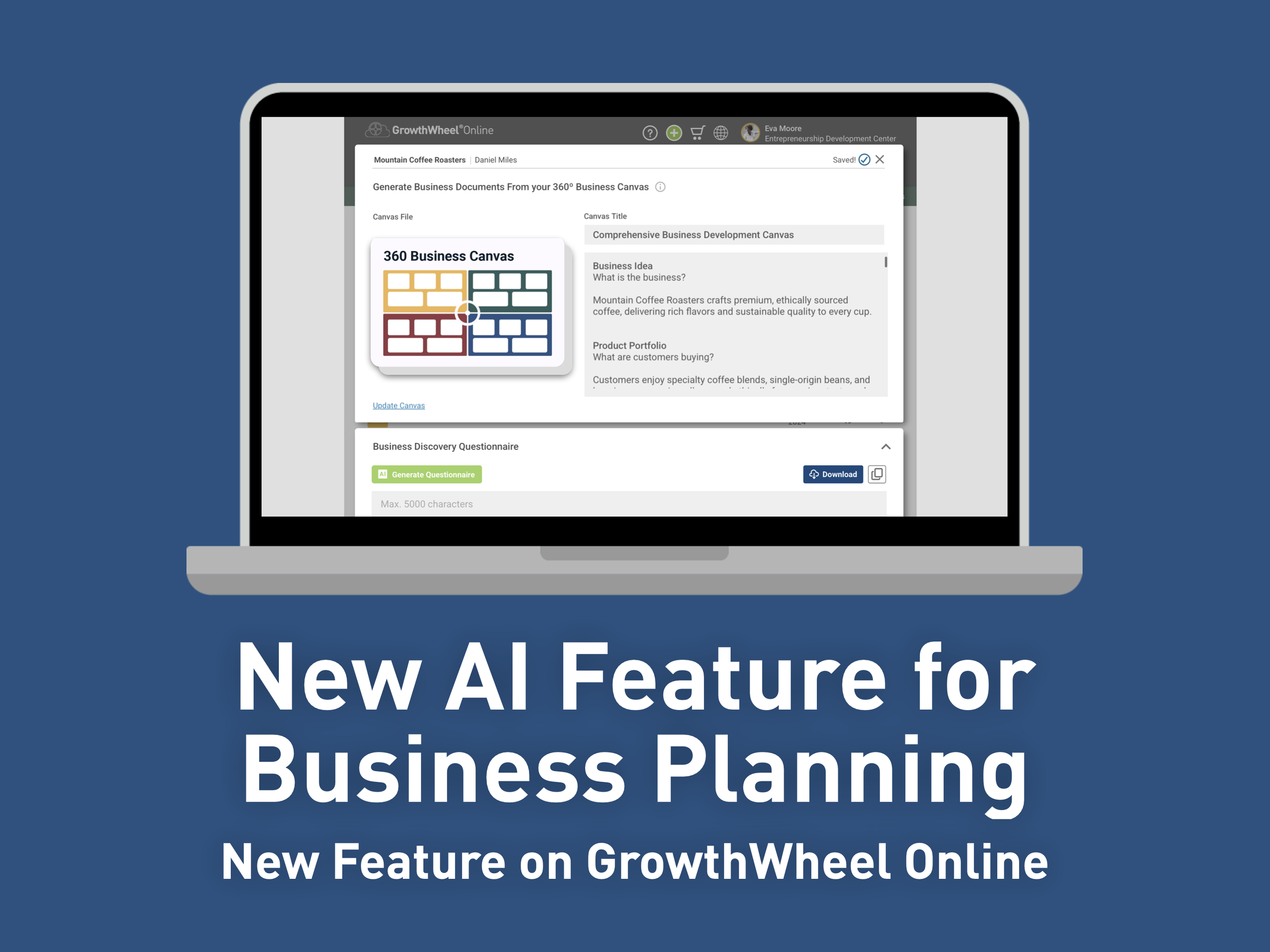
New Feature: AI for Business Planning using the 360° Business Canvas

We know it can take time to learn how to use AI effectively—from writing prompts to asking the right questions. Now, GrowthWheel makes this easier for you!

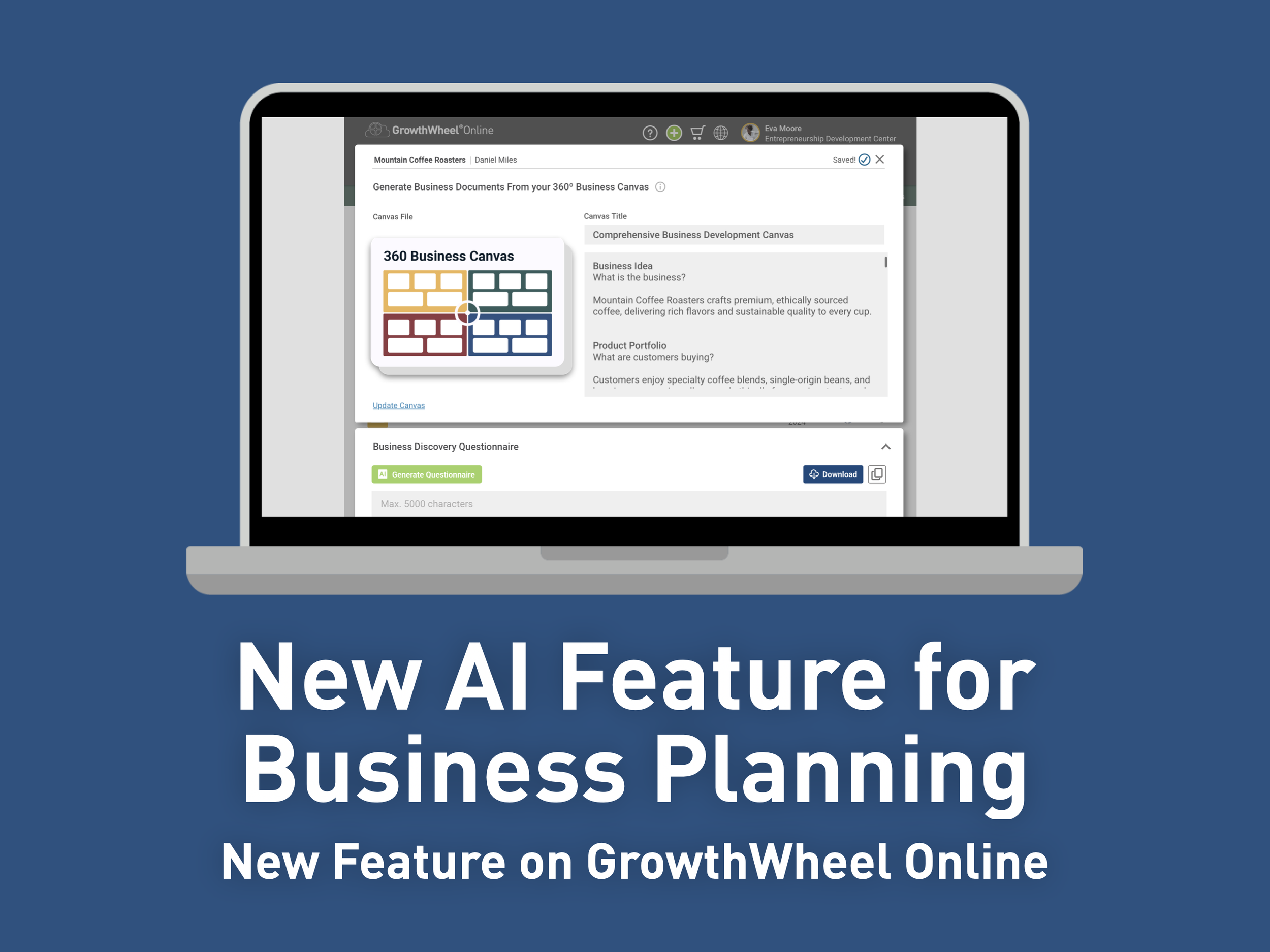
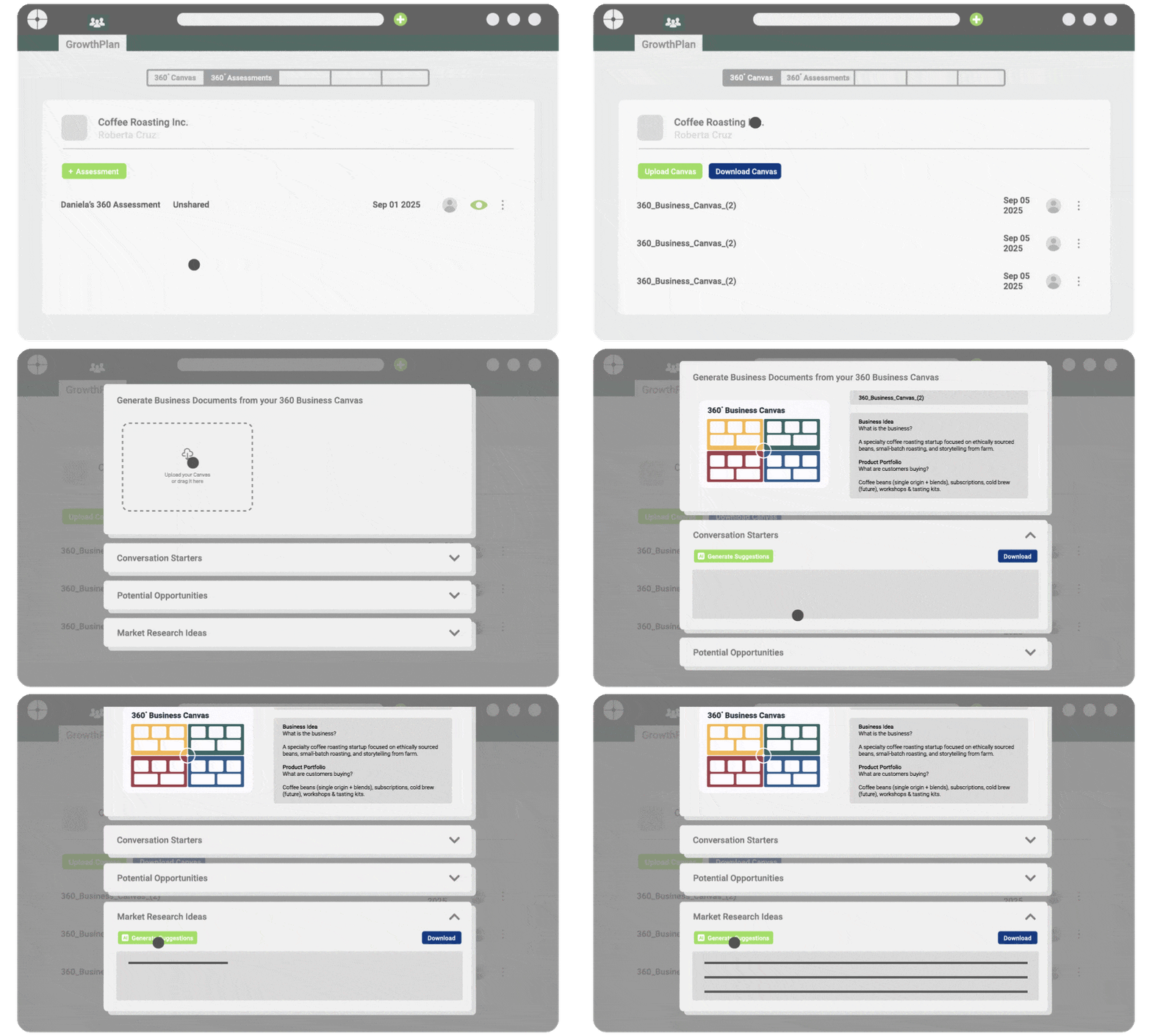
By uploading a 360º Business Canvas into GrowthWheel Online, you give the AI a complete big-picture view of any business, along with all the information it needs to serve you well.

Once uploaded, the system can generate three types of business documents of your choice:

  • Conversation starters – Get a list of industry specific questions to engage in deeper client conversations.

  • Potential Opportunities – Get inspiration across the 20 Focus Areas to brainstorm opportunities and decide where to focus next.

  • Market Research Ideas – Get resources and ideas to guide your client’s market research across all areas and support their future growth.

Additional business document options will be available soon.

Each uploaded file is saved as a record under the new “360º Canvas” page in the client’s GrowthPlan menu. You can also download a .docx file to edit or share.

With the 360º Business Canvas, you provide AI with the context it needs to deliver great results. This feature gives business advisors a simple way to use AI in business planning—helping them work more efficiently with clients.


In this short video, Elizabeth will show you how to use this in GrowthWheel Online: