New Features

New release: Ambitions And Outcomes

Help Clients Rank Their Ambitions
and Keep Track of Outcomes
- A new way to help clients focus on what matters

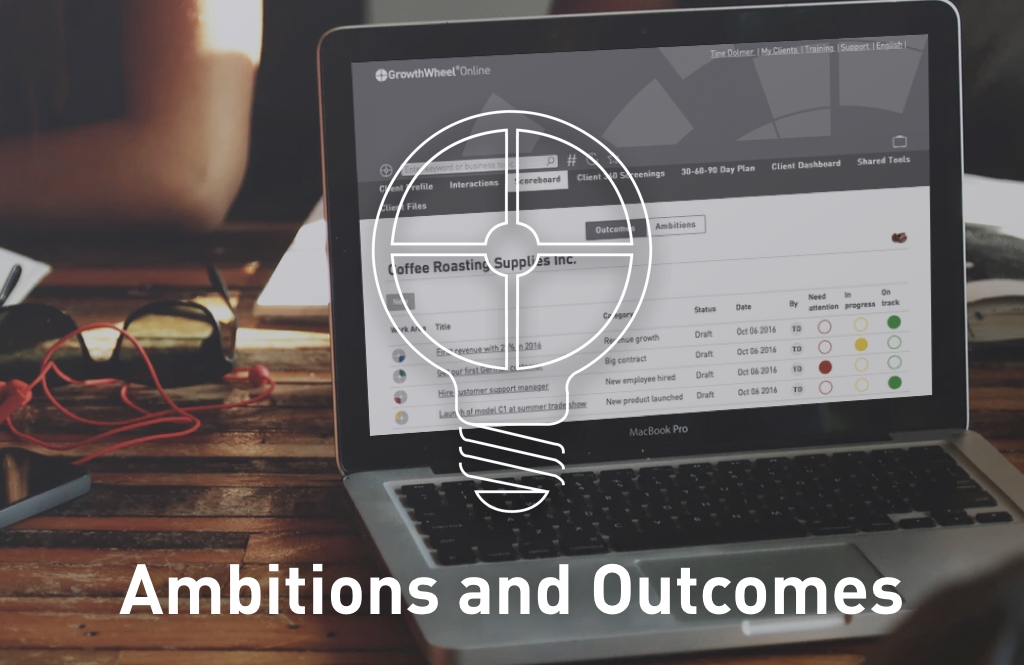
All business advisors speak with their clients about their ambitions, and work to turn them into measurable outcomes. Today, we are proud to introduce a new tool on GrowthWheel Online Beta: A scoreboard where you and your clients can rank ambitions and keep track of outcomes.You can make a list of your clients' ambitions and rank them in terms of what to focus on. 

When ambitions are turning into outcomes you can keep track of them quarter by quarter to see for yourself - and show your client - all the results and achievements you have created together. 

To try out the new features go to My Clients, select a client and go to the new menu "Scoreboard". Here you can add ambitions and outcomes for your client.


#1 New Menu Scoreboard

Select a client and go to the new menu "Scoreboard". Here you can create ambitions and outcomes by switching between the two views.


#2 Create a New Ambition

To create a new ambition select the submenu "Ambitions" and click on "New". You can now give the ambition a title, select the work area, a category and the quarter and year of when you expect to fulfill the ambition. Then save it as a draft or share it with your client.


#3 Add Decisions and Actions to Each Ambition

You can add decisions and actions to each ambition. They will both show up below the ambition and in the 30-60-90 Action Plan. 


#4 Monitor Ambitions with Traffic Lights

You can rank all ambitions with a simple traffic light system to monitor their progress:
Is the ambition somewhat a challenge, in progress, or on track? 


#5 Create a New Outcome

To create a new outcome select the submenu "Outcomes" and click on "New". You can now give the ambition a title, select the work area, a category, the quarter and year, and if it is a result or an achievement. Then save it as a draft or share it with your client.


#6 Result or Achievement?

Results are meassureable outcomes such as revenue growth, a new time-saving process, or a stronger market position. Archivements are something you can be proud of such as launching a new product, hiring a new employee, or receiving an award. 


#7 Keep Track of All Outcomes

You and your client can use the Scoreboard to keep track of all results and achievements quarter by quarter.


New Release: Notifications

reports.001.jpeg

Stay Up-To-Date on Clients' Action Plans
- Get an email report to help you follow-up

Now you can easily get the big picture of what your clients have on their 30-60-90 Action Plan. Going forward you will get an email with the same information you see online so you can quickly decide which clients to follow up with. 

In this release you will:

  • Get a weekly email report of your clients' open decisions and actions
  • Get an email notification when your client uploads a file for you
  • Be able to manage you own and your clients' reports and notifications

Your clients will:

  • Get a monthly email report with the list of the decisions and actions they have scheduled for the next 30 days or less
  • Be able to manage their own notifications

#1 Weekly reports of open decisions and actions

Every Monday you will get a report of each client's open decisions and actions. This will help you and your clients stay focused and plan the week ahead.


#2 Notifications when your clients upload files

Now you don’t have to check each of your clients anymore to know if they have completed a Worksheet and uploaded it to GrowthWheel Online. Instead you will get a notification each time a client uploads a file.


#3 Your clients get a monthly report

Your clients get a monthly report with the list of the decisions and actions they have scheduled for the next 30 days or less. You can turn off this report in your client's profile. 


#4. Don’t want to receive notifications?

Don’t worry, we thought about that too. You can turn off the reports and notifications in the new account settings page. Go to the top menu with your name and select “My profile”, then open the tab “Account settings”. By default the notifications are switched on. 

New Release: Keep Track of Client Meetings

new interaction.001.jpeg

Log and share all client interactions
- Track decisions and actions. Share with clients.

This month we are happy to introduce a new way to track your work with clients. Today you will find a new menu called “Interactions”. Here you can track each interaction you have with your clients, and add decision and actions discussed during your meeting. When ready you can download all interactions as a PDF that you can upload to your CRM-system. 

Log in to GrowthWheel Online today to see:

  • The new menu “Interactions” under each of your clients
  • A new way to invite clients you created as draft
  • New visual icons for decisions, actions, and notes
  • Edit decisions and actions directly in the 30-60-90 Day Plan

Step 1: Go to the new interaction menu

You can now log all interactions with your clients, and keep track of the decisions and actions you discuss during your meeting. Go to the the client’s menu and you’ll see the new menu “Interactions".


Step 2: Create a new interaction

It is easy to create a new interaction: Just name the interaction, select type, and set the date and time. Like with the Online 360° Screening tool, you can decide to keep the interaction as a draft or save and share it with your client. If you share it your client will be able to see a PDF of the interaction. 


Step 3: Add Decisions and Actions

You can log any decisions or actions you and your client have discussed during your meeting. The decisions and actions from your shared interaction will also be visible for your clients in the 30-60-90 Day Plan.

New Release: Big Data

Monitor clients' progress month by month
- Use big data to make your own decisions

With our June release, it is now possible to track your clients’ progress in a way that has never been possible before!

We are introducing two new charts in the Dashboard Menu so you can monitor all your clients’ completed decisions and actions, whether they are added to the cloud by you or your clients. With the latest features in GrowthWheel Online Beta you can see this on the updated dashboard:

Decisions and actions completed per month for each client
Aggregated data for all your clients, your organization, and your entire network
• Amount of work completed for each of the four main work areas in the business

With a bird's eye view on how many decisions and actions clients are executing you can make better decisions on which clients to spend your time on, and also see if some areas are in need of more attention.


New Menu: All Clients Dashboard
- Follow your clients' progress

In the new menu, "All Clients Dashboard", you can see the total amount of completed decisions and actions each month for all your clients.The two charts show the decisions and actions grouped by work area so you can easily see within which areas you have been working and when.


The monthly charts that you find in the "All Clients Dashboard" show the aggregated data of all your clients. You can also see monthly charts for each individual client. Choose a client from your client list and click on Client Dashboard.

New Release: Add Decisions And Actions To Worksheets

Add decisions and actions to shared tools
- Let your client do it or add them yourself

This week we are launching 4 new exciting beta features on GrowthWheel Online: 

  • Your clients can see the list of tools you share with them in a new menu called Shared Tools
  • You can add and manage clients without giving them access to GrowthWheel Online
  • You can download PDFs of the 360° Screening and the 30-60-90 Day Plan with an updated design
  • You can add decisions and actions on tools that you have shared with your client 

These features will help you and your clients work together and share tools online.


Shared Tools
- Both you and your clients can see shared tools

When you have shared a tool or file with your client, that client is now able to see them in the Shared Tools menu.


Add decisions and actions to shared tools
- Find them in the 30-60-90 Day Plan

In the Shared Tools menu, you can now add decisions and actions to each of the tools that you and/or your client has filled out and shared. The decisions and actions are automatically transferred to the 30-60-90 Day Plan.

#1 Choose a shared tool
When you have emailed the tool or file to your client, go to the menu Shared Tools in the client's interface and choose the shared tool to which you want to add decisions and actions.

#2 Add decisions and actions
When you enter the tool in the menu Shared tools, you can hit the button "New action" and create a new decision or action that is related to that tool.

#3 Find decisions and actions in the 30-60-90 Day Plan
As soon as you add decisions and actions to a tool, you will be able to see them in the client's 30-60-90 Day Plan.

Here you can plan when to make the decisions and carry out the actions.


Invite clients or just create them

You can now add clients to your client list without inviting them to join GrowthWheel Online. This is useful, if you want to use the platform only to keep track of your clients, or if you simply would like to explore the features a bit more before inviting them.


PDFs of your client's decisions and actions
- Updated design of PDF files you create

We have updated the design of the PDFs you create from the 360° Online Screening and the 30-60-90 Day Plan. The PDFs will have key information about the tool, the company, and the team. This will enable you to easily print the decisions and actions you and your clients make to have them handy whenever you need them.

New Release: Keep track of your shared tools

Keep track of your shared tools
- And your clients can do the same

This week we have launched 3 new menus: “My Files”, “Shared Tools”, and “Client Files”.

With the new features, you can now upload your own files, send the files to your clients, and keep track of all shared files. And the best thing is that your clients can do exactly the same!

To get started go to the new menu "My Files" and upload one or more of your own files. You can both upload documents, spreadsheets, images, and PDF's.


#1.png

#1 Shared Files
Keep track of the files you have shared

The new menu "Shared Files" will help you keep track of all the tools and files you have emailed to a client. Go to your Client List, select a client, and go to Shared Tools to get an overview. You client will have the same option of viewing shared toold. 


#2 My files
Upload and share your own files

You can use your files the same way as you do with the GrowthWheel Tools: email files to a client, download them, mark your favorites with a start, and add files to the toolbasket. 


#3 Client Files
See all your client's shared files

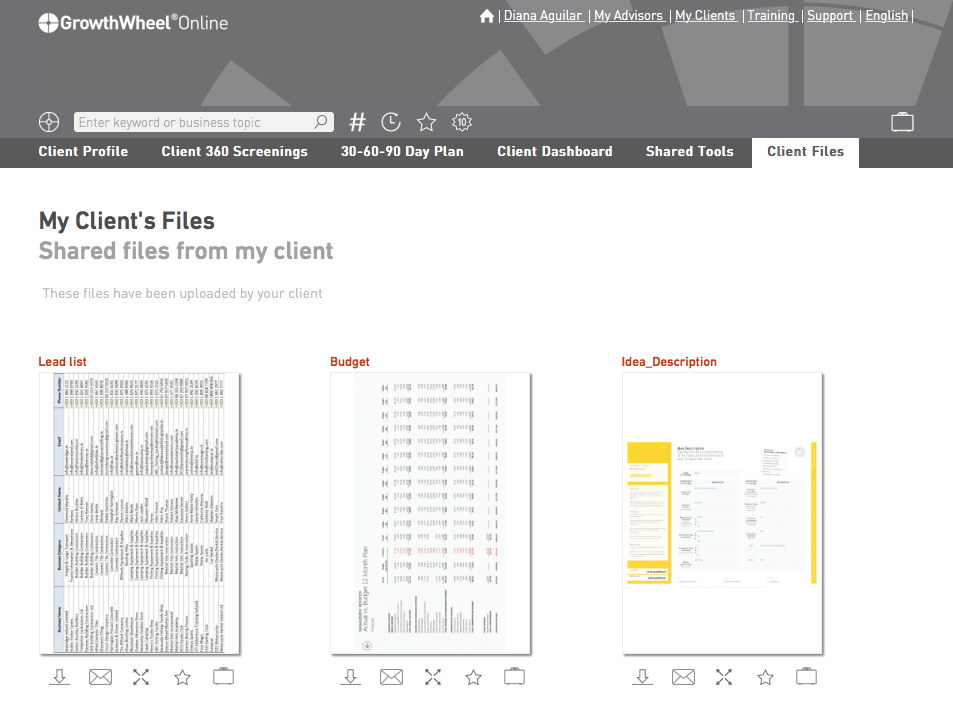
Your client is also able to upload files to GrowthWheel Online. This is a good way to share filled out Worksheets or information about the client company. In the new menu "My Client's Files" you can get an overview of your clients files. 


#4 Send Links to Tools instead of Attachments
Edit your email settings

As a beta tester you can now email tools as links (instead of as attachments). To use this option go to your profile and open email settings. At the bottom you can turn on "Send tools as links".

New Release: Collaborate with your Colleagues

Share a client with your colleagues
- and start working together

In this release we have focused on one of the most requested features: sharing a client with a colleague.

You can now share one or more clients with your colleagues - and they can share their clients with you. 

You and your colleagues can work together with the client and see all shared information: The client's profile, 360° Screenings, 30-60-90 Day Plan and the Client Dashboard.


#1 Share a client company
Work together on GrowthWheel Online

If you would like to share a client company go to the "Client Profile". Click on the "share" icon to see the list of your colleagues. Select one or more colleagues and click share. Your colleague(s) will now receive an email notification and will be able to see the client company on GrowthWheel Online.


#2 Filter the 30-60-90 Day Plan

You can now filter your 30-60-90 Day Plan. Click on the filter icon and select one of 3 options: "View all", "View un-completed" and "View completed".


#3 Decision and actions due sooner than 30 days?

We added 1 extra column for decisions and actions that have to be completed sooner than 30 days. 

New Release: Manage your Clients

Manage your clients
- Edit the company profile, request a 30-60-90 Day Plan, archive clients, and much more 

Did you notice that you can easily manage your clients on GrowthWheel Online?

You can:  

  • Add and edit information about your client
  • Request a 30-60-90 Day Plan from your client
  • Archive past client companies
  • Edit text on saved notes, decisions and actions in the 360° Screening

#1 Edit the Client Company Profile

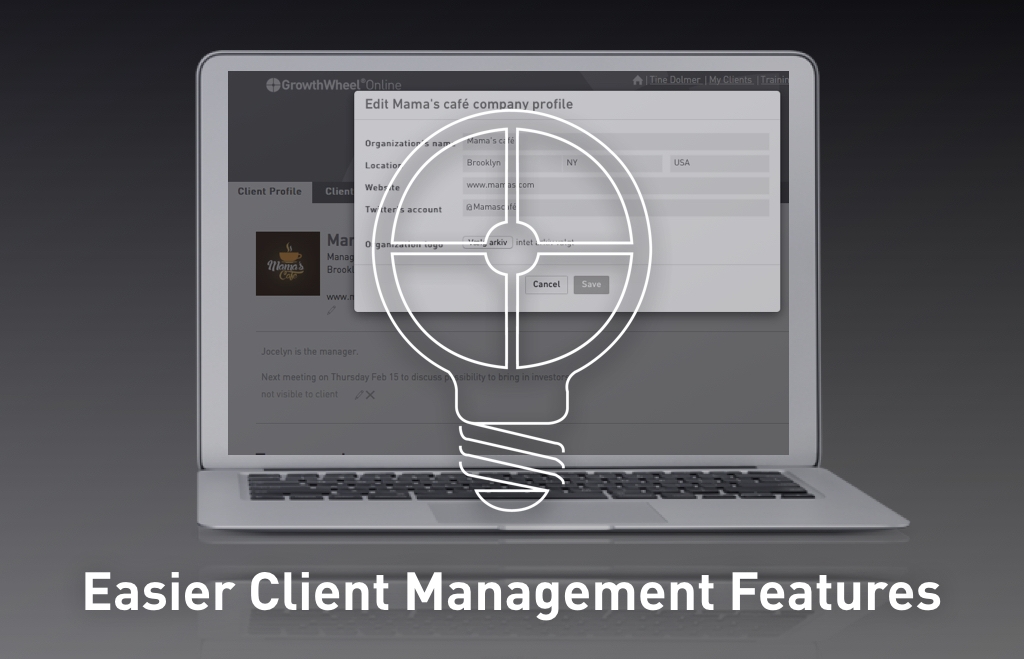
Select a client and go to "Client Profile" to add and edit information about your client. Or you can simply leave this task with your client, who has the same options to add contact information, location, or upload a logo. 


#2 Request a 30-60-90 Day Plan

You can now request a 30-60-90 Day Plan from your clients. Go to the "Client List", select a client, open the bulk action, and choose "Request a 30-60-90 Day Plan". If you prefer you can add a personal message with instructions to your client. 


#3 Archive Client Companies

If you no longer work with a client (or have created a fake client to test the features) you can now archive client companies to keep your Client List nice and tidy. Just select the client, open the bulk action, and choose "Archive Client Company". To view or re-activate client companies, click the archive icon at the bottom of the client list. 


#4 Edit saved notes, decisions, or actions

After having a conversation on a topic, maybe you and your client would like to describe the decision or action better. If so, you can easily edit it.

New Release: Client Dashboard

The Client Dashboard
- Track your clients’ progress

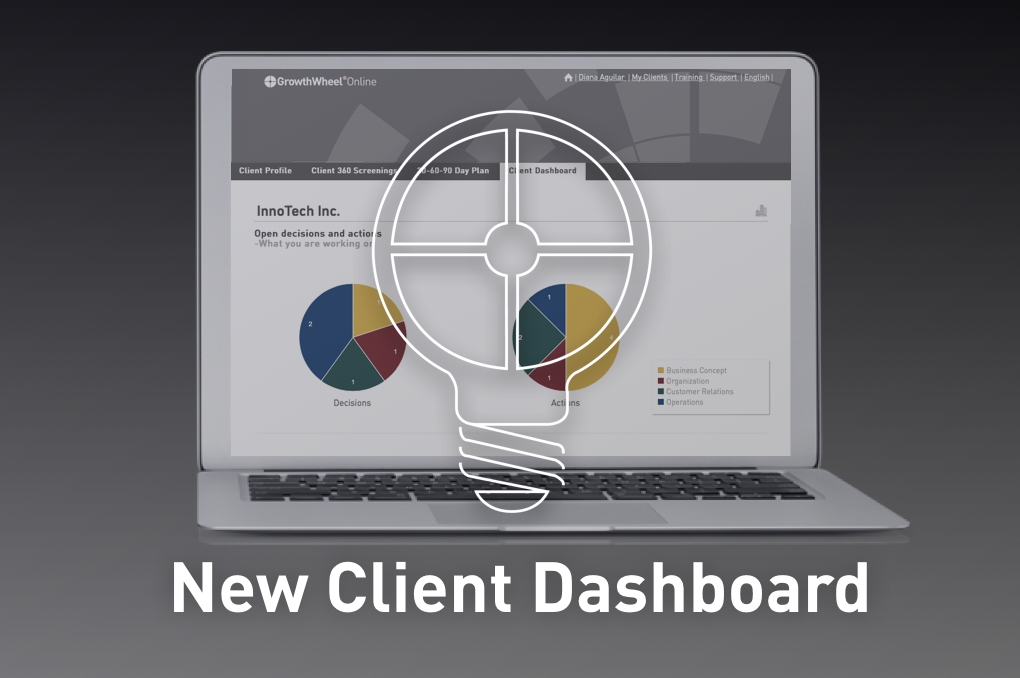
Did you notice the Client Dashboard. Here you can see the stats for all open decisions and actions that you are working on with your clients, as well as stats for the completed ones. 

The decisions and actions are sorted by Work Area in pie charts that will help you get an overview of what you are working on. 
 

To find the Client Dashboard, go to "My Clients", select the client that you would like to see the stats for, and go to the menu "Client Dashboard".  

New Release: Online 30-60-90 Day Plan

Try out the Online 30-60-90 Day Plan
- Track actions and decisions. Follow up.
Print documentation. Share with colleagues.

We hope you like the new client collaboration features in the beta version. Did you take a look at the Online 30-60-90 Day Plan? This tool will help you and your clients keep track of all the decisions and actions you are working on.

To find the Online 30-60-90 Day Plan go to the top menu "My Clients" and select a client from your client list. New menus will appear for this client and among them the 30-60-90 Day Plan.

In the 30-60-90 Day Plan, you will find all the decisions and actions from the 360° Screenings that you and your client have shared with each other. You can add new decisions and actions directly to the 30-60-90 Day Plan, as well as prioritize and resolve them.


#1: Add decisions and actions to the 360° Screening

When you or your client do a 360° Screening you can add decision and action notes to each Focus Area by clicking on the note bubble. 


#2: Share your 360°Screening

Only decision and action notes on shared 360° Screenings will be displayed on the 30-60-90 Day Plan.


#3: 30-60-90 Day Plan

Go to the menu "30-60-90 Day Plan" to view all shared decisions and actions. You can easily prioritize them by 30, 60, 90 days, or later, delete or mark them completed.


#4: Create more decisions and actions

If you prefer, you and your client can also add decisions and actions directly to the 30-60-90 Day Plan. 

New Release: GrowthWheel Online Beta

Become Beta Tester
- Get access to the new features

Become Beta tester to get access to the beta version of the new client management menu, the Online 360° Screening, and Online 30-60-90 Day Plan.

As Beta tester, you will find a new menu called "My Clients" On GrowthWheel Online. Click on it to get started right away - or follow the step-by-step instructions below. 

Use the tools with your clients for a real-life feedback right away!


#1: Getting started

Go to the new top menu "My Clients" and select "My Client List". Here you will find all your clients with access to GrowthWheel Online. 


#2: Invite your first client

To invite a new client select "New Company" and fill out the information.
We suggest that your start by inviting yourself (e.g. your personal email) or a colleague. This will give you a better understanding of how it works.


#3: View the client

Select one of your clients. In "Client Profile" you can see all current information on the client. In "Team members" you can add more members. In "Client 360° Screenings" you can view old screenings or create a new. 


#4: Create your first screening

Go to the menu "Client 360° Screenings" to create a new screening. Start by naming the screening. Then select one of the 3 types of screenings and complete the screening. 


#5: Add comments and discuss ideas

If you have any ideas, decisions or actions you would like to remember or discuss with your client you can add comments to the Focus area. Your client will be able to respond.


#6: Choose Focus Areas to work on

Select the top 3 Focus Areas you would like to work on the next 30, 60 or 90 days. 


#7: Share the 360° Screening with your client

When the 360° Screening is done your can choose to save it as a draft for your own use. Or you can save it and share it with your client, who will be able to see it and reply on your comments.