
Now you can create Mentor Profiles and assign mentors to clients.
E-mail Templates

New feature: E-mail Template
—Save time when you invite new clients
In this March release, we give you a new e-mail template. It is the first one in a series of e-mail templates and the new feature is based entirely on your suggestions.
Instead of writing an e-mail from scratch every time you invite a client to the platform, you now have a ready-made e-mail.
It is easy for you to edit all the information in the template and the invitation e-mails will by default be send from you.
Whenever you want to invite a client, either when you first create the account or when you want to invite a new team member, you will be able to use this template.

Track Your Clients' Profit with Charts

New additions to the Business Profile
—Get a better overview with Profit Charts
In our January release, we are adding profit charts to the Business Profile. This gives you and your clients a more comprehensive and complete financial view of the business.
You can now more easily report profits for your entire client portfolio and quickly download it as a nice-looking PDF file.
The data contain all the key profitability numbers such as gross profit, operating profit and net profit. If you are a manager you can also see the aggregated data for your entire organization or network.
New Features — Track client profit quarter by quarter


#1 Get instant charts of your clients' profit
Add profit on the financials page and get an instant overview of your clients' growth.
#2 Add profit charts to the business profile
With the new profit charts, your clients can get a more extensive business profile to show lenders, financial partners or investors.
#3 Use your clients' profit for reporting
Use profit charts for reporting in terms of growth for your entire client portfolio or network.
Employee Counts and Charts

Monitor Employee Count
— New page on the Business Profile + Analytics
In our November release, we have added a new feature to the Business Profile: Employee count.
Now you can see charts and tables of how your clients are progressing in hiring new employees.
Your Client List has an Employee Count View, which gives you a full overview of all your clients' employees for each quarter in the current year.
Network Managers also have an overview of the employee count from each organization in their network.
Improve the Business Profile with Employee Counts and Charts

#1 Get an instant chart of your client's employee count
Improve the Clients' Business Profile with charts and tables of the employee count.

#2 See Employee count on your Client list
Get a full overview of your clients' employee count progress. Now you can compare counts from previous quarters or years and easily report it.

#3 Employee analytics for the network
If you are a Network Manager, you can see the big picture of job creation trends for the entire network. You can easily print PDF reports to bring to your team meetings.

#4 Employee count for network managers
As a network manager, you can see the employee count by each center that belongs to the network. This gives you an overview of the jobs created across the network.
What is Next?
A sneak peek of what we are working on...
In GrowthWheel, we are committed to making continuous and never-ending improvements of the software in collaboration with our users.
Every month, we release new features, and we have hundreds of upcoming features in our road map.
Here are a few of the most exciting ones:
Create job descriptions and employee profiles
Use email templates to streamline your communication
Assign Decisions and Actions to team members
NEW RELEASE: Better Sharing Features

Monitor Employee Count
— New page on the Business Profile + Analytics
In our November release, we have added a new feature to the Business Profile - employee count. Now you can see charts and tables of how your clients are progressing in hiring new employees.
Your Client List has an Employee Count View, which gives you a full overview of all your clients' employees for each quarter in the current year.
Network Managers also have an overview of the employee count from each organization in their network.
Improve the Business Profile with Employee Counts and Charts:

#1 Get an instant chart of your client's employee count
Improve the Clients' Business Profile with charts and tables of the employee count.

#2 See Employee count on your
Client list
Get a full overview of your clients' employee count progress. Now you can compare counts from previous quarters or years and easily report it.

#3 Employee analytics for the network
If you are a Network Manager, you can see the big picture of job creation trends for the entire network. You can easily print PDF reports to bring to your team meetings.

#4 Employee count for network managers
As a network manager, you can see the employee count by each center that belongs to the network. This gives you an overview of the jobs created across the network.
More Improvements
Based on your suggestions

See your top 10 clients in a chart
You can now see a chart of the 10 clients you spend the most time on
If you are a manager, you can see your organization's or network's top 10 clients as well.
What is Next?
A sneak peek of what we are working on...
In GrowthWheel, we are committed to making continuous and never-ending improvements of the software in collaboration with our users.
Every month, we release new features, and we have hundreds of upcoming features in our road map.
Here are a few of the most exciting ones:
- Manage mentors on GrowthWheel Online
- Use Email Templates to streamline your communication
- Assign Decisions and Actions to team members
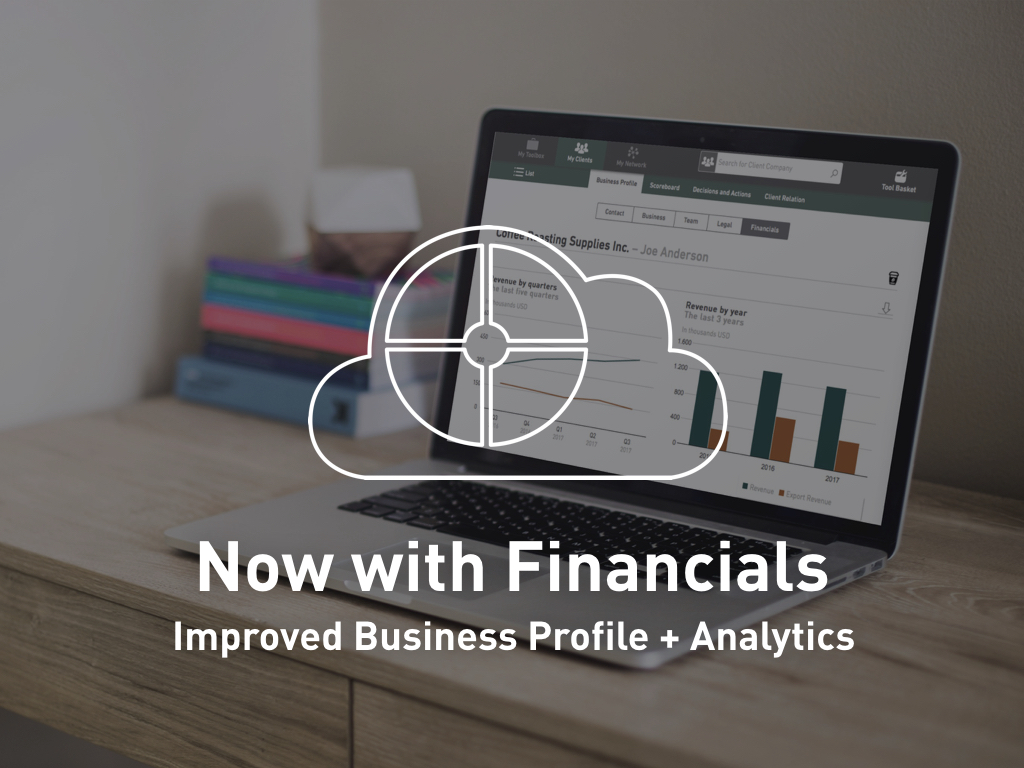
NEW RELEASE: Now Financials on GrowthWheel Online
Track Your Clients' Progress
—Print a one-page PDF with financials
It is our vision that GrowthWheel Online can be used to gather all the information that clients, advisors, and lenders need, and that it can be printed as a great-looking PDF with a single click.
With this release we are happy to introduce Financials. This new feature helps you track the revenue, export, profit, and funds for each client.
Financials are part of the Business Profile, that you can download as a professionally looking PDF file, or export as an Excel file. But it is also a way to keep track of clients and their progress.
Your clients can also make a Business Profile on their own. Less typing work for you, more time to help your clients grow.
In Analytics, you can see revenue charts and tables for all your clients that you can use for reporting. If you are a manager you can see aggregated data for the whole organization.
New Feature: Financials
Track clients' revenue quarter by quarter
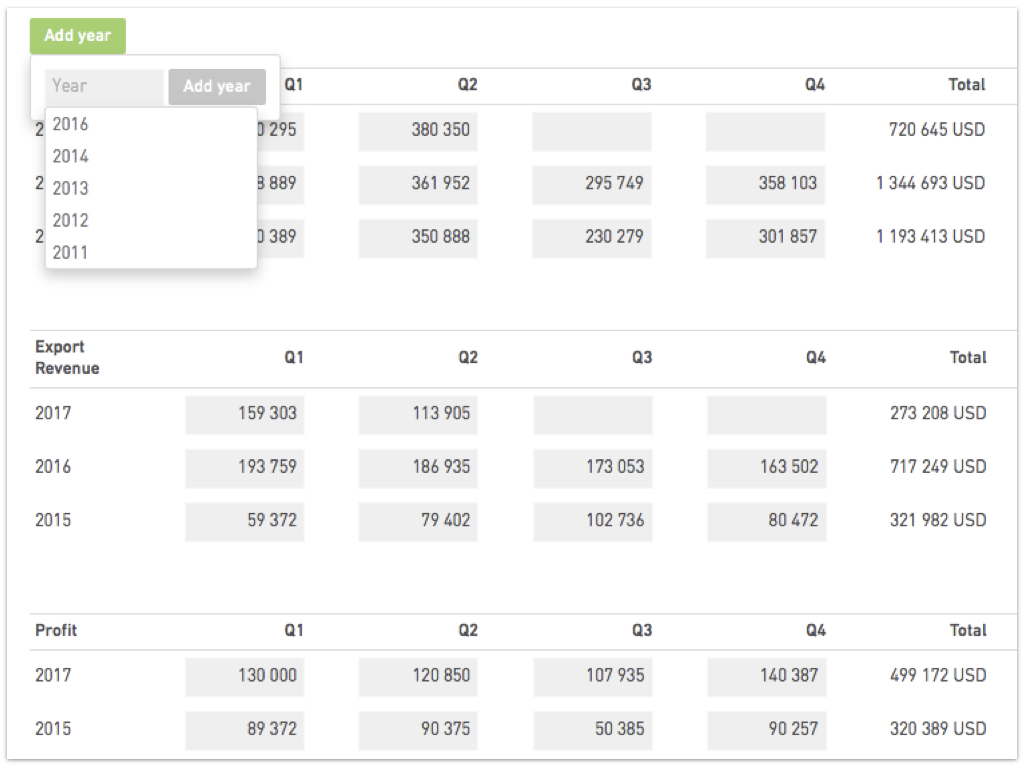
#1 Add information
You only need to add the information that is relevant for each client. You can choose to add years to the tables and customize them to only show it for the tables your client needs.

#2 Automatic visual analytics
All info you add to financials will automatically show up as graphs, that will help you analyze the numbers.

#3 Client revenue view
Now you can see the revenue for each of your clients in the Client List by switching to the new Client Revenue View.

#4 Analytics for all clients
In "Analytics", you can get a quick overview of all your clients' aggregated financials with graphs and tables.
New Feature: Take Your Data and Walk Away
—Export the Business Profile in Excel
If you need to import data from the Business Profile to another system, all data is good to go. You can easily download one or more clients' Business Profiles as Excel files that you can upload to another system, or you can print the data as visual PDF reports. And your clients can do the same.

More Improvements
Based on your suggestions

Employee count
The employee count has been improved and moved to "Team" in the Business Profile, where you can now create a table with the number of all employees.
Completed decisions and actions
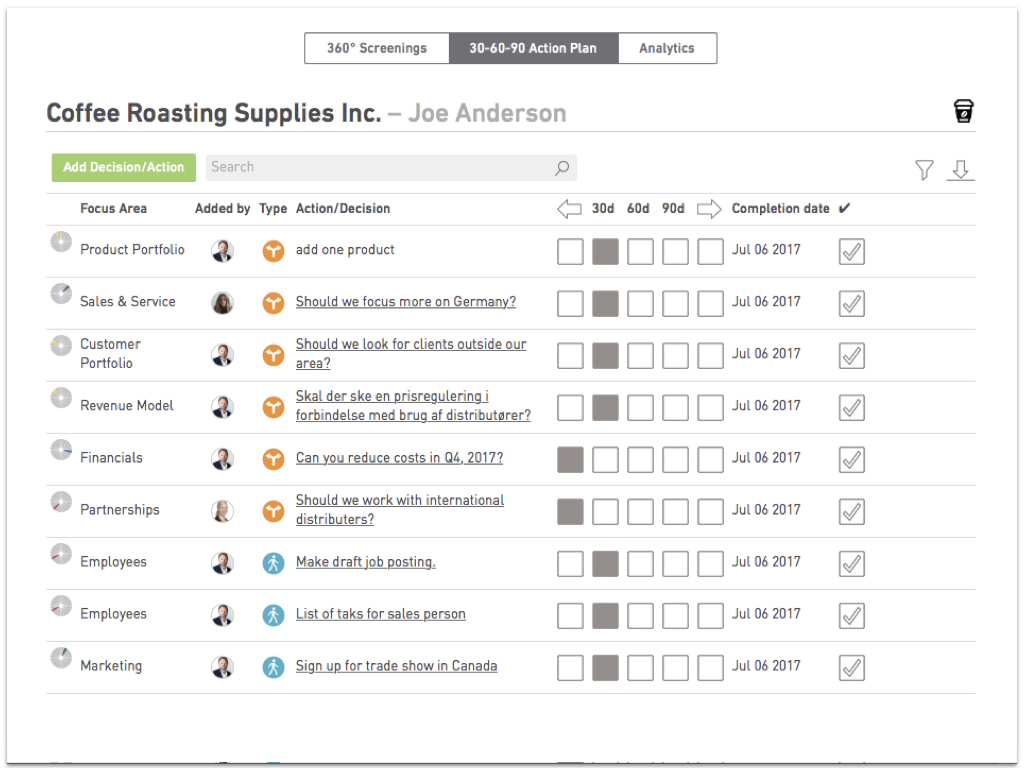
We have added the completion date to the 30-60-90 Action Plan. You can now see a list of all completed decisions and actions sorted by completion date.
What is Next?
—A sneak peek of what we are working on...

In GrowthWheel, we are committed to making continuous and never-ending improvements of the software in collaboration with our users.
Every month, we release new features, and we have hundreds of upcoming features in our road map.
Here are a few of the most exciting ones:
- Add competitor page and board member page to the Business Profile
- Improved 30-60-90 Action Plan with assigned tasks
- Improved notification system (gamification) with more reminders and notifications
New Release: GrowthWheel Online 3.0

Announcing: GrowthWheel Online 3.0
—Help you clients grow in the cloud
The last year we have invested a lot of time developing the new GrowthWheel Online platform. Hundreds of beta testers have helped us test and improve the new features, and we are happy to announce that it's now ready to go live!
With GrowthWheel Online 3.0 you can work with your clients online and produce reports that track client progress like never before. The new features will help you attract clients, create better results, and be more productive.
In this release we have also reorganized the menus and improved the design with new icons. This will make it much easier and faster for you to navigate on the platform, share tools, and work with clients online.

In the menu "My Toolbox" you can (like always) find all tools as writable PDF's, that you can download or email to clients. You can also upload your own tools, save favorites, and search for tools in the search bar.

In the new menu "My Clients" you can work with clients online: Write a business profile, track ambitions and outcomes, do screenings and action plans, and manage your client relation. All features have visual analytics and can be printed as PDF reports.
10 Ways to use GrowthWheel Online
—Try all the new features

#1 Work with your clients online
In "My Clients" you can manage your clients, share them with your colleagues, or invite them to work with you online. More...

#2 List client ambitions
List your client's ambitions and mark with a traffic light indicator if they are on track, in progress, or a challenge. More...

#3 Get a 360° view on focus areas
Do a 360° screening of each client's progress or opportunities and save it in the cloud, or invite your clients to do a screening themselves. More...

#4 Download or email visual tools
Download GrowthWheel tools for decision making as writable PDF files or make custom packages that you can email to your client. More...

#5 Share your own tools
You and your client can upload and share files, including your own personal tools, legal forms, spreadsheets and more. More...

#6 Create a 30-60-90 Action Plan
List, prioritize, and keep track of all actions and decisions you and your client have agreed to work on. More...
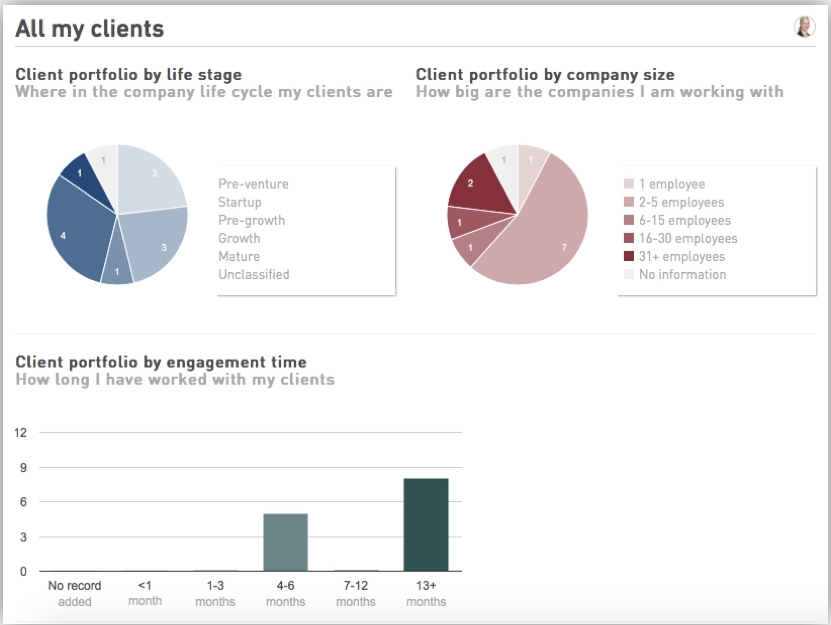
#7 View instant visual analytics
Get the big picture of what you work on: Your clients’ activities, their progress, and your client portfolio. Then download all analytics as visual PDF reports. More...

#8 Track outcomes and metrics
Keep track quarterly of both quantitative results and qualitative achievements you and your client have created together. More...

#9 Log interactions
Log each meeting, phone call, or workshop you have with your client and track time spent, along with action-oriented meeting minutes. More...

#10 Print a Business Profile
Make a visual Business Profile with all info about the business and print it as visual PDF report. Back it up with the company's financials. Then you got everything a lender could wish for. More...
New release: Print a Business Profile with a few clicks

First Item for the Lending Package:
—A good-looking business profile in PDF
Today, we are happy to launch the new Business Profile where advisors can quickly write and print a good-looking PDF report with a description of the client's business.
This is a new approach to making a document that advisors and client companies can add to a lender information package. It's different and faster than a conventional business plan because the Business Profile is focused on facts and on the current situation.
This is how it works:
- Build the Business Profile with new records to describe each product or service, key markets, customer segments, team members, and more.
- Add information about the business in predefined fields
- Add images to make the report more visual
- Print the full Business Profile with a click.
Below you can download a sample business profile to get an idea about what it could look like:
Of course the Business Profile is not all the lender wants to see. But when combined with a well-prepared and detailed budget in a spreadsheet it might be a sufficient alternative to the conventional business plan, which few clients like to write and few lenders like to read.
Business Profile
—Add all information about the company

#1 Add Business Description
Here you can tell about the company's history, mission, vision for the future, needs and problems, scalability, and values. Top it up with a nice image.

#2 Add Product/Service
Describe each of the products or services of the company: Who are the typical buyer, how does it create value for the buyer, and what is the price range and revenue.

#3 Add Key Market/Customer Segment
What are the company's key markets and customer segments? List top 5 clients and market share.

#4 Print the Business Profile
Print the Business Profile as PDF and back it up with the company's financials. Top it up with a 30-60-90 Action Plan. Then you got everything a lender could wish for.
What is Next?
—A sneak peek of what we are working on...

We are committed to making continuous and never-ending improvements of the software in collaboration with our users. Every month we release new features. Here you can see what is on top of the list:
- A simplified menu design where you can easily manage tools and clients
- Improved business profile with competitor info and board members
- Create standard email templates to use when writing clients
New release: Share 5 new good-looking PDF reports

Now, all visual analytics are available as PDF reports, so you can share them with your colleagues, managers, and stakeholders.
The analytics show big data that will help you see trends from a few or hundreds activities for a large client portfolio over a year.
- What are your client's ambitions?
- Which results and achievements have you accomplished together?
- What type of clients are you working with?
- How many actions and decisions have clients completed?
- How many results and achievements have clients accomplished?
Because the reports are in PDF you can easily email them, use them in a presentation, or upload them to any other CRM system you might be using.
If you are a manager you can also get reports with analytics of all clients and advisors in your organization or network.
Take a look at this 3 min. video with David showing the new features:
5 New PDF reports
—Share with colleagues, managers, and stakeholders
#1 Your Client Portfolio
What types of clients are you working with? Get a report of your client portfolio by life stage, company size, and engagement time and use it for reporting.
#2 All Decisions and Actions
How many actions and decisions have your clients completed? Get a report of all clients' decisions and actions.
#3 All Outcomes
How many results and achievements have your clients accomplished? Get a report of all your clients' outcomes and share it with your manager or stakeholders.
#4 Ambitions
What are your client's ambitions? Get a report of each client's ambitions and share it with your colleagues.
#5 Outcomes
What are your client's outcomes? Get a report of each client's results and achievements and upload it to your CRM system.
If You Are a Manager
—Analytics for the entire organization or network
If you are a manager, you can see analytics of what the clients and advisors are working on, and get reports with aggregated data for the entire network or organization.
Get manager access
More Improvements:
—Add descriptions to ambitions and outcomes
You and your clients can now add descriptions to ambitions and outcomes. This information will show on the page.
When you create a new result you can also add an amount.
What is Next?
—A sneak peek of what we are working on...

We are committed to making continuous and never-ending improvements of the software in collaboration with our users. Every month we release new features. Here you can see what is on top of the list:
- A new Client Business Profile in PDF
- Share tools as links instead of emailing PDF files
- Create standard email templates to use when writing your clients
- More analytics and reporting
- More notifications and reminders
New Release: Email integration with "Mailbox"
All Your Emails in One Place
—Email Integration with Mailbox
Today, we are happy to announce that GrowthWheel Online is now a full CRM system, as we are releasing the new feature Mailbox on GrowthWheel Online.
A Customer Relations Management system is used to track not only information about clients, but also the correspondence you have with them. This way you have all the information in one system.
In your Mailbox , you can get an overview of all emails you send to clients from GrowthWheel Online or from your own email account.
Emails sent from GrowthWheel Online are saved automatically. If you would like to copy emails from your own email account all you need to do is add mailbox@growthwheel.net to the "bcc" field when you send an email to your client. The system will recognize your client's email address and copy the email to your client Mailbox.
In GrowthWheel, we aim to make your life easier by helping you work smarter. With the new Mailbox, you can keep all information about your clients in GrowthWheel Online. For some advisors, this means that you will no longer need to pay for an expensive CRM system. GrowthWheel Online may work as your primary CRM system –and it is all included in your license.
#1 New Menu
See all emails in your Postbox
Select a client and go to that client's Mailbox under the menu "Interactions". Here you will find the emails you send to this client. You will have a Mailbox for each client.
#2 Get the Full Overview
See all emails sent from GrowthWheel Online
All the emails you send to clients on GrowthWheel Online are from now on automatically saved in your client Mailbox. The only requirement is that the client must be in your client list on GrowthWheel Online.
#3 Email Integration
Copy emails from your own email account
If you would like to copy an email you are sending from your own email account you can add mailbox@growthwheel.net to the "bcc" field. Note that emails cannot be sent directly to your Mailbox. You must always add your client's email in the "to" or "cc" field.
Improvement:
Customized Client Profile
You can now get a Customized Client Profile that fits the needs of your country or organization. We already did this for South Africa, and you can get it too. Just let us know which information you would like us to add.
What is Next?
- A sneak-peak of what we are working on...
In GrowthWheel, we are committed to making continuous and never-ending improvements of our software in collaboration with our users. We have hundreds of upcoming features in our backlog, and here you can see what is on top of the list:

- Download all client data as PDF and Excel files.
- Mark clients as favorites to filter them.
- Managers can upload tools that can be used by all advisors in the organization.
- Further improvements to Ambitions and Outcomes with PDF reports and more visual analytics.
- Interaction analytics of your work with clients.
New Release: Client Data in One Place
Save Information About Your Clients
—Client data where you need it
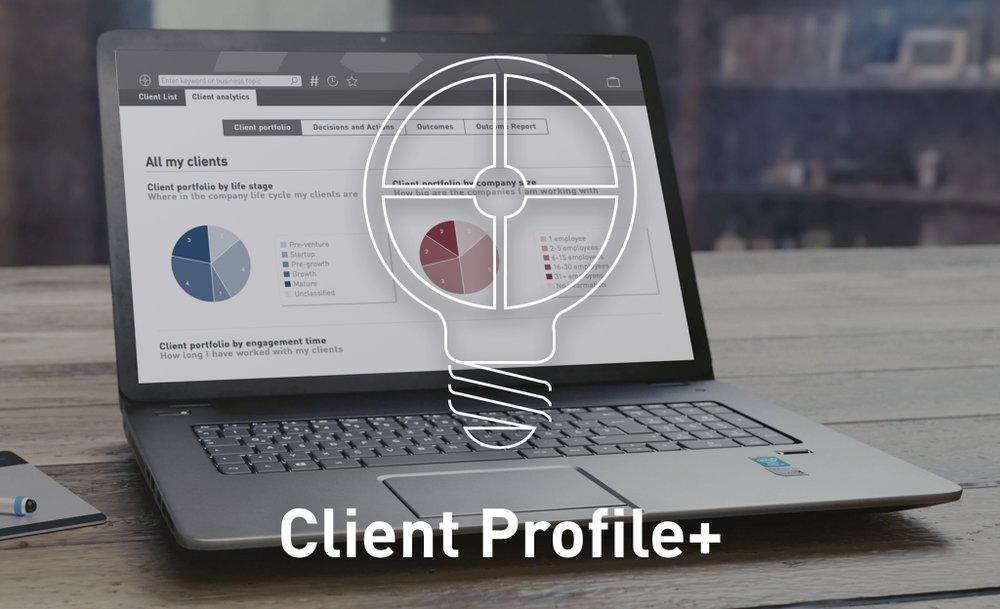
Many have asked for a way to keep all information about your clients in one place. Today, we are happy to release the new Client Profile, a simple, nice-looking menu where you can keep track of all your client data.
In the Client Profile, you can add each of your client's contact info, business info, team members, legal info, and financials. And after you added information about your clients, go to Client Analytics where you can see your client portfolio by life stage, company size, and engagement time.
#1 Client Profile
Save all client information
In the Client Profile, advisors can add their clients' contact info, business info, team members, legal info, and financials.
#2 Client Portfolio
Get an overview of your clients
Advisors can also get a visual overview of all clients in Client Analytics where they can see their client portfolio by life stage, company size, and engagement time.
#3 Improved Analytics
Charts of outcomes
We have improved the Scoreboard menu with aggregated charts of your clients' outcomes by achievements and results, and by category.
#4 Shared Space for Client Files
Upload files to your clients
We have improved the menu Shared Files so you can easily upload and share files and keep all files you and your client shared in one place.
What is Next?
—Get a sneak-peak of what we are working on...
In GrowthWheel we are committed to making continuous and never ending improvements of our software in collaboration with our users. We have hundreds of upcoming features in our road map, and here you can see what is on top of the list:

- Client Postbox where you can keep track of all e-mails you sent to your clients from your e-mail application.
- Client Profile customized so you have the specific fields you need in your country or industry.
- Further improvements to Ambitions and Outcomes with PDF reports and more visual analytics.
New release: Ambitions And Outcomes

Help Clients Rank Their Ambitions
and Keep Track of Outcomes
- A new way to help clients focus on what matters
All business advisors speak with their clients about their ambitions, and work to turn them into measurable outcomes. Today, we are proud to introduce a new tool on GrowthWheel Online Beta: A scoreboard where you and your clients can rank ambitions and keep track of outcomes.You can make a list of your clients' ambitions and rank them in terms of what to focus on.
When ambitions are turning into outcomes you can keep track of them quarter by quarter to see for yourself - and show your client - all the results and achievements you have created together.
To try out the new features go to My Clients, select a client and go to the new menu "Scoreboard". Here you can add ambitions and outcomes for your client.
#1 New Menu Scoreboard
Select a client and go to the new menu "Scoreboard". Here you can create ambitions and outcomes by switching between the two views.
#2 Create a New Ambition
To create a new ambition select the submenu "Ambitions" and click on "New". You can now give the ambition a title, select the work area, a category and the quarter and year of when you expect to fulfill the ambition. Then save it as a draft or share it with your client.
#3 Add Decisions and Actions to Each Ambition
You can add decisions and actions to each ambition. They will both show up below the ambition and in the 30-60-90 Action Plan.
#4 Monitor Ambitions with Traffic Lights
You can rank all ambitions with a simple traffic light system to monitor their progress:
Is the ambition somewhat a challenge, in progress, or on track?
#5 Create a New Outcome
To create a new outcome select the submenu "Outcomes" and click on "New". You can now give the ambition a title, select the work area, a category, the quarter and year, and if it is a result or an achievement. Then save it as a draft or share it with your client.
#6 Result or Achievement?
Results are meassureable outcomes such as revenue growth, a new time-saving process, or a stronger market position. Archivements are something you can be proud of such as launching a new product, hiring a new employee, or receiving an award.
#7 Keep Track of All Outcomes
You and your client can use the Scoreboard to keep track of all results and achievements quarter by quarter.
New Release: Notifications

Stay Up-To-Date on Clients' Action Plans
- Get an email report to help you follow-up
Now you can easily get the big picture of what your clients have on their 30-60-90 Action Plan. Going forward you will get an email with the same information you see online so you can quickly decide which clients to follow up with.
In this release you will:
- Get a weekly email report of your clients' open decisions and actions
- Get an email notification when your client uploads a file for you
- Be able to manage you own and your clients' reports and notifications
Your clients will:
- Get a monthly email report with the list of the decisions and actions they have scheduled for the next 30 days or less
- Be able to manage their own notifications
#1 Weekly reports of open decisions and actions
Every Monday you will get a report of each client's open decisions and actions. This will help you and your clients stay focused and plan the week ahead.
#2 Notifications when your clients upload files
Now you don’t have to check each of your clients anymore to know if they have completed a Worksheet and uploaded it to GrowthWheel Online. Instead you will get a notification each time a client uploads a file.
#3 Your clients get a monthly report
Your clients get a monthly report with the list of the decisions and actions they have scheduled for the next 30 days or less. You can turn off this report in your client's profile.
#4. Don’t want to receive notifications?
Don’t worry, we thought about that too. You can turn off the reports and notifications in the new account settings page. Go to the top menu with your name and select “My profile”, then open the tab “Account settings”. By default the notifications are switched on.
New Release: Keep Track of Client Meetings

Log and share all client interactions
- Track decisions and actions. Share with clients.
This month we are happy to introduce a new way to track your work with clients. Today you will find a new menu called “Interactions”. Here you can track each interaction you have with your clients, and add decision and actions discussed during your meeting. When ready you can download all interactions as a PDF that you can upload to your CRM-system.
Log in to GrowthWheel Online today to see:
- The new menu “Interactions” under each of your clients
- A new way to invite clients you created as draft
- New visual icons for decisions, actions, and notes
- Edit decisions and actions directly in the 30-60-90 Day Plan
Step 1: Go to the new interaction menu
You can now log all interactions with your clients, and keep track of the decisions and actions you discuss during your meeting. Go to the the client’s menu and you’ll see the new menu “Interactions".
Step 2: Create a new interaction
It is easy to create a new interaction: Just name the interaction, select type, and set the date and time. Like with the Online 360° Screening tool, you can decide to keep the interaction as a draft or save and share it with your client. If you share it your client will be able to see a PDF of the interaction.
Step 3: Add Decisions and Actions
You can log any decisions or actions you and your client have discussed during your meeting. The decisions and actions from your shared interaction will also be visible for your clients in the 30-60-90 Day Plan.
New Release: Big Data

Monitor clients' progress month by month
- Use big data to make your own decisions
With our June release, it is now possible to track your clients’ progress in a way that has never been possible before!
We are introducing two new charts in the Dashboard Menu so you can monitor all your clients’ completed decisions and actions, whether they are added to the cloud by you or your clients. With the latest features in GrowthWheel Online Beta you can see this on the updated dashboard:
• Decisions and actions completed per month for each client
• Aggregated data for all your clients, your organization, and your entire network
• Amount of work completed for each of the four main work areas in the business
With a bird's eye view on how many decisions and actions clients are executing you can make better decisions on which clients to spend your time on, and also see if some areas are in need of more attention.
New Menu: All Clients Dashboard
- Follow your clients' progress

In the new menu, "All Clients Dashboard", you can see the total amount of completed decisions and actions each month for all your clients.The two charts show the decisions and actions grouped by work area so you can easily see within which areas you have been working and when.

The monthly charts that you find in the "All Clients Dashboard" show the aggregated data of all your clients. You can also see monthly charts for each individual client. Choose a client from your client list and click on Client Dashboard.