New Features

New feature: Simple PDF with Financial Overview

release.001.jpeg

In November, we are releasing the new “Financial Overview” menu with all your clients’ financial information — ready to be printed as a PDF and shared with stakeholders.

We have moved the pages with financial information from the Business Profile to their own rightful space: The new “Financial Overview” menu.

Here, you will find information about your clients’:

  • Revenue

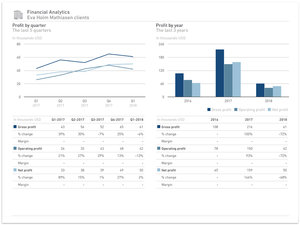
  • Profit

  • Balance Sheet

  • Employees

  • Funds received (NEW)

And this is just the beginning! We will add more financial pages in the near future.

Below you can get a quick introduction to the Financial Overview menu by David Madie, GrowthWheel founder and CEO.


3 Documents for the Lender
—Same format for all clients

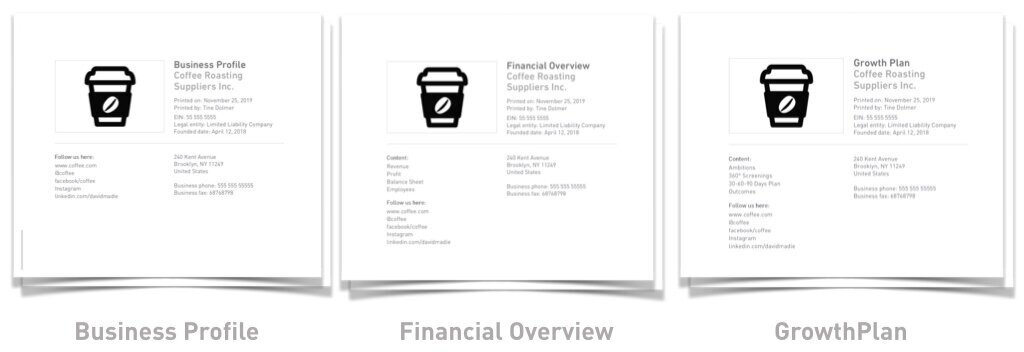
The “Financial Overview” completes the trio of documents your client needs to get good advice and funding:

  • The Business Profile with the facts

  • The GrowthPlan about the future

  • The Financial Overview with the numbers
release.002.jpg

All-new Page for Funds Received
— Track your client’s funding

In the “Financial Overview” menu you will now find the new submenu “Funds received”. Here you and your clients can get an overview of the funds the client company has received by quarter and year.

When adding new funds, you can specify the type of funding, the name of the lender or provider, the amount approved, the main use of the funds, if the funding was approved, and the quarter and year.

As always, you can print the page as a PDF report where you can see the total funds received by quarter or year.

november.001.jpeg

Introducing the GrowthPlan: One PDF with all information about how your client plans to grow the company

GrowthPlan.001.jpeg

This month, we are happy to introduce the new GrowthPlan on GrowthWheel Online. A new PDF document to print alongside the Business Profile.

With the GrowthPlan, you can now with one click print a single PDF document with all the information about how your client plans to grow the company:

  • A list of Ambitions

  • The 30-60-90 Days Plan with decisions and actions

  • The latest 360° Screening of what to focus on

  • A list of Outcomes

Each page can still be downloaded one page at a time, or you can download a full GrowthPlan with a nice cover page.

As always, your clients can also print this document themselves when you have given them a free account on GrowthWheel Online.


Below you can get a quick introduction to the GrowthPlan by David Madie, GrowthWheel Founder and CEO.


Updated and simplified menus

With the introduction of the GrowthPlan, we have simplified the “My Clients” menu to make it easier to navigate and find the tools and features you are looking for.

There are 3 changes:

  • The new GrowthPlan menu combines “Decisions and Actions” and “Scoreboard”

  • Client Files have been moved to its own menu (from a submenu)

  • All Client Analytics have also been moved to its own menu

GrowthPlan.001.jpg

This is only our first release of the new GrowthPlan. We will add more pages to the GrowthPlan in upcoming releases. As always your ideas are welcome. Write us at support@growthwheel.com.


New release: Improved Balance Sheet

Master GO releases 2018-19.001.jpeg

Last month, we released the Balance Sheet. Now, we are releasing 3 new features, that will make it work even better for you!

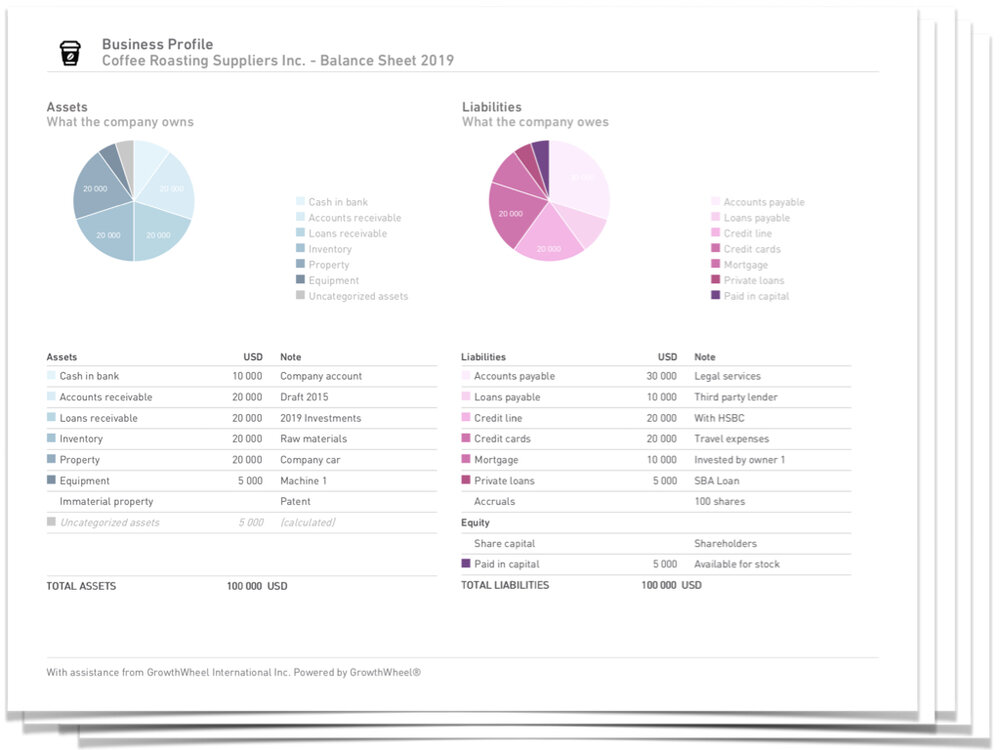
The Balance Sheet is a new page on the Business Profile on GrowthWheel Online that helps you and your clients get a quick overview of the company’s distribution of assets and liabilities.

With the 3 new features, you can now:

Master%2BGO%2Breleases%2B2018-19.002.jpg

Decide if the Balance Sheet should be visible or not when you download the full Business Profile from GrowthWheel Online

Make Balance Sheets for previous years. This is useful when you are in the middle of the year, like 2019, and would like to see the numbers for last year.

Add the date the Balance Sheet was created. The date will show on the printed Balance Sheet as well.


The Balance Sheet
—Printed as a single-page PDF

Balance Sheet.001.jpeg

New release: Get the Big Picture of Your Clients' Assets and Liabilities

Balance Sheet.001.jpeg

Forget all about sending Excel templates back-and-forth! This month, we are releasing a new Balance Sheet on GrowthWheel Online, that will help you and your clients get a quick overview of the company’s distribution of assets and liabilities.

The Balance Sheet is the latest add-on to the Business Profile, where you can already enter financial information like revenue, profit, employee count, and funds.

Even clients who lack fluency in accounting can easily pick and choose from pre-made assets like “cash in bank”, “inventory, and “prepaid expenses” and enter the amounts. Or they can add liabilities like “mortgage”, “private loans”, and “credit cards”.

The chart will immediately show the distribution of the client’s assets and liabilities, and the table will show the totals.

The Balance Sheet is 'smart' in the way that “total assets” will always be equal to “total liabilities”. When an asset is added, an uncategorized liability will automatically be added to make the balance sheet stabilize until a liability is added to provide a specification.

This is just the first release of the Balance Sheet — in a few weeks we are releasing even more features!


Below you can get an introduction to the Balance Sheet by David Madie, GrowthWheel Founder and CEO.


The Balance Sheet
—get a quick overview of your client’s assets and liabilities

As always, the Balance Sheet can be printed as a visual one-pager, or as a part of the entire Business Profile, so it’s easy to share with stakeholders or bring along to the bank.

Balance Sheet.002.jpeg

New release: Brush-up of GrowthWheel Online

Frontpages.001.jpeg

As you may have noticed, we have given GrowthWheel Online a quick brush-up this summer.

In this release, we have focused on updating a few features that will make it more convenient for you to use GrowthWheel Online.

  • We have changed to a new font that is more readable

  • An improved client company/manager layout

  • The logo on the “My Clients” page is bigger and more visible

  • The download button is bigger and easier to find

  • Interactions are in a new color

We hope these brush-ups will make it easier for you to use GrowthWheel Online to work with your clients!


Examples of the new layout
—Making it more convenient to use GrowthWheel Online!

JulyReleaseNew.002.jpeg

The client’s logo is more visible

JulyReleaseNew.002.jpeg

New view of client interactions

Dark blue download button


New Release: See a Business Summary in the Business Profile

Master GO releases 2018-19.001.jpeg

This month, we are releasing an update to the Business Profile, so you can now see a Business Summary of your clients.

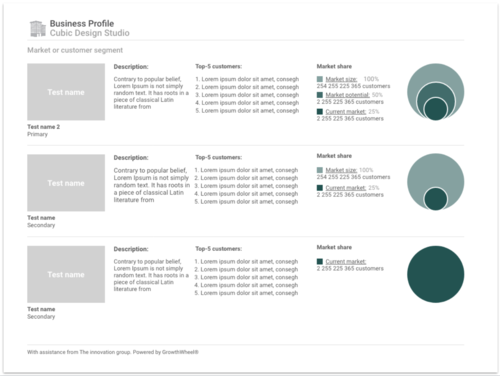
The Business Profile is getting better! With the new update, you can see a Business Summary with just one click. A separate page will appear in your Business Profile, outlining all the values and beliefs, market or customer segments, and customer references you and your client have been working on.

To see the Business Summary go to “My Clients” on GrowthWheel Online and select a client. Under “contact” look for a download button in the top right corner. Then, you choose whether you want a full Business Profile or simply just the Business Summary.

The Business Summary gives you and your client a visual overview of how their organization is performing - it even lists competitors and market players.

The Business Summary will show the progress your client has made and focus on the key aspects of the organization. You can read about the history, mission, product & services, team members and much more! 

The business summary gives a quick and accurate 360° perspective on the company - benefiting both the advisor and the client.


Unique Business Summary
—get a quick overview of your client’s organization

June release.001.jpeg

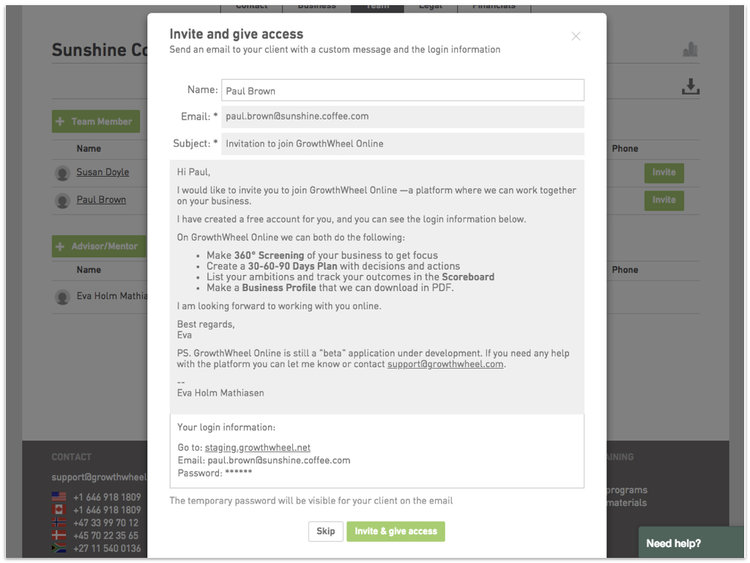
Email your clients directly from GrowthWheel Online

email clients.001.jpeg

Today, we are releasing a new feature on GrowthWheel Online that allow you to quickly send emails to your clients directly from the platform.

It’s really easy! Simply choose one of your clients in the “Client list” on GrowthWheel Online and click on the new email icon. You can now send the email to one or more team members from your client company. You can also add cc or bcc receivers - like a colleague or a CRM-integration.

For your convenience, we have also created some email templates that makes it easy for you to welcome new clients, invite them for a workshop, confirm a meeting, or follow up on your work together.

This is just the first release of this feature. Soon, you will also have the option to edit and save your own personal email templates for every step in the workflow with clients.


Save time with ready-made email templates
—A fast and easy way to catch up with clients!

email clients.002.jpeg

New Analytics Report — All Charts in One PDF

Master GO releases 2018-19.001.jpeg

Today, we are releasing an update to the Analytics menu, so that you can now print a visual PDF report with all analytics of your clients.

In the “Analytics” menu you can see all analytics for your clients’:

  • Demographics

  • Financials

  • Decisions and Actions

  • Ambitions and Outcomes

  • Interactions

Before, you had to print one page at a time, but now you can download a full analytics report with a single click.

As an advisor, you can compile a PDF report with all analytics and upload it to any other CRM system you might be using for reporting. This is a great way to visually show the effects of your work.

Your clients can also view analytics of their company and their work on GrowthWheel Online and use the PDF report to showcase their progress to investors, new partners, clients, or the bank. 

If you are a center manager or network manager, you can see analytics for your entire organization or network. This is a fast way to get the big picture of what the advisors and clients are working on. You can run through the numbers with your team, or use it as a weekly or monthly review of how your clients are progressing.


Print all analytics as a visual PDF-report
—ready to be shared with stakeholders or used for reporting

You can download all the analytics and reports as a visual PDF and upload it to any other CRM system you might be using for reporting.

release april.002.jpeg

New release: Create visual team member profiles to support conversations

Team Member Profiles.001.jpeg

Today, we are releasing an update to the team page in the Business Profile, which gives you the opportunity to create visual team member profiles for all employees and board members in your client companies.

The new Team Member Profiles will help business advisors get a quick overview of the client company’s management, employees, and board members.

For each team member you can add information like contact details, educational and professional bio, and role in the company. You can also add sections where you describe the team member’s job responsibilities and professional skills, or demographics for reporting.

The Team Member Profiles support the conversations you are already having with your clients. And by turning your notes into a product in the cloud, you make it much easier for your clients to present their team to stakeholders — or show that they have the required skills to grow the company.

All the new team member profiles can be printed as a visual PDF report — ready to be shared with stakeholders or used for reporting at your center.


On GrowthWheel Online you will be able to:

  • Create profiles for each team member in the client company

  • Add contact information, responsibilities, professional skills, and demographics

  • Print the profile as a visual PDF-report


Create a Team Member Profile in 3 Easy Steps

release.001.jpg

#1 Add basic information for each team member

Add information like contact details, educational and professional bio, and role in the company.

#2 Add skills and responsibilities

List the team member’s job responsibilities and professional skills.


#3 Add Client demographics

Add client demographics that you can use for reporting.


Print the profile as a visual PDF-report
—ready to be shared with stakeholders or used for reporting

release.003.jpeg

New Release: Schedule Future Meetings on GrowthWheel Online

future interactions.001.jpeg


Our February release brings an update to the Interactions menu so you will be able to schedule and invite clients in addition to keeping track of past interactions.

Starting today, you can schedule interactions like meetings, phone calls, and workshops in the “Interactions” menu on GrowthWheel Online — and invite one or more clients to join you.

When you invite a client for a meeting you can use our new customizable email templates that list all the practical details and allow you and your client to copy the meeting to your personal calendar.

In the Interactions menu you will be able to filter planned interactions from past interactions, manage all interactions, and generate analytics.

You can also print all planned and past interactions as a visual PDF you can use for reporting.


On GrowthWheel Online you and your clients will be able to:

  • Schedule interactions like meetings, phone calls and workshops and add practical details and purpose of the interaction.

  • Copy new meetings to your Google, iCal or Outlook calendar

  • View and download all past or planned Interactions on GrowthWheel Online


3 Easy Steps to Plan Interactions

#1 Schedule a new interaction

Fill in all relevant information about the new interaction, such as type, date and time, location, and purpose.


#2 Invite one or more clients

The customizable email templates make it easy to invite your client to join you for a  meeting. You and your client can also copy the meeting to a Google, iCal, or Outlook calendar.


#3 Manage and download interactions

You can manage all past and scheduled interactions on GrowthWheel Online and download the list as a visual PDF that you can use for reporting.


New Release: An easy way to put customer references on display

jan release final.001.jpeg


For our first release of 2019, we are launching an update to the Business Profile that makes it possible to display the customers that can serve as your client’s references.


With Customer References your clients can easily show their customer references to lenders or others who receive the company’s business. These references may have positive stories they can share about your client’s products or services.

This feature will be available in the new menu “Customer References” and allows you and your clients to add more detailed information about your client’s customers — in addition to the market and customer segment in the Business Profile.


On GrowthWheel Online you and your clients will be able to:

  • Create new Customer References and add details about them

  • Download all Customer References as a visual PDF

  • View all Customer References on GrowthWheel Online


3 Easy Steps to Show Customer References

#1 Create a new reference

Add all the details about each of your client’s customers, such as name, status, description, and the year the customer was acquired.

You can also upload an image or the customer’s logo.


#2 Download PDF overview

Get a visual overview of your client’s customer references by downloading them as PDF file.

Now you can easily print or share the references with other stakeholders.


#3 Manage references online

You and your client can view or edit all customer references on GrowthWheel Online in the new menu.


2018 in Review: New Releases on GrowthWheel Online

Over the course of 2018 we have improved and added new features on GrowthWheel Online thanks to the valuable feedback from our users!

We are committed to making continuous and never-ending improvements of the software in collaboration with our users. We release new features on a monthly basis, and we have hundreds of upcoming features on our road map.

In 2018 we released 10 new features. Check them out below or on GrowthWheel Online.


Release overview

January: Track Your Clients' Profit with Charts

In our first release of 2018, we added profit charts to the Business Profile. This gives you and your clients a more comprehensive and complete financial view of the business.


EN+Release+March.002.jpeg

March: E-mail Templates

Save time when you invite new clients with our new e-mail templates brought to you in March.

Instead of writing an new e-mail every time you invite a client to the platform, you now have a ready-made e-mail that you can edit to your wishes.


April: Manage Mentor Relationships

With our April release we created the option to manage your relationship with external mentors on GrowthWheel Online.

In the menu "My Network" you can add mentors, create mentor profiles and download them as good-looking PDFs.


June: See your Clients Market Potential with a Visual Chart

With our June release you can see a visual chart that shows the market potential of your client companies.

Simply add estimated numbers for Market size, Market potential, and Current Market in the client’s Business Profile.


July: Add Partners to the Business Profile

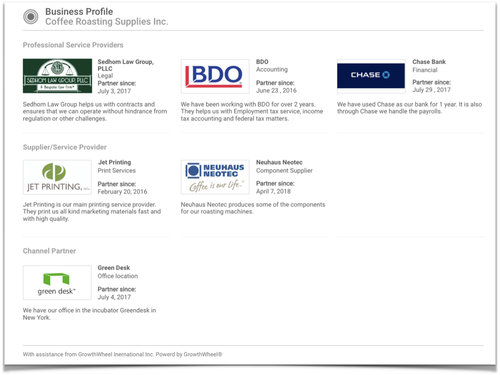
With this release you can add a list of your client companies' partners and see them on a new page in the PDF.

Showing who the client is working with is important information that is useful for banks, lenders, investors, and also yourself.


August: Add the Client's Legal Documents to the Business Profile

Share Legal Information with Stakeholders.

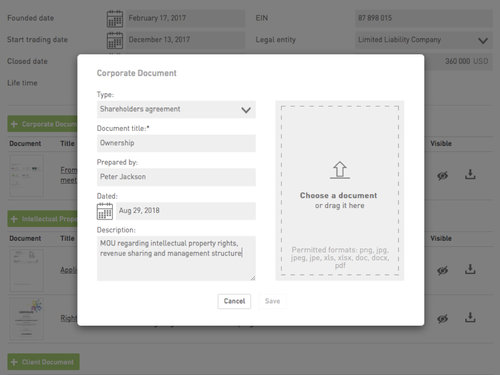
This release makes it possible for advisors and client companies to upload legal documents to GrowthWheel Online and include them in the Business Profile. 


pics2.001.jpeg

September: Assign Decisions and Actions on the 30-60-90 Days Plan

Execute on your ideas by assigning and follow-up.

Our september release brought a substantial improvement to the 30-60-90 Days Plan that allows advisors and their client companies to assign decisions and actions directly to team members.


release pic.002.jpeg

October: Video tutorials for all Decision Sheets

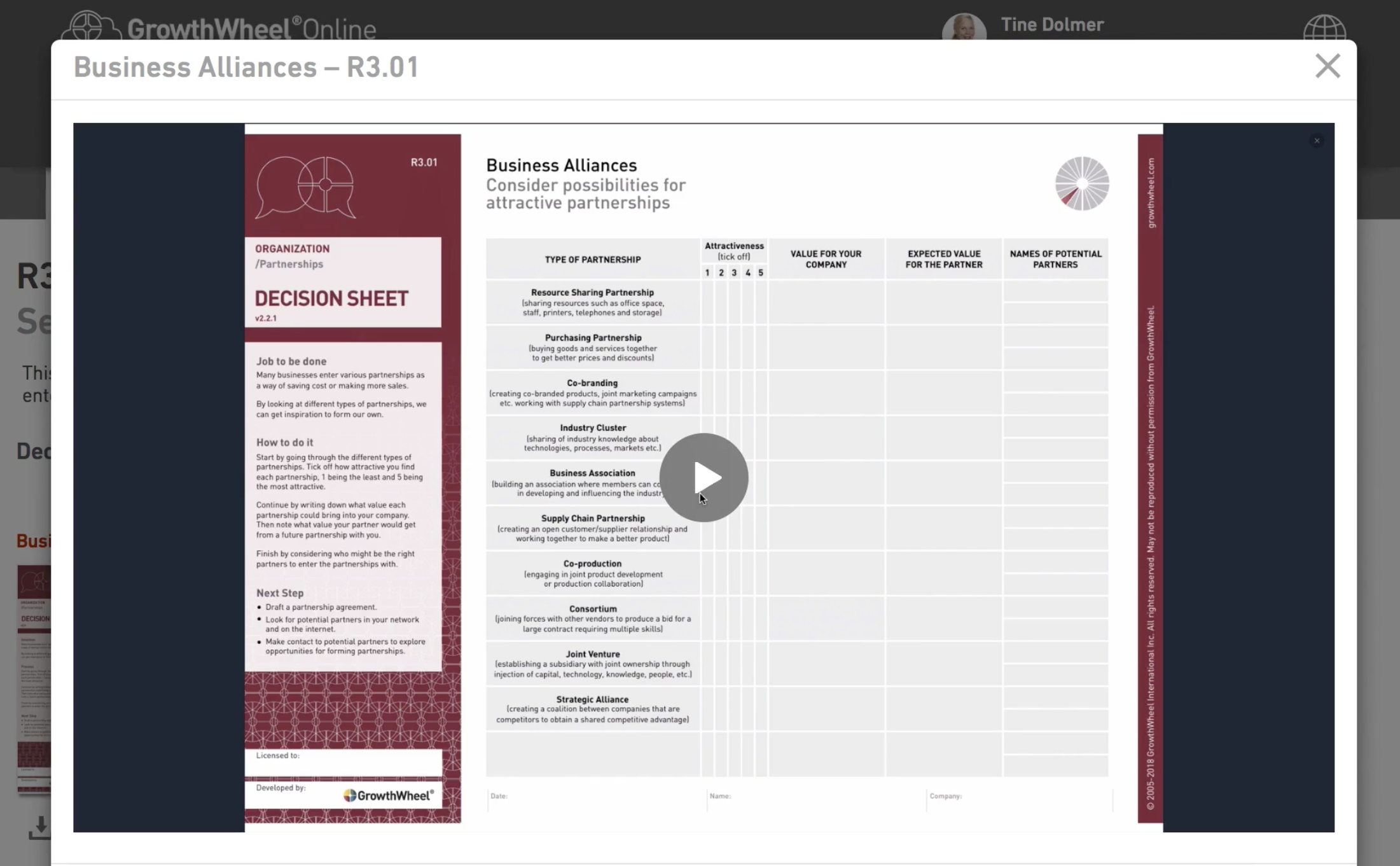
With this release, you and your clients can watch short video tutorials that explain the 100 GrowthWheel Decision Sheets.

Find the Decision sheets on GrowthWheel Online, and look for the video icon!


release+pic.001.jpeg

November: Plan your workshops with GrowthWheel

In November, we released ready-made workshop programs that you can use to plan, promote, and execute your own workshops.

All materials can be tailored to fit your exact needs.


Personal+tools.gif

December: Save and share links on GrowthWheel Online

Our December release enables you to add links to your Personal Tools for each stage of your service: Intake forms (PDF links), Information to register a business, Links to instruction videos, Online sign up forms for your organization’s workshops, and so on.


NEW: Save and share links on GrowthWheel Online

add links.001.jpeg

Now you can share links to YouTube videos, PDF-files, your organization’s website and more with your clients the same way you share tools on GrowthWheel Online.

This release makes it easier to add and organize information that needs to be shared between you and your client — keeping everything in one place.

You can add links to your Personal Tools for each stage of your service: Intake forms (PDF links), Information to register a business, Links to instruction videos, Online sign up forms for your organization’s workshops, and so on.

To get started, login to GrowthWheel Online, and go to the menu Personal Tools.

You will be able to:

  • Save website or video links that you can later share on GrowthWheel Online with your clients.

  • When saving the link in Personal Tools, you can add it to your favorite tools, share it with clients by email, or add it to the tool basket (if you want to share multiple tools and links).


Add links to your Personal Tools in 2 easy steps

#1 Add links you want to share

Go to the menu Personal Tools to add a new link. Add a name, choose “link” in the category, and add the URL of the link you want to share.

You can also add a thumbnail of the information you want to show.


#2 Share links with your client

After adding a new link, you can share it by email with your client, add the link to your Favorites, or the Tool Basket.

You can also add the link directly to the advisor/client files so the link is automatically shared with that person.


NEW: Plan Your Workshops with GrowthWheel

release pic.001.jpeg

In November, we are happy to release ready-made workshop programs that you can use to plan, promote, and execute your own workshops.

The workshop programs on GrowthWheel Online, make it easier than ever before to set up and organize your own training. All materials can be tailored to fit your exact needs.

To get started, login to GrowthWheel Online, select a workshop topic, and download the template description and slidedeck.

In the footer menu Workshop Programs you will find:

  • 20 new workshop descriptions that you can use for inspiration or as templates

  • 20 new slidedecks with outlines for workshops including presenter notes

  • 2 brand new Decision Sheets that will help you plan the training

  • Examples of workshops run by GrowthWheel Certified Advisors

If you would like more ideas for how to plan you own workshop program join our OnTrack Webinar on December 14th.


4 steps to prepare your own workshop program

pics2.001.jpeg

#1 Decide what you would like to offer your clients

You can use the 2 new Decision Sheets to decide what you would like to offer your clients and which focus areas your workshops will cover.


release pic.002.jpeg

#2 Plan each workshop

You can use the 20 new workshop descriptions - one for each focus area - as inspiration to plan your own workshops.

The workshop descriptions are available as PDF’s and as template PowerPoint slides.


pics.002.jpeg

#3 Promote your workshops

You can use the marketing slides or workshop descriptions to promote your workshops. All are available as template PowerPoint slides.

You can also see examples of how other GrowthWheel Certified Advisors are promoting their programs.


pics.001.jpeg

#4 Get ready for kick-off

You can use the 20 new template slidedecks as an outline for your own presentation.

All slides have presenter notes to make it even easier for you!


NEW: Video Tutorials for all Decision Sheets

Screen Shot 2018-05-17 at 10.43.07 AM.png

With our October release, you and your clients can now watch short video tutorials that explain the 100 GrowthWheel Decision Sheets.

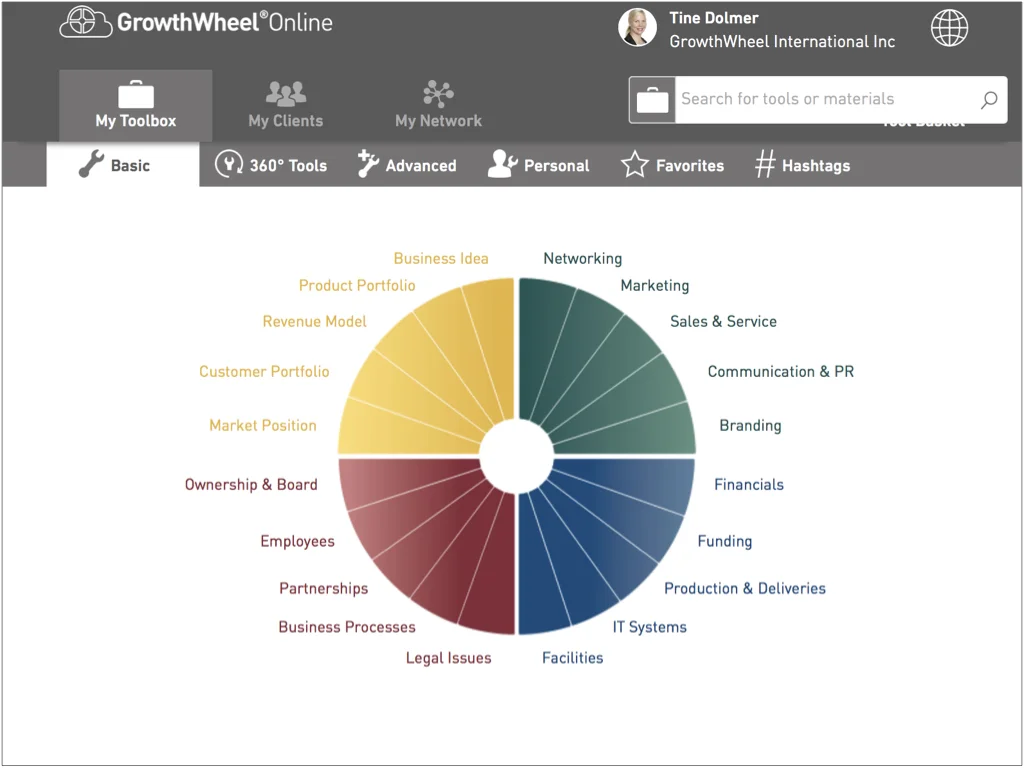
As an advisor you can watch the video tutorials under My Toolbox on GrowthWheel Online — just look for the video icon!

Each video tutorial explains the Decision Sheet in 1-2 minutes: the job to be done, how to do it, and next steps.

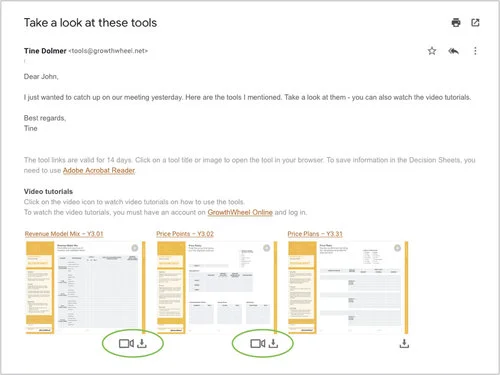
When you email or share a Decision Sheet, your client will be able to watch the video tutorial if he or she has been invited to work with you on GrowthWheel Online. So all you have to do is invite your client and start sharing!

More than ever before the video tutorials allow for clients to better self-serve, giving them an improved digital experience when working with you.


Below you can watch the video tutorial for the Decision Sheet Staff Cost Benefit


3 steps to share tutorial videos with your clients

#1 Look for the video icon

Log in on GrowthWheel Online, go to the Toolbox, find one or more Decision Sheets, and look for the video icon.

Click on the video icon to watch the tutorial.


#2 Share Decision Sheets with clients

Select one or more Decision Sheets and send them to your client.

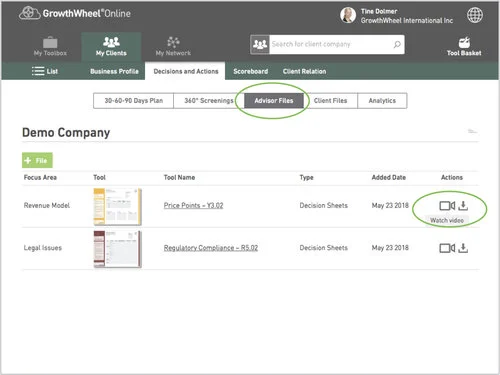
When you share a Decision Sheet, your client can click on the video icon in the email and will be directed to the menu Advisor Files on GrowthWheel Online, where he or she can watch it.


#3 Your clients can watch the shared video tutorials on GrowthWheel Online

You client can always find video tutorials for shared Decision Sheets in the menu Advisor Files on GrowthWheel Online.